
Imagine your computer performing at its peak, effortlessly managing large amounts of data without a hitch. The key to unlocking this power lies in understanding the Intel Rapid Storage Device Driver.
Whether you’re a tech enthusiast striving for maximum efficiency or someone who simply wants their computer to run smoother, this driver holds the potential to revolutionize your system’s performance. What exactly is it, and why should you care? By delving into the world of Intel’s rapid storage technology, you can uncover how this driver can transform your computing experience, making data management faster and more reliable.
Stay with us as we explore how you can harness this powerful tool to optimize your system’s capabilities.
Credit: www.intel.com
Benefits Of Intel Rapid Storage
Intel Rapid Storage offers several benefits for computer systems. It enhances the performance of your storage devices. This can lead to faster data processing. It also improves reliability, safeguarding your data against failures. Explore the benefits of this technology in more detail below.
Improved Performance
With Intel Rapid Storage, your system runs faster. The technology boosts the speed of data transfer. Applications load quickly, saving you time. Multitasking becomes smoother and more efficient.
Enhanced Data Protection
Data safety is crucial. Intel Rapid Storage helps protect your information. It uses RAID technology to guard against data loss. If a hard drive fails, your data remains safe.
Greater Storage Capacity
Need more storage space? Intel Rapid Storage can help. It allows you to combine multiple drives. This creates a single large storage pool. Store more files without worry.
Energy Efficiency
Intel Rapid Storage is energy efficient. It manages power use effectively. This reduces energy consumption. Your system runs cooler and uses less electricity.
Easy Installation
Setting up Intel Rapid Storage is simple. The installation process is user-friendly. Even beginners can follow the steps easily. Start using the technology quickly.
Installation Process
The Intel Rapid Storage Device Driver enhances system performance. It also boosts data reliability. Installing it correctly is vital for optimal functionality. Follow this guide to install the driver smoothly. Ensure your system meets the requirements.
System Requirements
Before installation, check the system requirements. Your operating system should be compatible. Windows 10 and Windows 11 are supported. Ensure your computer has an Intel chipset. The latest BIOS updates help avoid compatibility issues. At least 1GB of RAM is necessary. A minimum of 10MB free space is needed for installation.
Step-by-step Guide
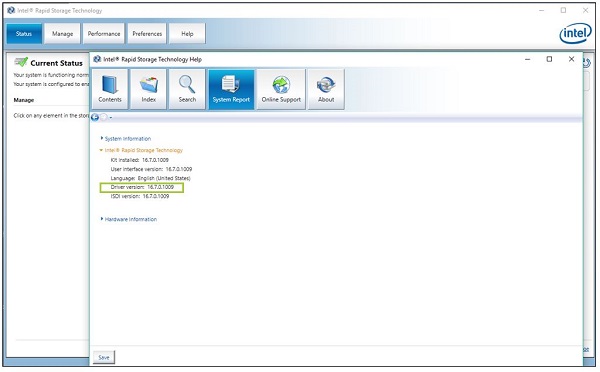
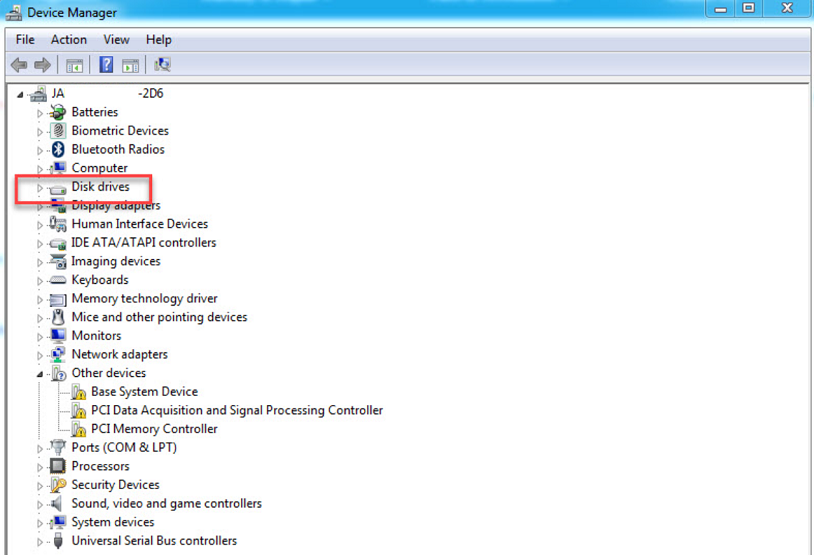
First, download the driver from the official Intel website. Save it to your computer. Locate the downloaded file. Double-click it to start the installation. A setup wizard will appear. Follow the on-screen instructions carefully. Agree to the terms and conditions. Choose the installation location on your system. Click ‘Install’ to begin the process. Wait for the installation to complete. Restart your computer to apply changes. Check the driver status in the Device Manager.
Configuring Raid Arrays
Configuring RAID arrays can enhance your system’s performance and reliability. RAID, or Redundant Array of Independent Disks, combines multiple disk drives into a single unit. This setup improves data storage and retrieval. Intel Rapid Storage Device Driver simplifies this process. It provides tools to configure RAID arrays easily.
Raid Levels Explained
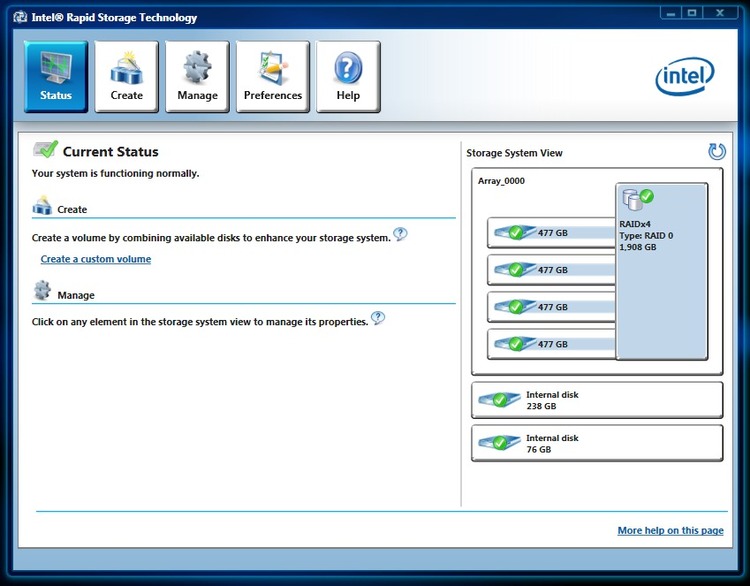
RAID levels define how data is stored across drives. RAID 0 splits data across drives. This speeds up read and write operations. But, it offers no data protection. RAID 1 mirrors data on two drives. It ensures data safety if one drive fails. RAID 5 uses three or more drives. It balances speed and data protection. RAID 10 combines RAID 0 and RAID 1. It offers both speed and redundancy.
Setting Up Raid In Windows
Setting up RAID in Windows is straightforward with Intel’s driver. First, ensure your system supports RAID. Check your motherboard and BIOS settings. Install the Intel Rapid Storage Device Driver. Open the Intel Rapid Storage Technology application. Select the option to create a RAID volume. Choose the RAID level that suits your needs. Follow the on-screen instructions to complete the setup.
Credit: www.cbicorporate.com
Optimizing Performance
Boost system efficiency with Intel Rapid Storage Device Driver. It enhances data access speed and reliability. Ideal for improving your computer’s performance.
Optimizing performance with the Intel Rapid Storage Device Driver can transform how your computer handles data. Whether you’re a gamer, a video editor, or a data analyst, enhancing your storage performance is crucial. You might not realize it, but the right settings and health checks can make a world of difference in speed and reliability.Adjusting Settings
Adjusting the settings of your Intel Rapid Storage Device Driver can significantly boost your system’s performance. Start by accessing the Intel Rapid Storage Technology software on your PC. Here, you can modify settings like write-back caching, which can speed up data writing operations. Don’t forget to enable the link power management feature to reduce power consumption without sacrificing performance. It’s surprising how these small tweaks can improve your system’s responsiveness. Have you ever tried adjusting these settings? If not, give it a shot and see the difference for yourself.Monitoring Storage Health
Monitoring the health of your storage devices is just as important as adjusting settings. Regular checks can prevent data loss and maintain optimal performance. Use the Intel Rapid Storage Technology software to view the health status of your drives. Look for SMART (Self-Monitoring, Analysis, and Reporting Technology) indicators. These indicators provide early warnings of potential drive failures. Isn’t it reassuring to know you can catch issues before they become serious problems? Consider setting up alerts for any significant changes in drive health. This proactive approach ensures you’re always on top of your storage management. Have you checked your storage health recently? It’s a small task that can save you from major headaches.Troubleshooting Common Issues
Dealing with Intel Rapid Storage Device Driver issues can be frustrating. These problems often disrupt workflow and cause delays. Understanding common issues helps in resolving them quickly.
Driver Update Problems
Driver updates can sometimes fail. This might be due to incompatible software. Ensure your system meets the driver requirements. Check the manufacturer’s website for the latest updates. Uninstall older versions before installing new ones. This can prevent conflicts.
Raid Configuration Errors
RAID configuration errors are common with Intel Rapid Storage. Incorrect settings often lead to these issues. Verify your RAID setup for accuracy. Use the Intel Rapid Storage Technology console. It guides you through the configuration process. Check cables and connections to ensure proper setup.
Credit: support.lenovo.com
Future Of Storage Technology
The future of storage technology is evolving rapidly. Innovations promise faster, more efficient data management. The Intel Rapid Storage Device Driver plays a significant role in this transformation. It enhances data accessibility and reliability, paving the way for advanced storage solutions.
Trends In Storage Solutions
Storage solutions are increasingly focusing on speed and efficiency. Cloud storage is gaining popularity for its accessibility. Solid-state drives are replacing traditional hard drives. These trends reflect the demand for seamless data handling. Consumers want quick access to their files.
Security is also a growing concern in storage technology. Encryption and data protection features are becoming standard. Users seek assurance that their data is safe. Technology must address these needs effectively.
Intel’s Role In Innovation
Intel is at the forefront of storage innovation. Its Rapid Storage Device Driver improves data processing speeds. Users experience quicker access to their information. Intel also focuses on data integrity and reliability.
The company invests in research to enhance storage technology. They aim to provide solutions that meet modern needs. Intel’s advancements contribute significantly to storage evolution.
Intel’s technologies support better system performance. They help manage large volumes of data efficiently. This is crucial in today’s digital landscape.
Frequently Asked Questions
What Is Intel Rapid Storage Device Driver?
Intel Rapid Storage Device Driver enhances storage performance and reliability. It manages RAID configurations, boosts data access speeds, and improves system responsiveness. This driver is essential for optimizing storage solutions in Intel systems, ensuring efficient data management and protection against drive failures.
How To Install Intel Rapid Storage Driver?
To install Intel Rapid Storage Driver, download it from Intel’s website. Follow the installation wizard to complete the setup process. Ensure your system meets the requirements before installation. Restart your computer after installation to activate the driver and improve storage performance.
Why Update Intel Rapid Storage Driver?
Updating Intel Rapid Storage Driver ensures compatibility with new hardware and software. It enhances system stability, boosts storage performance, and addresses security vulnerabilities. Regular updates provide improved features and fix bugs, ensuring optimal operation and reliability for your Intel-based system.
Can Intel Rapid Storage Improve Ssd Performance?
Yes, Intel Rapid Storage can enhance SSD performance by optimizing read/write processes. It speeds up data access, ensures efficient use of storage space, and improves overall system responsiveness. This driver effectively manages storage tasks, making SSDs faster and more reliable for daily operations.
Conclusion
Intel Rapid Storage Device Driver boosts computer performance. It manages storage efficiently, ensuring faster data access. Users enjoy smoother operation and less waiting time. Compatibility with various devices adds convenience. Regular updates keep the system optimized and secure. Installing this driver enhances reliability.
Troubleshooting storage issues becomes easier with it. Users benefit from improved system responsiveness. Consider upgrading your driver for better performance. Make computing tasks quicker and more enjoyable. Efficient storage management leads to a better experience. Keep your system running smoothly with Intel’s driver support.
Experience improved speed and functionality daily.



