
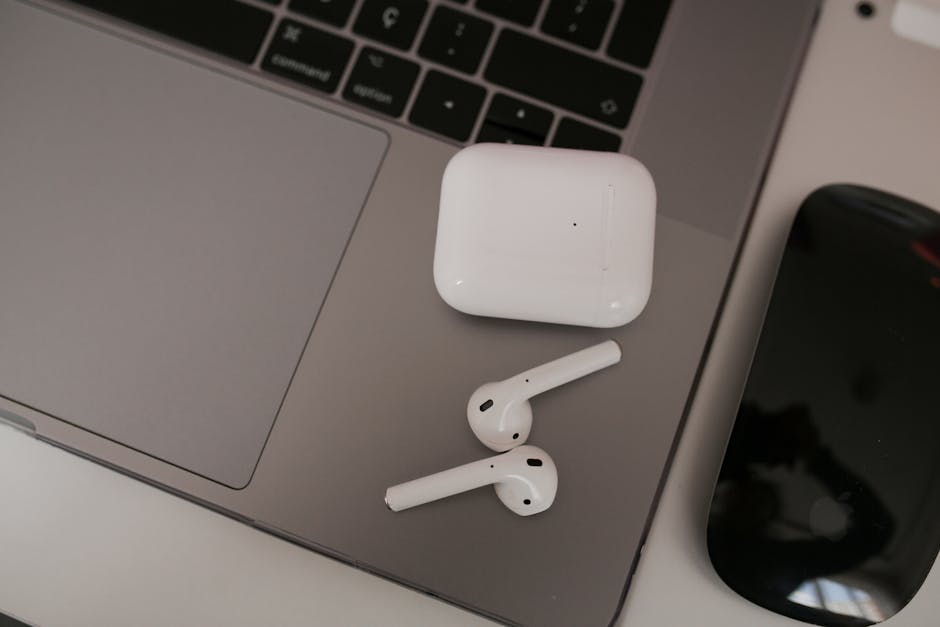
Imagine transforming your desktop computer into a hub of wireless convenience. With Bluetooth technology, you can connect all your gadgets without the mess of tangled cords.
Picture yourself seamlessly linking your keyboard, mouse, and even speakers, all while keeping your workspace tidy and efficient. As someone who values ease and functionality, you might wonder how to integrate Bluetooth into your desktop computer. This article will guide you through the benefits and steps of setting up Bluetooth on your desktop, making your tech experience smoother and more enjoyable.
Dive in, and discover how you can elevate your desktop to new heights of wireless freedom.

Credit: www.amazon.com
Bluetooth Basics
Bluetooth has become a common feature in desktop computers. It allows devices to connect wirelessly. This section explores the basics of Bluetooth technology. Understanding Bluetooth can help enhance your computing experience.
What Is Bluetooth?
Bluetooth is a wireless technology. It connects devices over short distances. It uses radio waves instead of wires or cables. You can connect keyboards, mice, and headphones to your computer. Bluetooth offers convenience and flexibility.
How Bluetooth Works
Bluetooth uses radio frequency to transmit data. It operates in the 2.4 GHz band. Devices need to be paired to communicate. Once paired, they create a secure connection. Bluetooth can manage multiple connections at once. It ensures devices communicate efficiently.
Benefits Of Bluetooth Connectivity
Bluetooth provides several advantages. It eliminates the need for cables. This reduces clutter on your desk. You can connect devices quickly and easily. Bluetooth supports a wide range of devices. It enhances mobility and productivity.
Bluetooth offers secure connections. It protects your data from unauthorized access. It also saves power. Bluetooth devices consume less energy. This helps extend battery life. Overall, Bluetooth improves the user experience.
Credit: www.reddit.com
Setting Up Bluetooth On Desktop
Setting up Bluetooth on your desktop can unlock a world of wireless possibilities, from syncing your headphones to transferring files without cables. But how do you get started? Whether your desktop already has Bluetooth capabilities or needs a little boost, understanding the setup process is crucial. Let’s dive into the essentials of checking for built-in Bluetooth and using external adapters to ensure your desktop is ready for all things wireless.
Checking For Built-in Bluetooth
First, determine if your desktop already has Bluetooth built-in. This can save you from unnecessary purchases. To check, head to your computer’s settings.
On Windows, open the Device Manager. Look for a Bluetooth section or device listed. If it’s there, you’re good to go!
Mac users can check by clicking the Apple menu and selecting “About This Mac.” Click “System Report” and look for Bluetooth under “Hardware”.
If you see Bluetooth listed, you’re set. But what if it’s not there?
Using External Bluetooth Adapters
No built-in Bluetooth? No problem. External Bluetooth adapters are a simple solution. They are often small USB devices that plug into your desktop.
These adapters can be found online or in tech stores at affordable prices. Popular brands include ASUS and TP-Link.
Installation is straightforward—plug the adapter in and follow the on-screen prompts. Your desktop will soon be Bluetooth-ready.
Have you ever been frustrated by tangled cables at your desk? Switching to Bluetooth can solve this hassle effortlessly.
Once set up, enjoy the convenience of connecting devices wirelessly. Imagine working with a wireless mouse or syncing a Bluetooth speaker.
Isn’t it time to upgrade your desktop experience with a dash of wireless freedom?
Pairing Devices
Pairing devices with your desktop computer via Bluetooth can open up a world of wireless possibilities. Whether it’s connecting your headphones for a seamless audio experience or linking a keyboard for clutter-free typing, Bluetooth technology offers a flexible and easy way to enhance your computer setup. But how do you ensure a smooth connection and overcome any hiccups along the way?
Connecting Bluetooth Devices
To connect Bluetooth devices to your desktop, start by enabling Bluetooth in your system settings. Most desktops have a straightforward toggle for this.
Next, ensure your device is discoverable. This usually involves pressing a button or navigating through the device settings.
Check your desktop’s Bluetooth menu for available devices. Once you spot yours, click to pair. It’s as easy as ordering your favorite coffee online.
Have you ever felt the thrill when your device connects instantly? It’s like magic when technology works without a hitch.
Troubleshooting Pairing Issues
Pairing problems can be frustrating. First, ensure the device is charged and within range. Bluetooth signals can be finicky with distance.
Make sure no other devices are interfering. Turn off Bluetooth on nearby gadgets and try again.
Sometimes, restarting your computer or the device can solve the issue. It’s a classic trick that works more often than you’d think.
Have you ever solved a tech issue and felt like a genius? Don’t shy away from trying simple solutions first.
What device will you connect next? Is there a gadget that’s collecting dust because you haven’t paired it yet? Dive into your tech arsenal and make it work for you!
Enhancing Bluetooth Performance
Bluetooth technology in desktop computers offers wireless convenience. Enhancing its performance ensures stable connections and efficient data transfers. This is crucial for users relying on wireless peripherals. Better Bluetooth performance boosts productivity and user experience.
Improving Signal Range
Improving signal range is essential for reliable Bluetooth connections. Ensure your desktop is positioned centrally in the room. This allows signals to reach peripherals more effectively. Walls and furniture can block signals. Place Bluetooth devices within clear line of sight. Consider using a Bluetooth adapter with extended range features. This can significantly improve connectivity.
Reducing Interference
Reducing interference optimizes Bluetooth performance. Other wireless devices can create signal disruptions. Keep your desktop away from microwaves and cordless phones. These can interfere with Bluetooth signals. Adjust Wi-Fi router channels to minimize overlap. Dual-band routers help separate frequencies. This reduces potential interference. Use Bluetooth devices at a distance from Wi-Fi routers. This ensures cleaner connections.
Applications Of Bluetooth On Desktops
Bluetooth technology has transformed desktop computer functionality. It offers wireless connectivity options that enhance productivity and convenience. Integrating Bluetooth into desktops allows users to connect various devices seamlessly. This connectivity opens up multiple applications, making daily tasks easier and more efficient.
Wireless Peripherals
Bluetooth enables the use of wireless keyboards and mice. These peripherals reduce clutter and provide flexibility. Users can move around their workspace with ease. This setup is ideal for those who prefer a clean desk environment. It also helps in improving ergonomics by offering more placement options.
Audio Streaming
Streaming audio from desktops is simple with Bluetooth. Connect Bluetooth speakers or headphones for quality sound. This is perfect for listening to music or attending online meetings. Enjoy clear and crisp audio without wires. It is also useful for gaming experiences, providing immersive sound.
File Transfers
Bluetooth simplifies file sharing between devices. Transfer documents, images, and other files wirelessly. This is useful for quick data exchanges. Bluetooth file transfers save time and effort. Users can easily share files with nearby devices without a network connection.
Security Considerations
Bluetooth on desktop computers poses security challenges. Unauthorized access can lead to data breaches. To protect sensitive information, use strong pairing codes and regularly update software.
As you integrate Bluetooth technology into your desktop computer, it’s essential to understand the security considerations involved. Wireless connectivity offers great convenience, but it also exposes you to potential security risks. While Bluetooth provides the freedom to connect devices without cables, it’s crucial to ensure your connection is secure and protected from unauthorized access.Protecting Your Connection
Securing your Bluetooth connection is the first step towards protecting your data. Always ensure that your Bluetooth is off when not in use. This simple action reduces the risk of unwanted devices trying to connect. Regularly update your device’s software. Manufacturers often release patches to address security vulnerabilities. Keeping your software current helps protect against new threats. Consider changing your Bluetooth visibility settings. Set your desktop computer’s Bluetooth to “non-discoverable” mode unless you are actively pairing a device. This makes it harder for potential attackers to find your device.Avoiding Unauthorized Access
Unauthorized access is a serious concern with Bluetooth technology. Always pair your devices in a secure environment, away from public areas. This minimizes the chance of someone intercepting your connection. Use strong passcodes or PINs for pairing. A simple code may be easy to remember, but it’s also easy to crack. Opt for a more complex combination to enhance your security. Be cautious about accepting requests to pair with unknown devices. Such requests could be attempts to access your personal information. If you’re unsure, reject the request immediately. Have you ever wondered how often we overlook simple security measures? By being proactive and vigilant, you can enjoy the benefits of Bluetooth while keeping your data safe. Always remember: a secure connection is a smart connection.Future Of Bluetooth Technology
Bluetooth technology has come a long way, transforming how we connect our devices. As we look to the future, the potential of Bluetooth in desktop computers is enormous. It promises not only faster and more reliable connections but also a range of new applications that can make your digital life more seamless and enjoyable.
Advancements In Bluetooth Versions
Bluetooth technology continues to evolve, with each version bringing significant improvements. The latest versions offer better data transfer rates and increased range. This means you can connect your desktop to devices across the room or even in another part of your house without losing connection quality.
One exciting feature is the enhanced audio quality in Bluetooth 5.2, which is perfect for those who love streaming music or engaging in video calls. Imagine hearing every note clearly, whether you’re jamming to your favorite tunes or catching up with a friend. Faster pairing speeds also mean less waiting and more doing, saving you precious time.
Emerging Applications
The future of Bluetooth isn’t just about faster connections—it’s about innovation. Picture a workspace where your desktop automatically syncs with your smartphone, transferring files with a simple click. Or envision a home office where multiple Bluetooth devices work in harmony, creating a smart environment that adjusts lighting and sound based on your preferences.
Bluetooth technology is also paving the way for enhanced security features, crucial for protecting your data. As more of our lives become digital, safeguarding your information becomes vital. The ability to securely connect multiple devices without the hassle of wires opens up a world of possibilities.
Consider the convenience of wireless peripherals like keyboards and mice, which eliminate clutter and enhance productivity. What new Bluetooth-enabled device do you wish existed to make your life easier? Your feedback might just inspire the next big innovation in Bluetooth technology.
The future of Bluetooth in desktop computers is bright, filled with advancements that can significantly enhance your everyday digital experience. Stay curious and engaged, as the next wave of Bluetooth innovations is just around the corner.

Credit: www.amazon.com
Frequently Asked Questions
How Do I Enable Bluetooth On My Desktop?
To enable Bluetooth on your desktop, first check if your computer has Bluetooth capabilities. If it does, go to ‘Settings’, click on ‘Devices’, and then ‘Bluetooth & other devices’. Toggle the Bluetooth switch to ‘On’. Ensure your Bluetooth drivers are updated for optimal performance.
Can All Desktops Connect To Bluetooth Devices?
Not all desktops have built-in Bluetooth. Many older models lack this feature. If your desktop doesn’t support Bluetooth, consider using a USB Bluetooth adapter. This device plugs into a USB port and enables Bluetooth connectivity, allowing you to connect peripherals like headphones and keyboards.
How Do I Troubleshoot Bluetooth Issues On Desktop?
Start by ensuring Bluetooth is enabled on your desktop and the device you’re connecting. Check for driver updates in ‘Device Manager’. Restart both devices if issues persist. Ensure no interference from other wireless devices. Consult the manufacturer’s support website for specific troubleshooting steps.
What Are Common Uses For Bluetooth On Desktops?
Bluetooth is primarily used for connecting peripherals like keyboards, mice, and speakers. It’s also useful for transferring files between devices and connecting to wireless printers. Additionally, Bluetooth can connect desktops to smartphones for tethering and syncing data, enhancing productivity and convenience.
Conclusion
Bluetooth in desktop computers brings a lot of benefits. Connecting devices wirelessly simplifies tasks. No more tangled cables or limited ports. Pair headphones, keyboards, and mice effortlessly. Enjoy improved mobility and flexibility. It’s easy and convenient. Many desktops now come with built-in Bluetooth.
Upgrading older models is possible too. Choose the right adapter for compatibility. It enhances your computing experience. Stay updated with Bluetooth technology. It’s essential for modern computing needs. Explore new possibilities with seamless connections. Make your desktop more versatile and efficient.
Bluetooth is a smart addition to any setup.



