
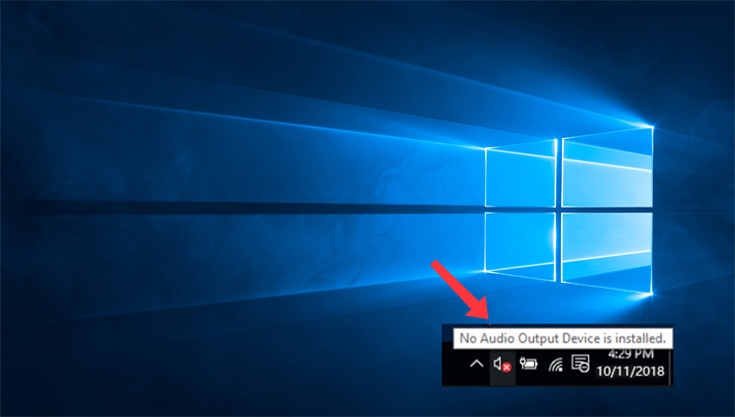
Imagine you’re about to watch your favorite movie or join an important video call, and suddenly, silence. Your computer shows the dreaded message: “Windows No Audio Device is Installed.”
Instantly, frustration kicks in. This issue can turn a simple task into a time-consuming problem. But don’t worry; you’re not alone, and the solution is within reach. In this guide, we’ll take you through simple, effective steps to get your audio back on track.
You’ll discover easy-to-follow tips that anyone can apply, even if you’re not tech-savvy. By the end, you’ll not only solve the problem but also feel more confident handling similar tech issues in the future. Let’s turn that silence into sound!

Credit: www.youtube.com
Common Causes
Experiencing the “No Audio Device is Installed” error in Windows? You aren’t alone. This issue frustrates many users. Understanding the common causes helps in tackling it effectively. Let’s explore the reasons behind this problem.
1. Outdated Or Missing Drivers
Drivers act as a bridge between your hardware and operating system. Outdated or missing drivers disrupt this connection. This often leads to audio problems. Regular updates are essential. They ensure your audio device functions correctly.
2. Disabled Audio Device
Sometimes, the audio device is simply disabled. This can occur after system updates or changes. Re-enabling it might solve the issue. Check your device settings to ensure it’s active.
3. Incorrect Audio Output
The wrong audio output can confuse your system. It tries to send sound to a device that isn’t there. Always check your audio output settings. Ensure the correct device is selected.
4. Hardware Malfunctions
Physical damage to audio components causes problems too. Check for broken parts or loose connections. Simple checks often reveal the source of the problem. If there’s damage, seek professional repair.
5. Software Conflicts
Competing software can disrupt audio functions. Some programs may override or disable your audio device. Identify and manage these conflicts. Regularly review installed applications for potential issues.
Initial Checks
Start by ensuring your audio drivers are up-to-date. Check if the sound settings have been accidentally changed. Verify if the audio device is properly connected and recognized by Windows.
Experiencing the “No Audio Device is Installed” error on your Windows computer can be frustrating, especially when you’re trying to listen to music or watch a video. Before diving into complex solutions, conducting some initial checks can save you time and hassle. These basic steps can often resolve the issue quickly, allowing you to enjoy uninterrupted sound. Let’s delve into these straightforward checks to ensure your audio device is ready to go. Ensure Proper Connections First, check the physical connections of your audio devices. Is your speaker or headphone cable securely plugged into the correct port? Sometimes, a loose cable can be the culprit behind the missing audio. A quick glance at your setup can reveal if things are plugged in correctly. Consider using another set of headphones or speakers to test if the issue persists. This simple swap can help you identify if the problem lies with the device itself. Check Volume Levels Have you ever muted your computer during a meeting and forgotten to turn it back on? It happens more often than you’d think. Double-check the volume levels on your system. Look at the taskbar for the speaker icon and ensure it’s not muted or turned all the way down. Adjust the volume slider and see if the audio returns. Sometimes, a quick tweak is all it takes to bring back your sound. Verify Device Status Is your audio device recognized by Windows? Navigate to your Device Manager and look for any yellow warning symbols next to your audio device. This indicates a problem that needs your attention. Right-click on the device and select “Properties” to view its status. If Windows shows an error, you might need to update or reinstall the driver. This step can often resolve mysterious audio issues with just a few clicks. Taking these initial checks seriously can often lead to simple solutions, saving you from unnecessary stress and troubleshooting. Have you tried these steps before, and did they work for you? Share your experiences and insights below—your story might just help someone else!Driver Issues
Experiencing “Windows No Audio Device is Installed” can be frustrating. This issue often arises from outdated or missing drivers. Ensuring your audio drivers are up-to-date typically resolves this problem quickly.
When you encounter the frustrating “No Audio Device is Installed” message on your Windows computer, driver issues often lie at the heart of the problem. Drivers act as a bridge between your hardware and software. If they malfunction or are outdated, your audio system might not work correctly. Understanding how to manage these drivers can be the key to restoring sound.Update Audio Drivers
Keeping your audio drivers up-to-date is crucial. Manufacturers frequently release updates to fix bugs and improve performance. Start by checking your device manager. Look for your sound card under “Sound, video, and game controllers.” Right-click and select “Update driver.” You can choose to search automatically for updated driver software. Updating might seem mundane, but it can be transformative. Imagine the moment when your computer finally bursts into sound after days of silence. Are you ready to hear that sweet notification chime again?Reinstall Audio Drivers
If updating doesn’t work, reinstalling the audio drivers might do the trick. Sometimes, drivers can become corrupted. Uninstall the current driver by right-clicking on it in the device manager and selecting “Uninstall device.” After uninstalling, restart your computer. Windows will attempt to reinstall the driver automatically. If it doesn’t, visit the manufacturer’s website to download the latest version manually. Reinstalling might seem like a hassle, but it’s a straightforward process that might surprise you with its effectiveness.Roll Back Driver Updates
Occasionally, the latest driver update might not be compatible with your system. In such cases, rolling back to a previous version can resolve the issue. Go to the device manager, find your audio driver, and click “Properties.” In the “Driver” tab, select “Roll Back Driver” if the option is available. Rolling back can feel like stepping back in time, but it’s often a necessary journey to restore functionality. Have you ever wondered if your computer is trying to tell you something by refusing the new updates?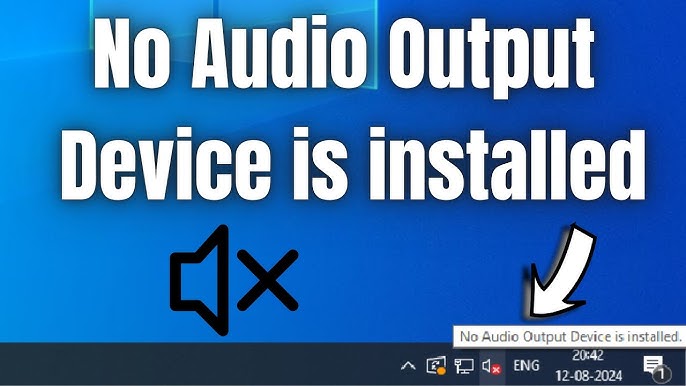
Credit: www.youtube.com
Audio Service Problems
Experiencing audio issues on your Windows device can be frustrating. Often, the problem may lie with the audio service itself. Audio services are essential for sound functions. They ensure your device plays audio correctly. If these services encounter issues, your device may not recognize audio devices.
Restart Audio Services
Sometimes, simply restarting audio services can fix the issue. To do this, press the Windowskey and type Services. Open the Servicesapp. Look for Windows Audioin the list. Right-click on it and select Restart. This action refreshes the audio service.
After restarting, check if the sound problem is resolved. If not, proceed to modify the service settings. Restarting is a quick fix and often effective.
Modify Service Settings
If restarting doesn’t help, you may need to adjust settings. In the Servicesapp, right-click on Windows Audio. Choose Properties. Ensure the Startup typeis set to Automatic. This setting ensures the audio service starts with Windows.
Click Applyand then OKto save changes. Restart your computer to see if the issue resolves. Correct settings are crucial for audio services to function properly.
Operating System Settings
Struggling with audio issues on Windows can be frustrating. One common problem users face is the “No Audio Device is Installed” error. Adjusting your operating system settings can often resolve this issue, ensuring your computer delivers sound smoothly. This section will guide you through essential steps to fix these audio problems.
Run Audio Troubleshooter
The built-in audio troubleshooter can diagnose sound problems. It scans your system for potential issues and suggests fixes. To access it, open the Start menu. Type “Troubleshoot” in the search box. Select “Troubleshoot settings” from the results. Click on “Playing Audio” and then “Run the troubleshooter”. Follow the prompts. This tool can automatically repair many audio problems.
Configure Playback Devices
Proper configuration of playback devices is crucial. Right-click on the sound icon in your taskbar. Select “Playback devices”. A list of available audio devices will appear. Ensure your desired device is enabled. If it’s disabled, right-click and choose “Enable”. Set it as the default device if necessary. This ensures audio outputs to the correct device. Confirm changes by clicking “Apply” and “OK”. This simple step can restore your sound functionality.
Credit: www.drivereasy.com
Hardware Troubleshooting
Experiencing audio issues on Windows can be frustrating. Sometimes, the problem isn’t software-based. It might be related to hardware components. Hardware troubleshooting can resolve the ‘No Audio Device is Installed’ error. This process involves examining physical parts of your computer. Start by checking your sound card and testing external audio devices.
Check Sound Card
Begin by inspecting your sound card. It’s vital for audio output on your PC. Ensure it’s securely connected to the motherboard. Loose connections can cause audio issues. You might need to open the computer case. Use caution to avoid damaging other components. If unsure, seek help from a professional.
After checking connections, verify the sound card’s status. Access Device Manager through the Control Panel. Look for any warning signs next to the sound card. Yellow exclamation marks indicate driver or hardware problems. If needed, update or reinstall the sound card drivers.
Test With External Devices
Testing with external devices helps identify internal hardware issues. Use headphones or external speakers to test audio output. Connect these devices to the audio jack of your computer. If sound plays, the internal speakers might be faulty.
Also, try using a USB sound card. It bypasses the internal sound card. Plug it into a USB port and see if audio issues persist. This test helps determine if the built-in card is the problem.
Advanced Solutions
Sometimes, basic solutions might not fix the “No Audio Device is Installed” issue. Advanced solutions offer more in-depth troubleshooting for persistent audio problems. These methods require some technical know-how but can effectively resolve the issue.
Update Bios
Updating the BIOS can sometimes resolve hardware compatibility issues. Check your computer’s manufacturer website for the latest BIOS version. Follow their instructions carefully to update it. This process might improve your system’s ability to recognize audio devices.
Perform System Restore
A system restore can revert your computer to a previous state. This might fix the audio device issue if it started recently. Access the system restore feature from the Control Panel. Select a restore point before the audio problem began. Follow the prompts to complete the process.
Frequently Asked Questions
Why Is My Audio Device Not Detected?
Your audio device might not be detected due to outdated drivers or incorrect settings. Check your Device Manager to see if drivers need an update. You can also troubleshoot using Windows’ built-in audio troubleshooter for potential fixes.
How Do I Reinstall Audio Drivers?
To reinstall audio drivers, open Device Manager and locate the audio device. Right-click and choose “Uninstall. ” Restart your computer, and Windows will automatically reinstall the drivers. You can also visit the manufacturer’s website for the latest drivers.
Can A Windows Update Cause Audio Issues?
Yes, a Windows update can occasionally cause audio issues. Updates might alter settings or conflict with drivers. Check for updates, and ensure all drivers are current. You can also roll back updates if the problem started after a recent update.
What Steps Fix Audio Device Errors?
To fix audio device errors, first check connections and ensure devices are plugged in. Update or reinstall audio drivers, and run the built-in audio troubleshooter. Check settings in Control Panel to ensure the correct device is selected.
Conclusion
Fixing audio issues on Windows can be straightforward. Follow the steps outlined. First, check device connections. Then, ensure audio drivers are updated. Troubleshoot using Windows tools. Restart the computer to apply changes. If problems persist, contact support for help. Regular maintenance keeps your system healthy.
Check for updates often. Stay informed about Windows changes. This ensures smooth audio performance. Remember, patience is key. Problems can often be solved with simple steps. Enjoy clear sound once the issue is fixed. Your device will work better, enhancing your experience.
Keep learning for better tech understanding.



