
Imagine this: you’re all set to enjoy your favorite music or dive into an online meeting, but suddenly, there’s no sound coming from your speakers. Frustrating, right?
The culprit might just be your Intel audio device driver. Whether you’re tech-savvy or just getting acquainted with your computer’s inner workings, understanding and managing your Intel audio device driver is crucial. It not only ensures you get the best sound quality but also keeps your system running smoothly.
In this post, you’ll discover why this driver is so important, how it impacts your daily tech experience, and what you can do if things go awry. Stick with us, and you’ll gain the knowledge to troubleshoot like a pro and keep your audio experience seamless.
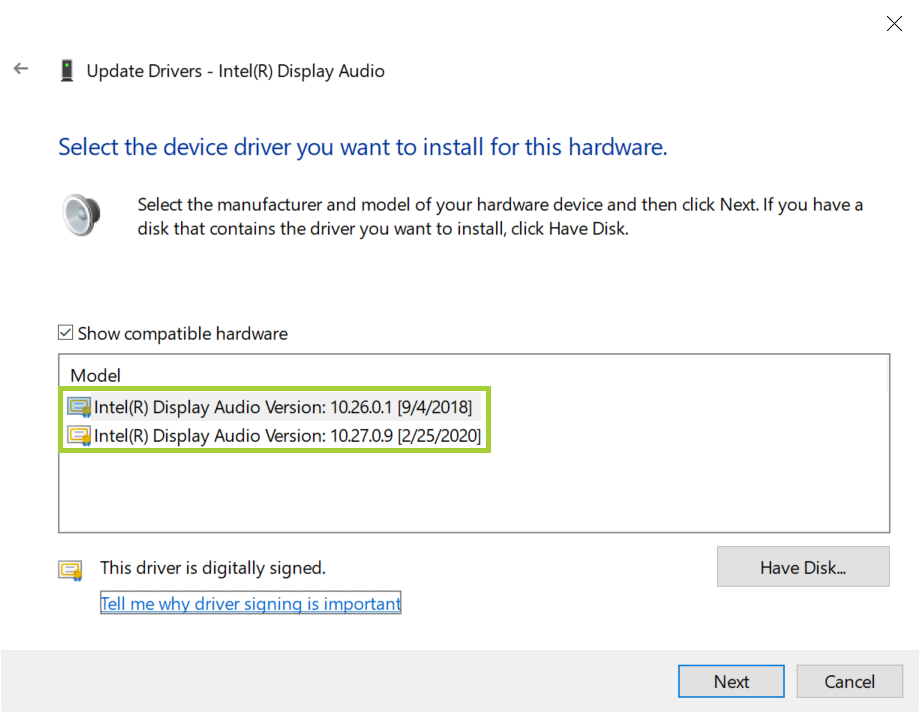
Credit: www.intel.com
Intel Audio Device Driver Overview
The Intel Audio Device Driver is essential for high-quality sound. It ensures your computer’s audio hardware functions smoothly. This driver bridges the gap between your operating system and audio hardware. Without it, you might face sound issues or no sound at all. Understanding this driver can enhance your audio experience.
Understanding The Basics Of Intel Audio Device Driver
An audio driver acts like a translator. It converts digital signals into sound. The Intel Audio Device Driver is specifically designed for Intel hardware. It optimizes audio performance and enhances sound quality. Keeping it updated ensures the best audio experience.
Importance Of Updating Your Intel Audio Device Driver
Regular updates improve performance. They fix known bugs and enhance compatibility. Outdated drivers can cause sound problems. Updating ensures your audio system works efficiently. It also supports new features and technologies.
How To Identify Your Current Driver Version
Knowing your driver version is crucial. Open the Device Manager on your computer. Find the “Sound, video and game controllers” section. Right-click on your Intel audio device. Select “Properties” to see the driver version. This information helps in troubleshooting.
Steps To Update Intel Audio Device Driver
Updating is simple. Visit Intel’s official website. Navigate to the support or downloads section. Search for the latest driver for your device. Download and install it following the instructions. Restart your computer to apply changes.
Common Issues With Intel Audio Device Driver
Some users face issues like no sound or static. These can result from outdated drivers. Corrupted files or incorrect settings can also cause problems. Updating the driver often resolves these issues. Checking your audio settings can help too.
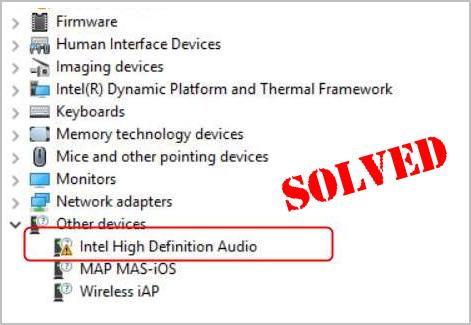
Credit: www.drivereasy.com
Key Features
Intel Audio Device Driver offers a range of key features that enhance user experience. It’s designed to deliver superior audio performance across various devices. Explore the standout features that make this driver a valuable addition to your setup.
Improved Sound Quality
The driver is engineered for crisp, clear sound. It eliminates distortions, ensuring audio clarity. Enjoy music, movies, and games with enhanced sound fidelity. Experience rich bass and smooth treble.
Compatibility With Devices
Intel Audio Device Driver supports multiple devices seamlessly. It works with desktops, laptops, and tablets. The driver adapts to different audio hardware effortlessly. Ensures a consistent audio experience across platforms.
User-friendly Interface
The interface is intuitive and easy to navigate. Simple settings allow quick adjustments. Users can manage audio settings with ease. The layout is accessible, making it ideal for all users.
Installation Process
Installing the Intel Audio Device Driver is easy. First, download the driver from Intel’s official website. Then, follow the on-screen instructions to complete the installation. This ensures your audio devices work smoothly with your Intel hardware.
Installing an Intel Audio Device Driver can be a straightforward process, yet it’s crucial to follow the correct steps to ensure optimal performance. Whether you’re a tech enthusiast or a casual user, knowing how to properly install these drivers can make a significant difference in your audio experience. Imagine effortlessly enjoying your favorite tunes or having crystal-clear conversations online. Let’s dive into the installation process and make your audio setup sing.System Requirements
Before diving into the installation, ensure your system meets the necessary requirements. Your computer should have a compatible Intel processor and an operating system like Windows 10 or newer. Check your system specifications to avoid any compatibility issues. Is your device up to date? It’s a good idea to run the latest OS updates to prevent glitches during installation.Step-by-step Guide
Installing the Intel Audio Device Driver can be done with a few simple steps. Start by downloading the driver from the official Intel website. This ensures you get the most recent and secure version. 1. Download the Driver: Navigate to the Intel website and find the correct driver for your system. 2. Open the File: Locate the downloaded file in your computer’s ‘Downloads’ folder and open it. 3. Follow the Prompts: A setup wizard will guide you through the installation process. Simply follow the on-screen instructions. 4. Restart Your Computer: Once installed, restart your computer to finalize the setup. This helps integrate the new driver seamlessly. Have you ever installed software only to find it doesn’t work as expected? Restarting your computer can often solve these minor hiccups.Common Installation Pitfalls
Even with a straightforward process, there are common pitfalls to watch out for. Are your current audio drivers conflicting with the new installation? Removing outdated or incompatible drivers can prevent errors. Also, ensure your internet connection is stable during the download to avoid incomplete files. Do you ever find technology frustrating? Taking these small steps can save you from larger headaches later on. Would you prefer smooth sailing over tech troubles?Ensuring Proper Functionality
Once installed, test your new driver by playing audio through different sources. Check your device manager to see if the driver is correctly listed. Is your audio still not up to par? Adjust your system settings and update any additional drivers if necessary. How often do you check your settings after installing new software? Keeping everything in top shape ensures you’re getting the best possible audio quality. By following these steps, you ensure your Intel Audio Device Driver is installed correctly, paving the way for enhanced audio experiences. Consider the ease of future updates and how they might improve your system further. Are you ready to elevate your listening experience?Troubleshooting Common Issues
Intel Audio Device Driver issues can disrupt sound quality. Check compatibility and update drivers regularly for seamless audio. Addressing common errors promptly ensures optimal performance and enhances user experience.
Troubleshooting common issues with your Intel Audio Device Driver can feel like solving a mystery. You may find yourself in a situation where your sound isn’t working, leaving you frustrated and confused. This guide will help you navigate through typical problems, offering practical solutions to get your audio back on track. Whether you’re facing installation errors, playback issues, or compatibility concerns, there’s a way to fix them. Let’s dive into the specifics and ensure your audio experience is seamless.Driver Installation Errors
Did you try installing the Intel Audio Device Driver only to face cryptic error messages? This is a common problem that can often be resolved with simple steps. Make sure your system meets the necessary requirements for the driver. Check for any pending system updates, as outdated software can conflict with new installations. If the installation continues to fail, consider uninstalling previous versions of the driver. Sometimes, remnants of old software create barriers for new installations. Use the device manager to uninstall, then retry the installation process. Have you ever thought about checking your internet connection? A shaky connection could disrupt the download process, leaving you with an incomplete installation.Audio Playback Problems
Imagine watching your favorite movie, only to realize the sound isn’t playing. Audio playback issues are frustrating, but they often have straightforward solutions. First, ensure your speakers or headphones are properly connected. Loose cables can easily mute your audio output. Check your sound settings on the device. Sometimes, software updates reset your preferences, leading to unexpected silence. Adjust the volume and ensure your Intel Audio Device is set as the default playback device. Have you considered software conflicts? Third-party applications can interfere with your audio settings, so try disabling any new software you installed recently.Device Compatibility
Are you wondering if your device is compatible with the Intel Audio Device Driver? Compatibility issues can hinder performance, but they’re not impossible to overcome. Verify the version of your operating system and ensure it aligns with the driver’s requirements. Sometimes, older systems struggle with newer drivers, making updates crucial. Consider the hardware specifications of your device. Low RAM or outdated processors might not support advanced audio features. If compatibility remains elusive, explore alternative drivers that might better suit your system. Have you ever questioned whether your device’s firmware is up-to-date? Firmware updates can enhance compatibility, giving your device the necessary support for optimal audio performance. Troubleshooting your Intel Audio Device Driver doesn’t have to be overwhelming. With these practical insights, you can tackle issues head-on and restore your audio experience. What steps will you take to enhance your sound system today?Enhancing Sound Settings
Enhancing sound settings on your Intel Audio Device Driver can transform your listening experience from ordinary to extraordinary. Whether you’re watching a movie, playing a game, or listening to your favorite playlist, tweaking the sound settings can make a significant difference. Let’s dive into practical ways to enhance your audio settings for a richer, more immersive sound experience.
Adjusting Equalizer Settings
Have you ever noticed how some tracks sound better with more bass, while others shine with heightened treble? Adjusting the equalizer settings allows you to fine-tune different frequency bands to suit your taste. You can enhance the bass for a heart-thumping beat or boost the treble for crystal-clear vocals.
Most Intel audio drivers come with a built-in equalizer. Look for presets like “Rock”, “Pop”, or “Jazz”, or create your custom settings. By experimenting with these options, you can discover what works best for different genres or media types.
Customizing Audio Profiles
Do you ever wish your audio settings could adapt to what you’re doing? Customizing audio profiles allows you to switch between settings with ease. You can create profiles for gaming, movies, music, or even conference calls.
Think about the scenarios where you need specific audio enhancements. For instance, while gaming, you might want to amplify sound effects, whereas, during a conference call, clarity and voice quality might be your priority. Experiment with different profiles and save them for quick access.
By taking the time to customize your sound settings, you not only enhance your listening experience but also gain control over how you engage with your media. What audio settings will you adjust next to elevate your sound experience?
Benefits Of Regular Updates
Regular updates to your Intel Audio Device Driver can make a significant difference in your audio experience. Imagine enjoying clearer sound quality while feeling confident that your system is secure. Updating your driver isn’t just about fixing bugs; it’s about enhancing every aspect of your audio interaction with your device. Let’s dive into the specific benefits you can expect from keeping your Intel Audio Device Driver up to date.
Security Enhancements
Updating your driver regularly bolsters your system’s defenses against vulnerabilities. Cyber threats evolve, and outdated software can be an easy target.
Every update often includes patches that close security loopholes, protecting your personal data from potential breaches.
Think of it as locking the doors to your digital home. Would you leave your front door open? Keeping your drivers updated is a proactive step in safeguarding your device.
Feature Improvements
Driver updates often come packed with new features that enhance your audio experience. Whether it’s improved sound clarity or better compatibility with new hardware, updates keep your system modern.
Have you ever felt the excitement of discovering a new app feature? It’s the same thrill when your audio device surprises you with better functionality after an update.
Ask yourself: Are you missing out on audio features because your driver is outdated? Staying updated ensures you are always at the forefront of technology.
In essence, regular updates are your ticket to a secure and rich audio experience. Don’t wait for issues to arise; be proactive in maintaining the health of your device. What improvements have you noticed with your recent updates? Share your experience and help others see the value in staying updated.
User Reviews And Feedback
Intel Audio Device Driver receives mixed user reviews and feedback. Many users find it reliable and easy to install, enhancing sound quality. Some report occasional issues, prompting updates for better performance.
When choosing an audio driver for your system, understanding user reviews and feedback is crucial. Intel Audio Device Driver has been in the spotlight, with users sharing diverse experiences. Let’s dive into what users are saying about its performance and areas where it could improve.Performance Experiences
Many users praise the Intel Audio Device Driver for its seamless integration with various hardware. It provides clear and crisp sound quality that enhances audio experiences, whether you’re listening to music or watching videos. However, some users have faced challenges, especially during initial setup. A reader shared how they spent an entire afternoon troubleshooting audio issues after a driver update. Has this happened to you? It can be frustrating, but often a quick rollback to a previous driver version solves the problem.Suggestions For Improvement
Feedback often highlights a need for better user support. Some users suggest more detailed guides and FAQs to assist with troubleshooting. This could prevent unnecessary stress during setup and updates. Another area for improvement is in the driver updates themselves. Users have expressed a desire for more stable updates. Perhaps Intel could prioritize stability over frequent updates to ensure a smoother user experience. What would you like to see improved in the Intel Audio Device Driver? Your insights could make a difference.Future Developments
Intel Audio Device Driver is set to enhance audio quality with new updates. Expect better compatibility across devices. Future improvements aim to simplify user experience and boost performance.
The world of Intel Audio Device Drivers is evolving, promising exciting changes on the horizon. With technology constantly advancing, we can expect a wave of new features designed to enhance your audio experience. Whether you’re a tech enthusiast or simply someone who loves great sound, these upcoming developments are bound to catch your interest. Let’s dive into what’s next for Intel Audio Device Drivers.Upcoming Features
Intel is always pushing boundaries with its audio technology. You can look forward to features that improve sound quality and user experience. Imagine audio drivers that automatically adjust sound settings based on your environment. This could mean clearer audio during video calls or immersive soundscapes during gaming sessions. Consider how much easier it would be if your audio settings optimized themselves. These features aim to do just that, making your interactions seamless and enjoyable. What innovations would you like to see in your audio experience?Technology Advancements
Intel’s focus isn’t just on new features but also on advancing the technology behind its audio drivers. With improvements in AI and machine learning, expect smarter audio systems that adapt to your listening habits. These advancements might enable your device to identify different audio sources and adjust settings accordingly. Increased processing power and connectivity options are also on the table. This means faster updates and improved compatibility with other devices. Imagine never having to worry about outdated drivers or sound issues during an important presentation. How could these advancements change the way you use your devices daily? As Intel Audio Device Drivers continue to develop, they promise to redefine how we experience sound. Whether through innovative features or cutting-edge technology, these changes will enhance your interaction with audio devices. Keep an eye out for these developments—they might just transform your everyday experiences.Credit: learn.microsoft.com
Frequently Asked Questions
What Is Intel Audio Device Driver?
The Intel Audio Device Driver is essential software for managing audio functions on Intel-based systems. It ensures optimal audio performance and compatibility. Without this driver, users may experience issues with sound quality or device functionality. Keeping this driver updated is crucial for maintaining seamless audio experiences on Intel devices.
How To Update Intel Audio Driver?
Updating the Intel Audio Driver is simple. Visit Intel’s official website or use a trusted driver update tool. Search for the latest version compatible with your system. Follow installation instructions carefully. Regular updates ensure improved audio performance and compatibility with new software and hardware enhancements.
Why Is My Intel Audio Not Working?
Intel audio issues may arise from outdated drivers or incorrect settings. First, check if the driver is updated. Verify audio settings in your system’s control panel. Also, ensure that the audio device is properly connected. Reinstalling the driver can resolve persistent issues and restore audio functionality.
Can I Install Intel Audio Driver Manually?
Yes, you can manually install the Intel Audio Driver. Download the driver from Intel’s official site. Ensure compatibility with your system version. Follow the installation steps provided. Manual installation allows precise control over driver versions, offering tailored audio experiences and resolving specific issues promptly.
Conclusion
Understanding Intel audio device drivers is essential for smooth sound experience. These drivers ensure that audio hardware communicates well with your computer. Installing the correct driver can fix many sound issues. Regular updates keep your system running efficiently. Troubleshooting is easier with the right knowledge.
So, keep your drivers updated and enjoy clear sound. Your audio setup deserves this attention. Invest time in learning about drivers. This knowledge saves you from frustration later. Remember, good audio starts with the right driver. Keep exploring, and your sound experience will improve.



