
Imagine watching your favorite shows or playing games on a big screen without any hassle. Connecting your smartphone to your TV can transform your viewing experience, and it’s easier than you might think.
Whether you’re looking to stream videos, share photos, or enjoy mobile games on your TV, this guide will show you how to make it happen effortlessly. You deserve to enjoy your content to the fullest, and with a few simple steps, you’ll be able to bring your smartphone’s capabilities to life on a larger display.
Dive in to discover how you can elevate your entertainment experience and enjoy more immersive viewing right from your living room.

Credit: ventiontech.com
Wired Connections
Connecting your smartphone to your TV has never been easier. Wired connections offer stable and reliable performance. These methods ensure high-quality streaming without interruptions.
Using cables can often provide better resolution. They are also straightforward to set up. Let’s explore some popular wired options.
Hdmi Cable Setup
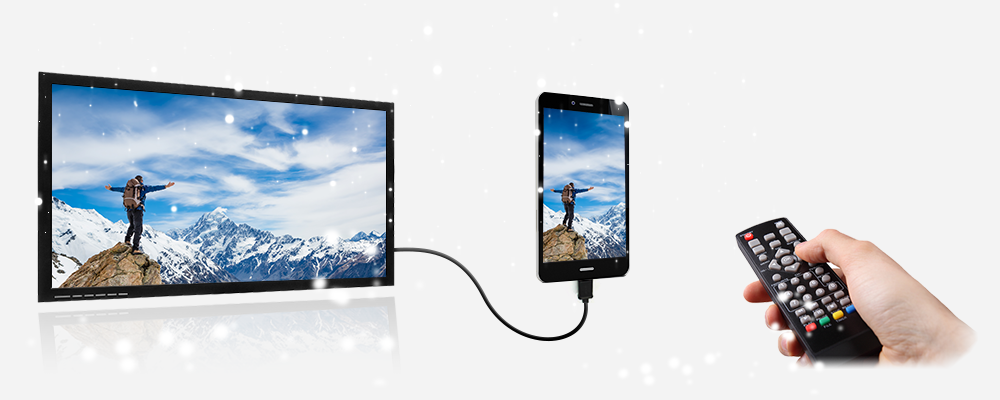
Most modern TVs come with HDMI ports. HDMI cables offer excellent video and audio quality. Simply connect your smartphone using an HDMI cable. Ensure your device supports HDMI output.
Plug one end into your TV’s HDMI port. Connect the other end to your smartphone. Switch your TV’s input to the correct HDMI source. Your phone’s screen should display on the TV.
HDMI cables are affordable and widely available. They provide a seamless connection for streaming. Perfect for watching movies or playing games.
Usb-c To Hdmi Adapter
Many smartphones have a USB-C port. A USB-C to HDMI adapter can bridge the connection. This adapter converts the phone’s signal to HDMI.
Connect the adapter to your phone’s USB-C port. Then plug an HDMI cable into the adapter. Connect the other end to your TV.
Switch your TV’s input to the HDMI source. Your phone’s display should appear on the TV screen. This method is simple and effective.
Adapters are compact and easy to carry. They work well for presentations or media streaming. Ensure your phone supports HDMI output via USB-C.
Credit: www.serasi.tech
Wireless Connections
Connecting your smartphone to your TV wirelessly can transform your viewing experience. Imagine watching your favorite videos on a big screen without the clutter of cables. There are several ways to achieve this, each offering unique benefits and ease of use. Let’s dive into three popular methods: Chromecast, Apple AirPlay, and Miracast Technology.
Using Chromecast
Chromecast is a small device that plugs into your TV’s HDMI port. It allows you to stream content from your smartphone directly to your TV. It’s a Google product, so if you have an Android phone, it works seamlessly. However, it also supports iPhones and various streaming apps like Netflix, YouTube, and Spotify.
Setting up Chromecast is straightforward. You need to connect it to your TV and use the Google Home app on your phone for configuration. Once set up, you can cast your screen or stream videos with a simple tap. Do you often find yourself wishing your phone screen was bigger for family photos? Chromecast makes sharing those moments on the TV easy.
Apple Airplay
If you’re an Apple user, AirPlay is your go-to solution. This feature is built into iOS devices, allowing you to wirelessly mirror your screen or stream videos to your Apple TV or other compatible devices. It offers high-quality video and audio streaming, which is perfect for watching movies or playing music.
To use AirPlay, ensure your iPhone and TV are on the same Wi-Fi network. Swipe up to access the Control Center and tap the AirPlay icon. It’s that simple! If you’ve ever struggled with connecting cables or adapters, AirPlay removes the hassle, letting you enjoy content effortlessly.
Miracast Technology
Miracast is another wireless display standard, often embedded in modern TVs and smartphones. It allows you to mirror your phone’s screen on the TV, providing a cable-free connection. This technology supports high-definition video and audio, making it ideal for gaming or presentations.
Using Miracast is usually straightforward, but compatibility can vary between devices. To connect, go to your phone’s settings, find ‘Screen Cast,’ and select your TV. Have you ever wanted to show a group of friends a quick video or presentation? Miracast can make this possible without any fuss.
Have you tried connecting your smartphone to your TV wirelessly? Which method worked best for you? Share your experience in the comments below!
Smart Tv Apps
Smart TVs have transformed how we consume media at home. With integrated apps, you can stream content directly without extra devices. Connecting your smartphone to a TV allows you to use these apps with ease. Explore the variety and convenience of smart TV apps.
Built-in Streaming Apps
Most smart TVs come with popular streaming apps already installed. Netflix, Hulu, and Amazon Prime Video are commonly available. These apps provide access to thousands of movies and shows. Using your smartphone, you can control the TV and manage these apps. It’s simple to search for your favorite content.
Smart TVs often update these apps automatically. This keeps everything running smoothly. Built-in apps offer high-quality streaming with minimal setup. You don’t need cables or extra devices to enjoy your favorite media.
Third-party App Compatibility
Smart TVs also support third-party apps. These apps extend the functionality of your TV. You can find games, news, and educational content. Many apps are compatible with various smartphones. This allows you to share content from your phone to the TV.
Compatibility with third-party apps adds flexibility. It enriches your viewing experience with diverse options. You can explore new apps and features regularly. This enhances the value of your smart TV.
Credit: glance.com
Screen Mirroring
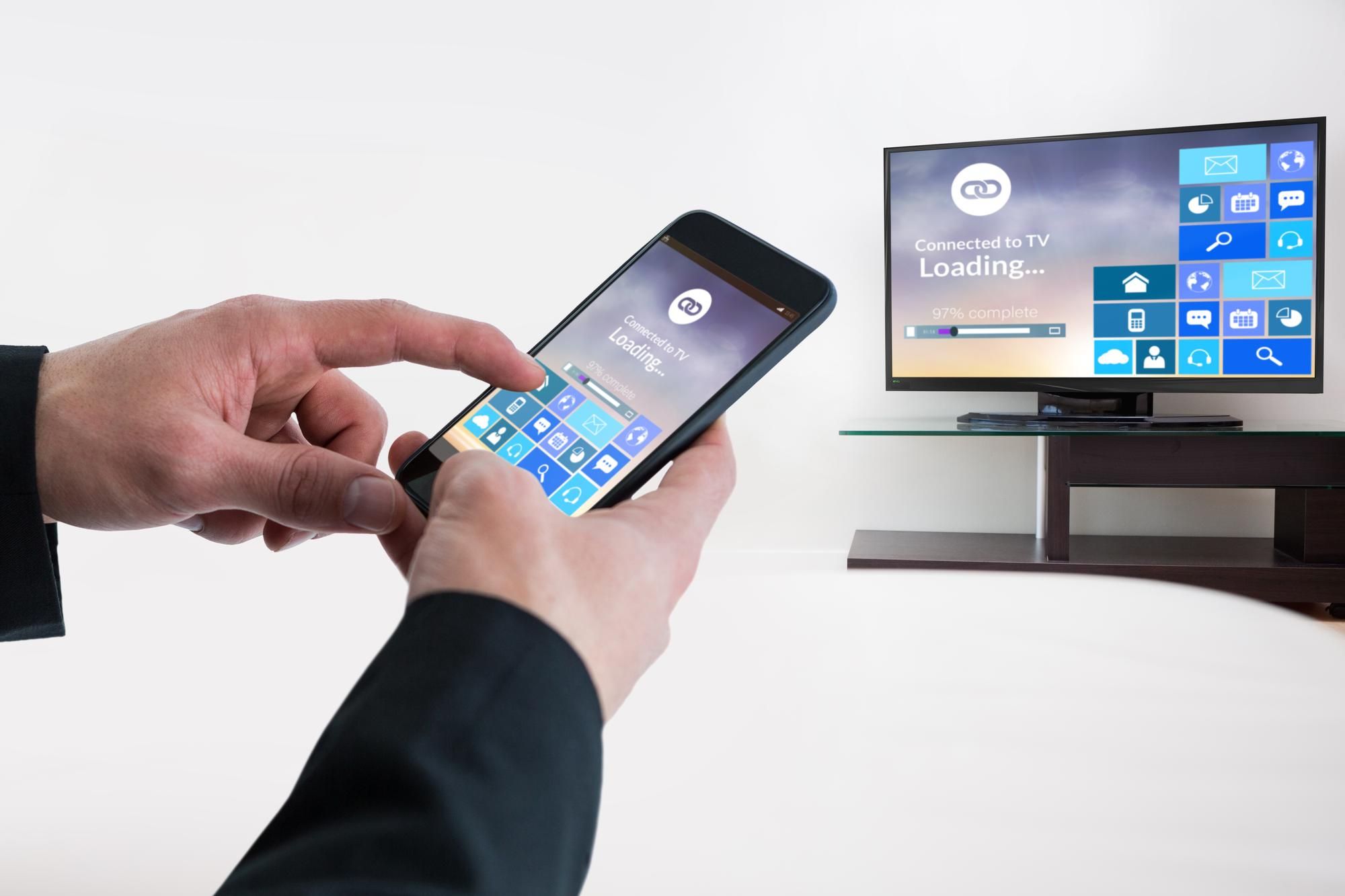
Easily connect your smartphone to your TV with screen mirroring. Enjoy watching videos, photos, and apps on a bigger screen. This feature makes sharing digital experiences with friends and family simple and fun.
Screen mirroring lets you display your smartphone on your TV. It enhances viewing by sharing photos, videos, and apps on a bigger screen. This feature is popular among users who enjoy seamless connectivity. Screen mirroring is easy to set up and offers great convenience.Android Screen Mirroring
Android users have several options for screen mirroring. Most Android devices support this feature through built-in settings. Simply navigate to the settings menu, and select the “Cast” option. This allows your phone to connect with compatible TVs. Ensure both devices are on the same Wi-Fi network for smooth mirroring. Many smart TVs come with built-in Chromecast. It simplifies the mirroring process. Open the app or content you want to share. Tap the “Cast” icon and choose your TV from the list. You can also use third-party apps like Miracast or AllCast. They offer additional features and compatibility.Iphone Screen Mirroring
iPhone users can use AirPlay for screen mirroring. This feature works best with Apple TV or AirPlay-compatible smart TVs. First, connect your iPhone and TV to the same Wi-Fi network. Swipe down from the top-right corner to access the Control Center. Tap on “Screen Mirroring” and select your TV from the available devices. For TVs without AirPlay support, third-party apps can help. Apps like Reflector and ApowerMirror allow iPhone mirroring to non-Apple devices. These apps require installation on both your phone and TV. They provide flexible options for connecting and sharing your screen. Screen mirroring enhances your media experience. It bridges the gap between smartphones and TVs. Enjoy your favorite content on a larger display.Troubleshooting Tips
Connecting your smartphone to your TV can be quite a task. Sometimes, things don’t go as planned. Various issues can pop up. Knowing how to fix these issues can save time and effort. Below are some troubleshooting tips.
Connection Issues
Ensure your TV and smartphone are on the same network. Check if your cables are properly connected. Try different ports if one is not working. Restart both devices to refresh their systems. Update the software of your devices regularly. Sometimes, outdated software causes connection problems.
Audio And Video Sync
Audio and video not syncing can be frustrating. Check your TV’s audio settings. Ensure your smartphone’s audio settings match your TV. Look for any delays in the settings. Restart the devices to help sync the audio and video. Updating your apps can also solve sync problems.
Benefits Of Streaming
Connecting your smartphone to the TV brings many benefits. Enjoy larger displays for streaming videos and gaming. Share photos and presentations easily with family and friends.
Streaming content from your smartphone to your TV has transformed how we enjoy media at home. This simple connection opens up a world of possibilities, enhancing both the quality and quantity of content available for your viewing pleasure. Whether you’re a movie buff or a binge-watcher, understanding the benefits can greatly improve your entertainment experience.Enhanced Viewing Experience
Imagine watching your favorite show on the big screen instead of squinting at your phone. Streaming to your TV improves picture and sound quality significantly. The colors are more vibrant, and the sound is immersive, making you feel part of the action. It’s like having a mini cinema right in your living room. Who wouldn’t want that upgrade?Access To More Content
Connecting your smartphone to your TV expands your content library. You can access apps like Netflix, Hulu, and YouTube directly on your TV, without needing a separate streaming device. Have you ever felt limited by your TV’s built-in channels? With your smartphone connected, you can explore endless options, from niche documentaries to the latest viral videos. Streaming turns your TV into a versatile entertainment hub. It’s about maximizing your existing devices’ potential without spending on new tech. How often do you find something unexpected and exciting when browsing on your phone? Now, you can share those discoveries with everyone at home. Streaming isn’t just about convenience; it’s about enriching your viewing experience and broadening your content horizons.Frequently Asked Questions
How To Connect Smartphone To Tv Wirelessly?
Connecting your smartphone to your TV wirelessly is simple. Use technologies like Chromecast, Miracast, or Apple AirPlay. These options allow you to stream content from your phone to your TV. Ensure both devices are on the same Wi-Fi network for seamless connectivity.
Can I Use Hdmi To Connect Phone To Tv?
Yes, you can connect your phone to a TV using HDMI. You’ll need an HDMI adapter that suits your phone’s port, such as USB-C or Lightning. Simply plug the adapter into your phone and connect an HDMI cable to your TV for a stable connection.
What Apps Help Connect Phone To Tv?
Several apps facilitate connecting your phone to your TV. Popular ones include Google Home for Chromecast users, AllCast for general streaming, and Apple TV for iOS devices. These apps simplify the process of mirroring your phone’s screen to your TV.
Do All Tvs Support Smartphone Connection?
Not all TVs support direct smartphone connections. However, most smart TVs have built-in features for wireless streaming. Older TVs might need external devices like Chromecast or Roku for connectivity. Always check your TV’s specifications for compatibility with smartphone connections.
Conclusion
Connecting your smartphone to your TV is simple and fun. You can enjoy your favorite shows on a bigger screen. Use a cable or a wireless connection. Choose what works best for your devices. Follow the steps carefully for a smooth connection.
Enjoy streaming videos and playing games with friends. Your smartphone and TV can create a great entertainment hub. Experiment with different apps and settings. Explore the endless possibilities at your fingertips. It’s time to enhance your viewing experience. Bring family and friends together with shared moments on the big screen.



