
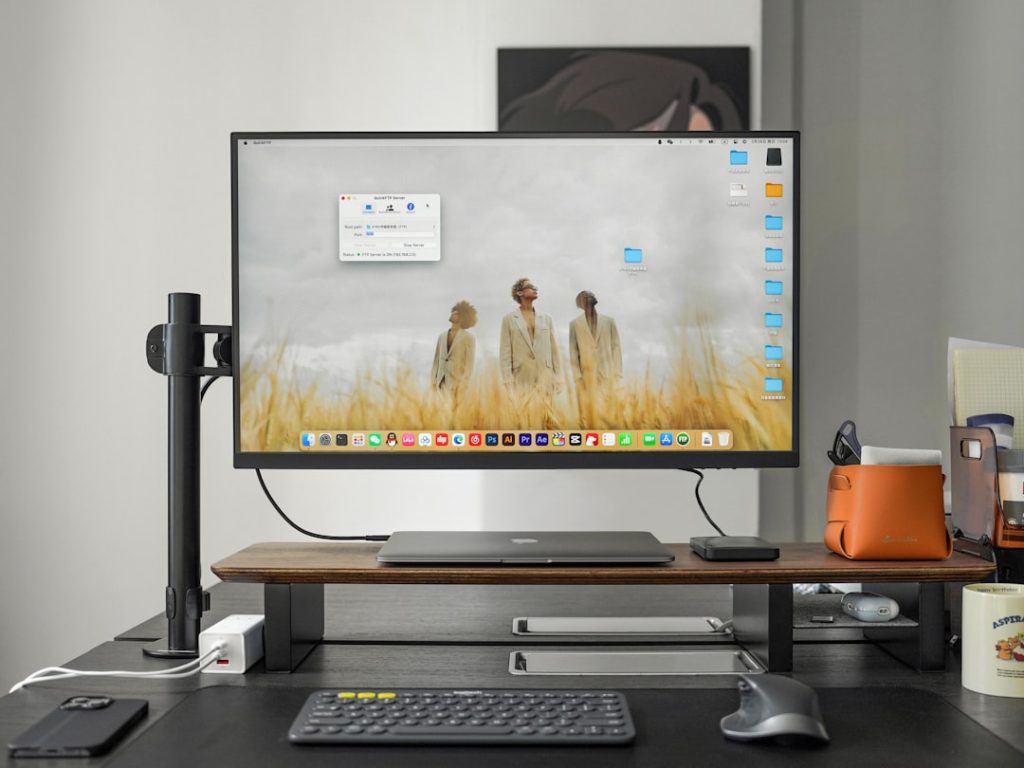
Are you tired of constantly switching between tabs and windows on your computer? Imagine having all your important applications and documents open simultaneously, without the hassle of minimizing and maximizing.
A dual monitor setup for your desktop computer can transform your workspace into a productivity powerhouse. Whether you’re a gamer, a designer, or someone who just loves efficient multitasking, dual monitors can revolutionize how you work and play. Dive into this guide to discover how you can create your perfect dual monitor setup, optimize your workflow, and boost your productivity like never before.
Your upgraded workspace awaits!
Benefits Of Dual Monitors
Many people are using dual monitors today. Why? Dual monitors offer many benefits. Whether you’re working, gaming, or studying, they make tasks easier. They increase productivity and efficiency. Let’s explore the advantages of having two screens.
Enhanced Productivity
Dual monitors help complete tasks faster. You can view more information at once. No need to switch between tabs. This saves time and reduces mistakes. Multitasking becomes easier and more efficient.
Better Organization
With dual monitors, organizing your work is simpler. Keep one screen for emails and the other for documents. This way, everything is in front of you. You stay organized without clutter. It creates a smoother workflow.
Improved Focus
Two screens can enhance focus. You can dedicate one screen to important tasks. The other screen can handle less urgent tasks. This separation helps maintain concentration. It reduces distractions and keeps you on track.
Greater Flexibility
Dual monitors offer flexibility. Customize your setup to suit your needs. Adjust angles and positions for comfort. Enjoy a personalized work environment. It enhances both comfort and efficiency.
Seamless Collaboration
Collaboration becomes easier with dual monitors. Share screens effortlessly during meetings. Display reference materials on one screen while video conferencing on another. This setup improves team communication.
Choosing The Right Monitors
Selecting monitors for a dual setup enhances productivity. Ensure both monitors have similar size and resolution. This provides a seamless visual experience.
Choosing the right monitors for your desktop computer dual monitor setup can significantly enhance your productivity and gaming experience. Whether you’re working from home, editing videos, or diving into immersive gaming worlds, the choice of monitors will impact your visual experience and comfort. It’s not just about picking two screens; it’s about selecting the ones that fit your needs and space perfectly. Let’s delve into the essentials of choosing the right monitors.Screen Size And Resolution
Screen size can dramatically affect how you interact with your computer. Larger screens provide more room for multitasking, making it easier to work with multiple applications at once. Resolution is equally important. Higher resolution means more detail and clarity. If you’re into graphic design or gaming, a monitor with a resolution of 1440p or 4K can make a substantial difference in image quality. Consider what you’ll be using your monitors for most often. Would a larger screen or a higher resolution benefit you more?Panel Type And Technology
Panel type influences color accuracy, viewing angles, and response time. IPS panels offer better color reproduction and wider viewing angles, making them ideal for creative work. TN panels, on the other hand, boast faster response times, which are preferable for gaming. VA panels strike a balance between the two, offering good contrast and decent response times. Reflect on your usage. Are you a gamer who needs quick responses or a designer who values color precision?Connectivity Options
Connectivity options determine how easily your monitors connect to your computer. HDMI and DisplayPort are common and provide high-definition video and audio. Check your computer’s ports to ensure compatibility. USB-C is becoming popular for its versatility, allowing video, audio, and data transfer all in one. Consider future-proofing your setup. Are you prepared for devices that may require different connections later? Choosing the right monitors involves balancing size, resolution, panel type, and connectivity. Each aspect plays a vital role in creating a setup that meets your needs and enhances your computing experience. Take the time to evaluate what suits your workflow and space best, and you’ll have a dual monitor setup that’s perfect for you.Setting Up Your Workspace
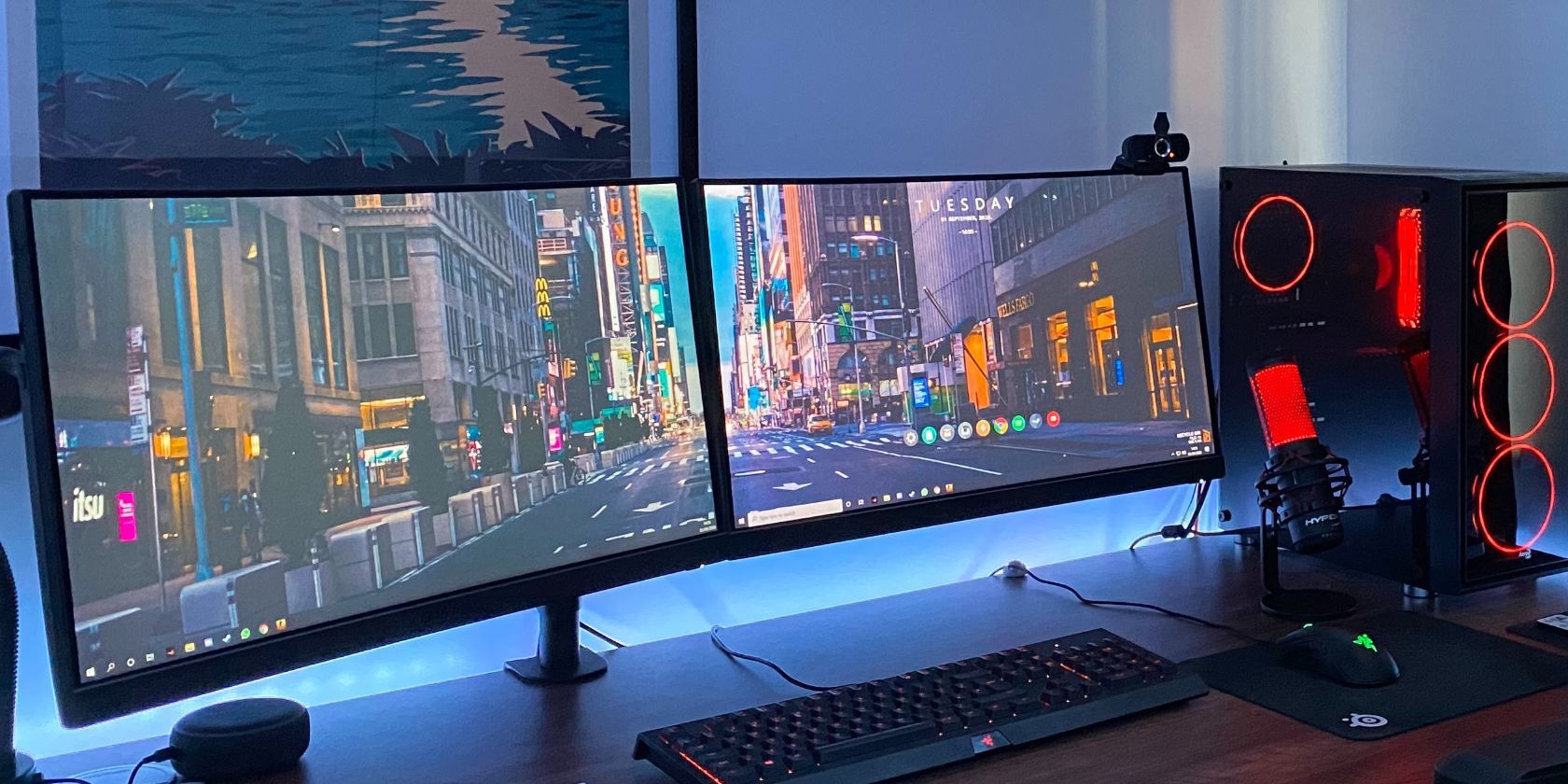
Creating an ideal workspace with a dual monitor setup enhances productivity. It provides more screen space to work efficiently and reduces clutter. Properly arranging monitors, managing cables, and considering ergonomics is crucial.
Ergonomic Considerations
Ergonomics is vital for long hours at the desk. Position your monitors at eye level. This prevents neck strain. Keep a comfortable chair with good lumbar support. Ensure your keyboard and mouse are within easy reach. This avoids unnecessary stretching.
Desk And Monitor Arrangement
Arrange your desk to maximize space. Place monitors side by side. This allows easy movement between screens. Maintain a slight angle for a natural viewing position. Use monitor stands if needed to adjust height.
Choose a desk with ample surface area. It should accommodate both monitors comfortably. Ensure there is enough space for other essentials like a lamp and stationery.
Cable Management Tips
Organized cables keep your workspace tidy. Use cable ties to bundle wires together. Consider using a cable management box. This hides excess cords and prevents tangling.
Label cables for easy identification. This helps when unplugging or reconfiguring devices. Avoid stretching or bending cables sharply. This prolongs their lifespan.
Credit: www.makeuseof.com
Configuring Display Settings
Configuring display settings is crucial in a dual monitor setup. Proper configuration enhances productivity and ensures visual comfort. Adjusting settings correctly can make a significant difference. Let’s explore how to fine-tune your display settings for optimal use.
Adjusting Resolution And Scaling
Resolution determines the sharpness of your display. Higher resolution offers clearer images. Select the resolution that suits your needs. Scaling adjusts the size of icons and text. Proper scaling ensures readability. Check the settings in your computer’s display options.
Color Calibration
Color calibration ensures accurate colors on your screens. Uncalibrated colors can cause visual strain. Use built-in calibration tools for precise colors. Follow on-screen instructions to adjust brightness and contrast. Regular calibration maintains color consistency across monitors.
Multi-monitor Display Modes
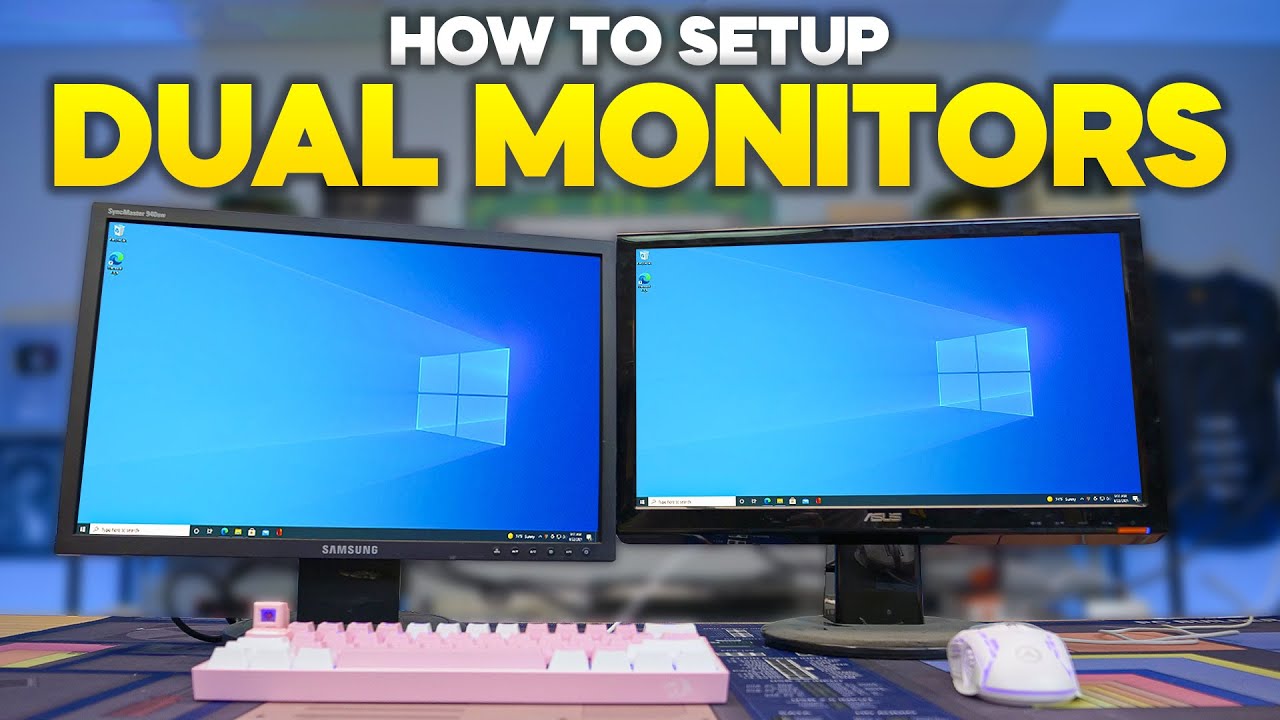
Choose the right multi-monitor mode for your tasks. Extend mode allows different tasks on each screen. Duplicate mode mirrors your main display. Select settings based on your workflow. Experiment to find the best setup for you. Proper configuration enhances efficiency and focus.
Software Tools For Productivity
Setting up a dual monitor system boosts productivity significantly. The right software tools enhance this experience even more. They help manage windows, automate tasks, and enable collaboration. These tools make work smoother and more efficient.
Window Management Applications
Window management apps help organize open windows. They allow easy switching and resizing. Popular tools like DisplayFusion and AquaSnap offer great features. They let users snap windows to specific areas on screens. This reduces screen clutter and improves focus. Efficient window management is key for a productive workspace.
Task Automation Tools
Task automation tools save time by handling repetitive tasks. AutoHotkey and IFTTT are popular choices. These tools automate keyboard shortcuts and routine actions. Users can create scripts for common tasks. Automation boosts productivity by reducing manual effort. It’s like having a digital assistant at your fingertips.
Screen Sharing And Collaboration
Screen sharing tools facilitate teamwork. They allow users to share screens with colleagues. Zoom and Microsoft Teams are widely used for this purpose. These tools offer real-time collaboration features. They help teams work together efficiently from different locations. Screen sharing makes remote meetings more productive and interactive.
Credit: m.youtube.com
Troubleshooting Common Issues
Setting up a dual monitor configuration can be a great way to boost productivity. Yet, it is not without its challenges. You may encounter several common issues that can disrupt your workflow. Knowing how to troubleshoot these can save time and frustration. Let’s explore some of the typical problems and their solutions.
Display Connectivity Problems
Sometimes, your computer might not detect the second monitor. Check all cable connections first. Ensure the cables are securely plugged into the correct ports. If using HDMI, try switching to a different port. You might also need to update your graphics drivers. Visit the manufacturer’s website for the latest driver updates. Restart your computer after updating to see changes.
Performance And Lag Issues
Experiencing lag can be annoying. Check your computer’s resource usage. Open the Task Manager to view CPU and memory usage. High usage can slow down your system. Close unnecessary programs to free up resources. Consider upgrading your RAM if lag persists. This can help improve performance.
Monitor Calibration Troubles
Colors might look different on each monitor. You can fix this by calibrating your monitors. Use built-in calibration tools available in your operating system. Follow the on-screen instructions for best results. Adjust brightness, contrast, and color balance to match both screens. Consistent calibration ensures a seamless display.
Enhancing Workflow Efficiency
Boost productivity with a dual monitor setup on your desktop computer. This setup allows you to multitask efficiently, reducing the time spent switching between applications. Enjoy a smoother workflow by keeping important tools and documents visible side by side.
Enhancing your workflow efficiency with a dual monitor setup is like giving your productivity a turbo boost. Imagine having the ability to view multiple applications simultaneously without the constant back-and-forth of switching tabs. It’s not just about the tech; it’s about transforming how you work. Just the other day, I realized how seamless it was to draft a report while referencing a spreadsheet, all thanks to dual monitors. Curious about how this setup can benefit you? Let’s dive into some practical insights.Optimizing Multitasking
With dual monitors, you can run multiple programs at once without losing track of your tasks. Picture having your email open on one screen while crafting a presentation on the other. This setup streamlines your workflow and cuts down the time spent toggling between windows. You can also keep communication tools like Slack or Teams open on one screen. This ensures you’re always in the loop with your team. Multitasking becomes intuitive and less of a hassle.Reducing Distractions
A dual monitor setup doesn’t just enhance productivity; it reduces distractions. By dedicating one screen to work and the other to leisure, you can draw a clear line between business and pleasure. Imagine focusing on a project while keeping an eye on your calendar or to-do list on the second screen. This way, you stay organized without the temptation to wander into non-work-related sites.Customizing Workspaces
Dual monitors offer the flexibility to tailor your workspace to your unique needs. You can arrange your screens to create a more comfortable and efficient setup. For instance, one monitor can be used for design work, and the other for coding, if you’re a developer. You also have the option to adjust monitor heights and angles. This ensures your setup is ergonomic and reduces strain during long work hours. What arrangement would best suit your daily tasks? By taking advantage of a dual monitor setup, you’re not just upgrading your tech; you’re refining how you work. Whether you’re balancing multiple projects or aiming to reduce distractions, dual monitors offer a practical solution to enhance your efficiency. What will you achieve with this newfound productivity?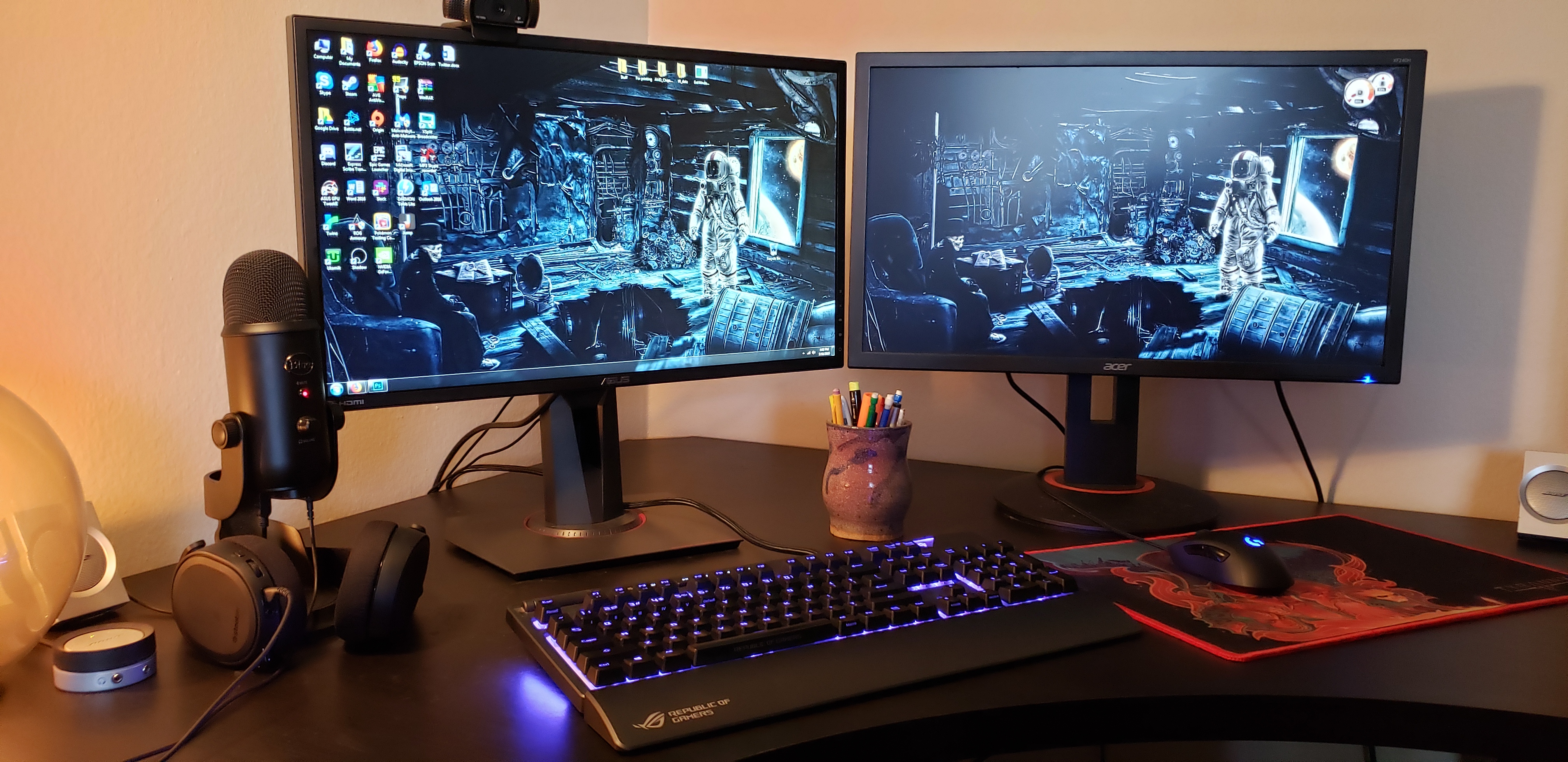
Credit: www.pcgamer.com
Frequently Asked Questions
How To Connect Dual Monitors To A Desktop?
To connect dual monitors, first check your desktop’s available ports. Most desktops have HDMI, DisplayPort, or VGA. Connect each monitor to your desktop using compatible cables. Adjust settings in your computer’s display menu to extend or duplicate your screen.
What Are The Benefits Of Dual Monitors?
Dual monitors increase productivity by allowing multitasking. You can view multiple applications simultaneously without switching windows. Designers and video editors benefit from more screen space, enhancing workflow efficiency. Dual monitors also improve gaming experiences by providing a wider field of view.
Can All Desktops Support Dual Monitors?
Not all desktops support dual monitors. Check your graphics card specifications to ensure compatibility. Some desktops may require additional hardware or adapters. Ensure your operating system supports dual monitor configurations. Consult your desktop’s manual for guidance or consider upgrading your hardware.
How To Set Up Dual Monitors For Gaming?
For gaming, connect monitors to your graphics card using HDMI or DisplayPort. Configure settings in your game for optimal resolution and refresh rate. Use in-game settings to customize your dual monitor experience. Ensure your graphics card can handle multiple displays without performance loss.
Conclusion
Embrace the benefits of dual monitors for a smoother workflow. More screen space helps multitasking. This setup enhances productivity. Enjoy easier access to tools and documents. Save time switching windows. Dual monitors make work more efficient. Perfect for professionals and students alike.
Whether working, studying, or gaming, more screen space can help. Experience a less cluttered desktop. Reduced stress when juggling tasks. Consider this setup for your home or office. It’s a smart choice for improved efficiency. Upgrade your workspace with dual monitors.
You’ll notice the difference.



