
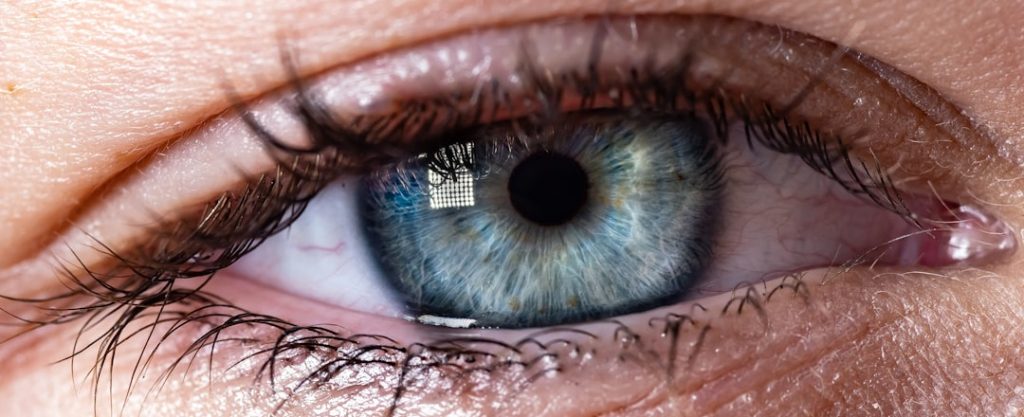
Are you tired of feeling like your eyes are on a never-ending rollercoaster ride after a day at the computer? You’re not alone.
Many people experience eye strain, headaches, and discomfort from staring at screens for too long. The culprit? Often, it’s not just the hours you spend, but the settings on your monitor. The good news is, you have the power to change this.
By adjusting a few key settings on your computer monitor, you can transform your screen time from a dreaded chore into a comfortable experience. Imagine working, browsing, or gaming without the nagging pain and fatigue. Curious about how you can achieve this? Stick around as we unveil the best computer monitor settings for your eyes. Your eyes will thank you!
Importance Of Monitor Settings
Proper monitor settings are essential for eye health. Many spend hours in front of screens. This can strain the eyes. Correct settings reduce this strain. They improve comfort and productivity. They help in preventing headaches and fatigue. Understanding the importance of these settings can enhance your screen experience.
Understanding Brightness And Contrast
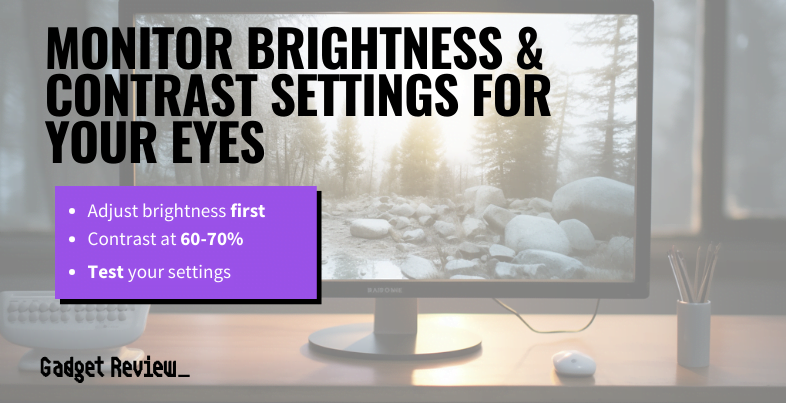
Brightness should match your environment. A bright room needs a brighter screen. In a dark room, lower brightness. This reduces eye strain. Contrast affects how clear images appear. Higher contrast improves readability. But too high can cause discomfort. Adjust for balance.
The Role Of Blue Light
Blue light affects sleep patterns. It can cause digital eye strain. Many monitors have blue light filters. Use them to reduce exposure. This helps in maintaining healthy sleep cycles. It also reduces eye discomfort during long usage.
Optimal Resolution And Text Size
Resolution affects clarity. Higher resolution means sharper images. But it should suit your screen size. Text size is also crucial. Too small text strains the eyes. Adjust to a comfortable size. This enhances readability and reduces strain.
Refresh Rate Considerations
Refresh rate impacts screen smoothness. Higher rates reduce flicker. This lessens eye fatigue. Aim for at least 60Hz. Higher is better for gamers. It provides a smoother visual experience. But for general use, 60Hz suffices.

Credit: iristech.co
Brightness And Contrast
Bright screens can cause eye strain. Proper monitor settings help avoid discomfort. Brightness and contrast are key factors to consider. Adjusting them can improve eye comfort.
Brightness: Finding The Right Level
Brightness should match your environment. A bright room requires more brightness. A dark room needs less brightness. Too much brightness causes eye strain. Too little brightness can make text hard to read.
Test different levels to find the best setting. Avoid extreme brightness. It should be comfortable for extended use. Adjust during different times of the day. Natural light changes throughout the day.
Contrast: Making Text Clear
Contrast affects how clear text appears. High contrast makes text stand out. Low contrast can make text blend in. Balance is essential for comfort.
Set contrast to make text readable. Avoid settings that make colors too harsh. Use settings that make content easy to see. Adjust as needed for different tasks. Reading text may need different contrast than viewing images.
Combining Brightness And Contrast
Both settings work together. Adjust both for the best experience. Find a balance that suits your needs. Regular adjustments help maintain comfort.
Experiment with settings. Everyone’s eyes are different. Personalize your monitor for optimal comfort. A comfortable setup reduces eye strain.
Color Temperature
Adjusting color temperature to a warm setting can reduce eye strain during long screen sessions. A warmer tone is easier on the eyes, especially in low-light environments. This simple tweak can enhance comfort and improve focus.
Adjusting the color temperature of your computer monitor can significantly impact your eye comfort. Have you ever felt your eyes straining after hours of screen time? This can often be linked to the color temperature settings of your monitor. By optimizing these settings, you can reduce eye fatigue and enhance your viewing experience. Let’s dive into how you can tweak these settings for the best results.What Is Color Temperature?
Color temperature refers to the warmth or coolness of the colors displayed on your screen. It’s measured in Kelvin (K). Lower values indicate warmer tones, like reds and yellows. Higher values represent cooler tones, such as blues and greens. Think about the difference between a cozy fireplace and bright daylight. Which one feels more relaxing to your eyes? Warmer tones can mimic softer lighting conditions, making them easier on your eyes during prolonged use.Why Adjust Color Temperature?
Adjusting your monitor’s color temperature can help ease eye strain. Cooler tones might seem sharp and vibrant, but they’re not always the best for extended periods. Warmer tones can create a soothing effect, reducing the intensity of light entering your eyes. Consider this: If you often work in dimly lit environments, warmer colors can balance the lack of ambient light and provide a more comfortable viewing experience. Is your workspace bright? Cooler tones might be more suitable then.How To Change Color Temperature Settings
Most monitors offer preset modes like “Warm,” “Cool,” and “Standard.” These are quick ways to adjust the color temperature. However, customizing it manually can provide a more tailored experience. Access your monitor’s settings menu. Look for options related to color or display settings. A typical range might be between 3000K and 6500K. Find a setting that feels comfortable for your eyes. Don’t hesitate to experiment until you find the perfect balance.Personal Experience With Color Temperature
I remember spending long nights finishing projects with my monitor set to a cool temperature. My eyes felt tired, and headaches were frequent. Switching to a warmer setting made a noticeable difference. Suddenly, my late-night sessions felt less taxing, and productivity improved. Have you experienced something similar? You might be surprised at how such a small tweak can enhance your comfort and focus.Tips For Optimal Color Temperature
– Adjust based on time of day: Use warmer tones in the evening and cooler tones during daylight hours. – Consider your environment: If your room lighting is warm, match your screen’s color temperature for consistency. – Use software tools: Programs like f.lux or Windows Night Light can automatically adjust color temperature based on your local sunset and sunrise. Does your monitor’s current setting align with these tips? Implementing these changes can transform your screen time into a more comfortable experience.Refresh Rate And Resolution
Your computer monitor is more than just a window to the digital world; it’s a major factor in your daily comfort and productivity. Adjusting the refresh rate and resolution can significantly enhance your viewing experience and reduce eye strain. These settings may seem technical, but understanding them can transform how you interact with your screen.
Understanding Refresh Rate
The refresh rate refers to how often your monitor updates with new information per second. A higher refresh rate means smoother visuals and less flicker. If you ever felt your eyes ache after a long day at the computer, a low refresh rate might be the culprit.
Most monitors offer a refresh rate of 60Hz, which is standard. However, opting for 120Hz or even 144Hz can make a world of difference. Picture yourself watching an action-packed video or scrolling through a webpage. A higher refresh rate makes movements appear seamless, reducing the strain on your eyes.
Think about the last time you watched a movie on a big screen. The fluidity and clarity are so captivating, right? Now imagine having that comfort every day at your desk.
Choosing The Right Resolution
Resolution determines the number of pixels your monitor displays. More pixels mean a sharper image. But what does this mean for your eyes? Simply put, higher resolution reduces eye strain by providing clearer images.
Consider using Full HD (1920×1080) as a baseline. If your work involves detailed graphics or video editing, you might benefit from 4K resolution. A higher resolution allows you to see finer details without squinting or leaning forward. This simple adjustment can save you from the dreaded “tech neck” and tension headaches.
Have you ever tried adjusting your monitor settings and felt overwhelmed by the choices? You’re not alone. Start small; try bumping up your resolution gradually. Notice how your eyes respond.
Finding Your Balance
Combining the perfect refresh rate and resolution can be transformative. Not all settings suit everyone, so it’s crucial to find what works for you. Experiment with different combinations and pay attention to how your eyes feel.
Ask yourself: Are my eyes less fatigued? Am I feeling less tension in my shoulders? These questions guide you to the ideal settings for your personal comfort.
Remember, adjusting your monitor isn’t just about technology; it’s about enhancing your daily experience. Have you checked your monitor settings lately? It might be time for a change.
Blue Light Reduction
Many of us spend hours in front of our computer screens daily. Over time, this can strain your eyes. One simple yet effective way to reduce eye strain is by adjusting your monitor’s blue light settings. Blue light is a high-energy light emitted by screens, which can disrupt sleep patterns and cause eye discomfort. By reducing blue light, you can improve your comfort and potentially your sleep quality.
What Is Blue Light?
Blue light is part of the visible light spectrum. It is emitted by digital screens, including computers, smartphones, and tablets. While natural blue light from the sun is beneficial, the artificial blue light from screens can be harmful. Long exposure can lead to digital eye strain.
Why Reduce Blue Light?
Reducing blue light can help minimize eye strain. It can also improve sleep quality by preventing disruption of your circadian rhythm. You might notice less eye fatigue and better focus with reduced blue light. This can be especially beneficial if you work late hours.
How To Adjust Blue Light Settings
Most modern monitors offer built-in blue light reduction settings. Check your monitor’s display settings for options like “Night Mode” or “Blue Light Filter.” Adjust the level to what feels comfortable for your eyes. You can also use software solutions like f.lux or Windows Night Light.
Practical Tips For Reducing Blue Light
- Activate night mode on your devices to automatically reduce blue light in the evening.
- Install blue light filtering software for more control over your settings.
- Consider purchasing a monitor with built-in blue light reduction technology.
Does Blue Light Reduction Really Work?
Many users report feeling less eye strain and better sleep after reducing blue light. You might notice improved focus during late-night work sessions. Have you tried adjusting your settings? How did it affect your daily routine?
By taking small steps to adjust your monitor settings, you can make a big difference in your eye comfort and overall well-being. Why not give it a try today?
Credit: www.gadgetreview.com
Font Size And Clarity
Adjusting font size and clarity on your monitor can ease eye strain. Larger, clearer fonts improve readability and comfort. Proper settings help maintain focus, reducing eye fatigue during long computer use.
Adjusting your computer monitor settings can significantly enhance your visual comfort, especially when it comes to font size and clarity. Imagine staring at a screen all day with text that’s too small or blurry—it’s a recipe for eye strain and headaches. With just a few tweaks, you can make your digital experience much more pleasant and even improve your productivity.Font Size: Finding The Perfect Balance
Have you ever squinted at your screen because the text was too small? Increasing the font size can make a world of difference. Aim for a size that’s easy to read without straining your eyes. You don’t want it too large either, as that might cause you to miss out on important content on your screen. Try adjusting the settings in your operating system or browser to find that sweet spot. Consider using a size that allows you to read comfortably from your usual sitting distance. Many find that a font size around 12-14 points works well, but your needs might vary. Experiment with different sizes and see how it affects your comfort and efficiency.Clarity: Ensuring Sharpness
Clarity is just as important as size when it comes to text on a screen. Blurry fonts can lead to fatigue much faster than clear ones. Make sure your monitor’s resolution is set to the recommended level for optimal sharpness. This simple setting can drastically improve how crisp text appears. If you’ve ever tried to read something on a screen where the text was slightly out of focus, you know how frustrating it can be. Check your display settings to ensure your monitor is running at its native resolution. This usually results in the best clarity.Personal Experience: Trial And Error
When I first got my new monitor, I thought the default settings were fine. But after a week of headaches, I realized I needed to tweak the font size and clarity. It was a process of trial and error, adjusting and readjusting until I found what worked best for my eyes. Don’t be afraid to experiment with your settings. What works for someone else might not work for you. Listen to your eyes—if you’re straining to read, it’s time to make a change.Actionable Tips
– Check your settings regularly: Monitor settings can reset after updates. Make it a habit to review them periodically. – Use browser plugins: Some plugins allow you to adjust font size and clarity for specific websites, enhancing your browsing experience. – Test different fonts: Some fonts are easier on the eyes than others. Try switching to ‘Arial’ or ‘Verdana’ for better clarity. Have you adjusted your monitor settings lately? If not, why not try tweaking the font size and clarity today? Your eyes will thank you, and you might find your productivity gets a boost too.Screen Position And Distance
Finding the perfect monitor setup can significantly ease eye strain. Proper screen position and distance play a key role in this. Adjusting these elements can lead to a more comfortable viewing experience. Let’s explore how to optimize your monitor settings for better eye health.
Screen Positioning
Keep your monitor at eye level. This reduces neck strain and helps maintain a natural posture. Avoid placing the screen too high or too low. Adjust the tilt to minimize glare. Glare can cause eye fatigue.
Position your monitor directly in front of you. This avoids unnecessary head movement. Ensure the screen is centered for a balanced view. This setup helps prevent muscle strain and discomfort.
Optimal Screen Distance
Maintain a distance of about 20 to 24 inches from your eyes. This is roughly an arm’s length. A consistent distance helps focus comfortably. Too close or far can strain your eyes.
Use the 20-20-20 rule. Every 20 minutes, look at something 20 feet away for 20 seconds. This relaxes your eye muscles. It prevents fatigue from prolonged screen time.
Adjusting For Comfort
Customizing your setup for comfort is essential. Use an adjustable desk or monitor stand. This allows flexibility in positioning. Experiment with different angles and distances.
Test various setups until you find the best fit. Comfort leads to better focus and productivity. Regularly review your setup to ensure optimal conditions.
Ambient Lighting Considerations
Ambient lighting plays a crucial role in how comfortable your eyes feel while using a computer. Poor lighting can cause eye strain and fatigue. It’s important to adjust your monitor settings and surroundings for optimal comfort. Proper lighting ensures a pleasant viewing experience and protects your vision.
Choosing The Right Light Source
Natural light is ideal for your workspace. It provides soft, even illumination. Try positioning your desk near a window. Avoid direct sunlight on your screen. It causes glare and reflection. Use blinds or curtains to control light intensity. Artificial light should mimic daylight as much as possible. LED bulbs with a warm tone work well. Place lamps to the side of your screen for indirect light.
Managing Screen Glare
Glare can strain your eyes and reduce visibility. Anti-glare screen protectors are helpful. They minimize reflections on your monitor. Adjust your monitor angle to avoid overhead light reflections. Ensure your screen is clean. Dust can increase glare. Turn off bright lights behind your monitor. This reduces contrast and eases eye strain.
Balancing Brightness And Contrast
Monitor brightness should match your room lighting. Too bright or too dim can cause discomfort. Use auto-brightness settings if available. They adjust based on ambient light. Contrast settings are also important. High contrast enhances readability. Adjust contrast so text is sharp and clear. Test different settings and find what feels best.
Tools And Software For Eye Comfort
In our digitally driven world, eye comfort is crucial, especially if you spend hours in front of a computer screen. Thankfully, technology offers several tools and software designed to ease the strain on your eyes. These resources can help you customize your monitor settings to create a more eye-friendly work environment. Let’s look at some options you can consider.
Software Solutions For Eye Comfort
Many apps are designed to adjust your screen’s color temperature according to the time of day. Programs like f.lux and Iris automatically reduce blue light in the evening to mimic natural light cycles. This simple adjustment can significantly reduce eye fatigue.
Consider downloading one of these applications. They take seconds to install and can make a noticeable difference in how your eyes feel after a long day. Have you ever noticed how different your screen feels late at night compared to the morning? This adjustment can help balance that.
Brightness And Contrast Adjustment Tools
Most operating systems provide built-in settings to tweak brightness and contrast. These settings can be adjusted manually to suit your personal preference. Ensure your brightness is not overpowering, and contrast is set to a comfortable level.
If you find your monitor’s default settings too harsh, simply lowering the brightness can ease the strain. Have you tried adjusting contrast along with brightness? It can help in creating a softer viewing experience.
Eye Tracking Technology
Some advanced monitors come with eye-tracking features. This technology allows your screen to adjust brightness based on your gaze. It’s like having an assistant that knows exactly when your eyes need a break.
Imagine your screen dimming slightly when you’re not directly looking at it. This subtle change can improve your comfort without any effort on your part. Would you find this feature useful during those marathon work sessions?
Frequent Break Reminders
Applications that remind you to take breaks are a simple yet powerful tool. Programs like EyeLeo and Stretchly prompt you to step away from the screen at regular intervals. These reminders encourage you to rest your eyes, reducing long-term strain.
Taking breaks might seem trivial, but they make a significant impact. Next time you’re caught in the whirlwind of work, let these apps help you pause. Could taking a moment away help refresh your focus?
Incorporating these tools and software into your daily routine can transform your screen time into a more comfortable experience. Which tool will you try first to give your eyes the relief they deserve?

Credit: www.asurion.com
Customizing Settings For Different Tasks
Different tasks require unique monitor settings for comfort and efficiency. Adjusting these settings can improve productivity and reduce eye strain. Understanding how to tailor your monitor for specific activities is crucial.
Adjusting Brightness And Contrast For Reading
Reading long documents needs a softer display. Lower brightness to reduce glare. Adjust contrast to make text clear and sharp. This helps avoid eye fatigue during extended reading sessions.
Tweaking Color Settings For Graphic Design
Graphic design demands vibrant and accurate colors. Enhance color saturation for vivid visuals. Use RGB adjustments for precision. Accurate colors ensure your designs look professional and true to life.
Optimizing Refresh Rate For Gaming
Gaming benefits from high refresh rates. Set refresh rate to 120Hz or higher. This provides smoother motion and less blurring. High refresh rates enhance the gaming experience and reduce eye strain.
Setting Resolution For Video Editing
Video editing requires high resolution. Choose 1080p or 4K for clarity. High resolution ensures detail and precision. This is essential for editing tasks where accuracy matters.
Configuring Eye Care Features For General Use
General use requires eye-friendly settings. Enable blue light filters to reduce strain. Use flicker-free technology for a stable display. These features protect your eyes during everyday tasks.
Frequently Asked Questions
What Are Ideal Brightness Settings For Monitors?
For optimal eye comfort, keep brightness at about 50-60%. This reduces glare and prevents eye strain. Adjust according to your room’s lighting conditions. A well-lit room requires a higher brightness setting than a dimly lit one.
How Does Screen Resolution Affect Eye Health?
Higher resolutions provide sharper images, reducing eye strain. Set your monitor to its native resolution for best results. This ensures text and images are clear and easy to read, minimizing eye fatigue.
Can Blue Light Filters Protect Your Eyes?
Yes, blue light filters can reduce eye strain and improve sleep. They lessen the blue light emitted by screens. Use built-in settings or external software to adjust blue light levels during prolonged use.
Is Refresh Rate Important For Eye Comfort?
Yes, a higher refresh rate can reduce flickering and eye strain. Aim for at least 60Hz for smoother visuals. This ensures less eye fatigue during extended viewing sessions, especially when gaming or watching videos.
Conclusion
Choosing the right monitor settings can protect your eyes. Adjust brightness to match room lighting. Reduce blue light exposure for comfort. Keep the screen at arm’s length for safety. Use larger text to avoid squinting. Regular breaks help reduce eye strain.
Blink often to keep eyes moist. Consider investing in anti-glare screens. Monitor settings matter for eye health. Simple changes make a big difference. Prioritize comfort and clarity. Your eyes will thank you.



