

Imagine sitting down at your computer, ready to tackle your daily tasks, only to find your desktop screen has mysteriously rotated. Suddenly, everything is sideways or even upside down, leaving you confused and frustrated.
You’re not alone—this quirky issue can happen to anyone, and it often strikes at the most inconvenient moments. But fear not! Whether you’re trying to decode a keyboard shortcut gone awry or need to understand a simple screen setting, we’ve got you covered.
By the end of this article, you’ll not only know how to fix your rotated screen but also gain some handy tips to prevent it from happening in the future. Dive in and reclaim control of your digital workspace!
Credit: www.youtube.com
Common Causes
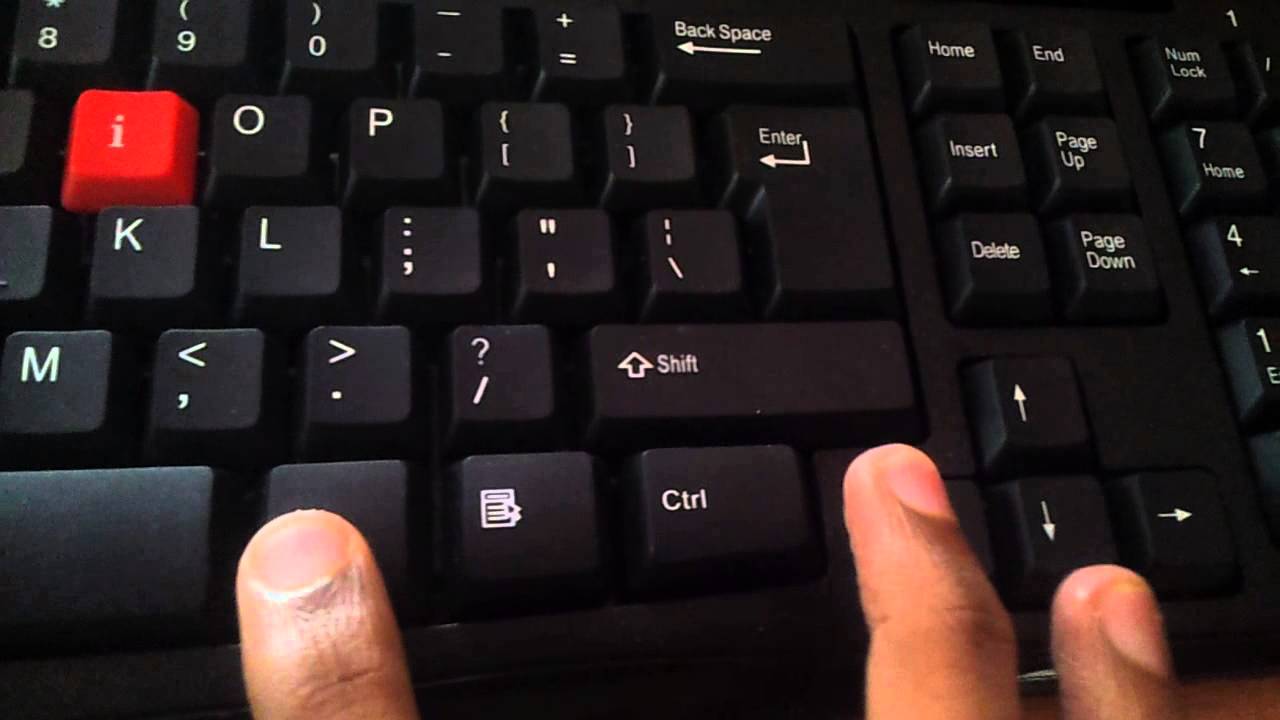
A rotated computer desktop screen often results from accidental key presses or settings changes. Users might press Ctrl + Alt + Arrow keys by mistake. Graphics settings adjustments in the control panel can also cause this issue.
When your computer desktop screen suddenly rotates, it can feel like your world has literally turned upside down. This common issue often leaves people scrambling to find a quick fix. Before you panic, it’s helpful to understand the reasons behind this unexpected twist.Accidental Key Presses
Sometimes, all it takes is a slight slip of your fingers. Shortcut keys like Ctrl + Alt + Arrow keys can easily flip your screen orientation. Have you ever wondered why your screen went sideways after resting your hand on the keyboard? That’s likely the culprit. Knowing which keys to avoid can save you from a lot of headaches.Graphics Driver Glitches
Your graphics driver acts as a translator between your operating system and your hardware. Sometimes, this translator gets confused and rotates the display. An outdated or corrupted driver can lead to unexpected screen orientations. Ensuring your drivers are up-to-date is a simple yet effective preventive measure.Display Settings Adjustments
Ever fiddled with your display settings without realizing the impact? Your screen might rotate if settings are accidentally changed. This is especially common if multiple users share the same computer. Checking your display settings regularly can help you maintain control over your screen’s orientation.External Display Connections
Connecting your computer to external displays can sometimes lead to orientation surprises. If you’ve ever linked your laptop to a projector or a second monitor, you’ve probably noticed the screen behaving unpredictably. This is often due to mismatched settings between devices. Double-checking your display preferences can mitigate these issues.Software And Operating System Bugs
Occasionally, software updates or bugs can cause your screen to rotate. Operating systems aren’t perfect, and updates can sometimes introduce new problems. Have you recently updated your system and noticed your screen acting up? It might be worth checking for any known bugs or patches. Understanding these common causes can empower you to troubleshoot effectively. Have you identified which of these causes is responsible for your screen rotation? Taking proactive steps to address these issues can prevent future frustrations.
Credit: www.youtube.com
Keyboard Shortcut Fixes
Accidentally rotating your computer desktop screen can be frustrating. Quick keyboard shortcuts offer an easy fix for this issue. These shortcuts provide immediate solutions without diving into complex settings. Below, learn how to use these shortcuts for Windows and MacOS.
Using Windows Shortcuts
Windows users can rely on simple key combinations. Pressing Ctrl + Alt + Arrow Keyis the primary method. The Arrow Keyyou choose determines the screen’s orientation. Press the Up Arrowto return to the normal view. This method works well on most Windows systems. Ensure your graphics drivers support it.
Macos Shortcut Method
MacOS users face a different scenario. Mac computers don’t have built-in shortcuts for screen rotation. Changing the orientation involves accessing display settings. Open System Preferencesand select Displays. Look for the Rotateoption within the settings. Choose your preferred orientation from the list. This method ensures the screen displays correctly.
Graphics Card Settings
Have you ever found yourself staring at a computer screen that’s somehow rotated sideways or upside down? It’s a quirky problem many face, often triggered by an accidental key press or a mischievous pet. Thankfully, your graphics card settings hold the key to restoring your display to its normal orientation. Navigating these settings might seem daunting, but with a few simple steps, you can have your screen back to normal in no time.
Accessing Control Panel
The first step is locating the control panel for your graphics card. This is your command center, where you can adjust and fine-tune display settings.
Typically, you can access it by right-clicking on your desktop and selecting the graphics card control panel from the context menu.
If that option isn’t visible, try searching for your graphics card’s name in the start menu.
Once inside, you’ll find a myriad of settings that can seem overwhelming at first glance. Don’t worry, your main focus should be on the display settings section.
Adjusting Display Orientation
Now that you’re in the control panel, let’s tackle the rotated screen. Look for the option labeled “Display Orientation” or something similar.
Often, this will be under a tab related to screen or monitor settings. Here, you’ll see options like Landscape, Portrait, and possibly even flipped versions of these.
Choose the orientation that suits your usual viewing preference, typically ‘Landscape’.
Hit apply, and voila! Your screen should return to its standard position.
Have you ever accidentally rotated your screen in the middle of an important task? It’s a hassle, but now you know how to fix it swiftly. The next time your screen flips unexpectedly, you can sort it out with ease.
Consider this: the settings you just explored also offer enhancements like color adjustments and resolution tweaks. How might these tools improve your daily computing experience? Don’t shy away from experimenting; you might discover features that streamline your digital life.
Operating System Settings
Discover how to adjust your operating system settings when your computer desktop screen is unexpectedly rotated. Easily fix orientation issues by accessing display options, ensuring a comfortable viewing experience. Simple adjustments can return your screen to its normal position, enhancing productivity.
When your computer desktop screen rotates unexpectedly, it can throw you off balance. Luckily, most of the time, it’s just a settings issue. Whether you’re using Windows or MacOS, the operating system offers straightforward ways to adjust your screen orientation. Knowing where to find these settings can save you time and frustration. Let’s dive into how you can tackle this on both operating systems.Windows Display Settings
If your Windows screen suddenly flips, don’t panic. Open the Settings app by pressing the Windows key + I. Go to System, then click on Display. Here, you’ll find a section labeled Display orientation. Choose from options like Landscape, Portrait, or their flipped versions. If your screen is upside-down, selecting Landscape usually restores it to normal. Did you know that sometimes pressing Ctrl + Alt + an arrow key can rotate your screen too? It’s a quick fix, but not all devices support this shortcut. Always check your settings to confirm the change.Macos Display Preferences
MacOS users have it a bit different, but it’s still easy. Go to the Apple menu and select System Preferences. Click on Displays, where you’ll see the Rotation option. Choose the angle you need, like 90° or 180°, to set your screen right. If you’re not seeing the option, try holding the Option key while clicking Displays again. Have you ever accidentally rotated your screen while trying to adjust something else? It happens more often than you think. Just remember that MacOS makes it intuitive to switch back. By understanding these simple steps, you can keep your screen in the correct orientation. Why let a small glitch disrupt your workflow when the solution is just a few clicks away?Third-party Software Solutions
Computer desktop screens can sometimes rotate unexpectedly. This can disrupt workflow and create confusion. Third-party software solutions offer a way to fix this issue. Many tools are available to help manage screen orientation. These tools are user-friendly. They provide a simple interface for adjustments. They offer more features than default system settings. This makes them a popular choice for many users.
Using Display Management Tools
Display management tools are software that control screen settings. They allow users to rotate and adjust their screens easily. These tools often come with advanced features. Features like multi-monitor support and custom profiles. Users can switch between profiles with one click. This enhances productivity and user experience.
Most tools are compatible with Windows and Mac systems. They offer a seamless way to manage screen rotation. Users can set hotkeys for quick access. This eliminates the need to navigate through multiple menus. Hotkeys make adjustments fast and convenient.
Some tools offer additional benefits. They include resolution settings and brightness control. This provides a comprehensive management solution. Users enjoy a tailored experience that meets specific needs.
Choosing the right tool can make a difference. It’s essential to pick software that fits your requirements. Consider ease of use and compatibility. These factors ensure a smooth experience.
Credit: www.businessinsider.com
Preventive Measures
Fix a rotated computer desktop screen by using simple preventive measures. Regularly check display settings to ensure correct orientation. Avoid accidental keystrokes by disabling shortcut keys related to screen rotation.
When your computer desktop screen rotates unexpectedly, it can throw off your workflow and cause frustration. Fortunately, there are preventive measures you can take to avoid these disruptions. By taking proactive steps, you can ensure that your screen stays right-side-up, keeping your productivity on track.Locking Screen Orientation
One of the simplest ways to prevent your screen from rotating is to lock the screen orientation. Most operating systems provide an option to do this with just a few clicks. Check your display settings for an option to “lock” or “fix” the screen orientation. This feature is particularly handy if you frequently adjust your screen or move your laptop around. Imagine working on an important presentation, and suddenly, your screen flips sideways. Locking the orientation beforehand can save you from such awkward moments. If you’re using a Windows device, try pressing Ctrl + Alt + Up Arrow to quickly set your screen back to its default orientation. On macOS, look for the Displays preferences pane to manage orientation settings effectively.Regular Software Updates
Keeping your software up to date is another effective way to prevent screen rotation issues. Operating systems and drivers receive frequent updates that fix bugs and improve performance. Make it a habit to check for updates regularly, especially for your graphics driver. Consider the times when you’ve postponed updates for days or weeks. Eventually, you might encounter unexpected glitches, like screen rotation issues. By staying current with software updates, you minimize these risks and ensure a smoother computing experience. Moreover, enabling automatic updates can be a lifesaver. This way, you don’t have to worry about forgetting to update your software. Your system will handle it, keeping your desktop running optimally. Are you taking these preventive steps? If not, it might be time to start. Little actions today can save you a lot of hassle tomorrow.Frequently Asked Questions
How Do I Fix A Rotated Computer Screen?
To fix a rotated screen, press Ctrl + Alt + Arrow keys. Choose the arrow that corresponds to your desired orientation. This quick shortcut works on most Windows computers. If it doesn’t, adjust the screen orientation in your display settings.
Why Did My Desktop Screen Rotate Unexpectedly?
Your screen might rotate due to accidental key presses or software updates. Sometimes, graphics driver settings can also trigger rotation. Checking these settings can help identify the cause and prevent future occurrences.
Can I Lock My Screen Orientation On A Desktop?
Yes, you can lock screen orientation via display settings. This prevents accidental changes. Simply navigate to your computer’s display settings and select the option to lock orientation.
Is Screen Rotation Possible On All Computers?
Screen rotation is possible on most computers, especially Windows and Macs. Ensure your graphics driver supports it. If unsure, check your computer’s specifications or consult the manufacturer’s website.
Conclusion
Fixing a rotated desktop screen is simple. Just follow the steps shared. Quick adjustments will have your screen right-side-up. No need to panic. Anyone can solve this common issue. Remember the keyboard shortcuts. They save time and effort. Regular checks can prevent future screen rotations.
Stay calm when it happens again. Practice makes perfect, after all. Share these tips with friends who face similar troubles. A little guidance goes a long way. With these steps, your computer screen stays in place. Easy solutions for everyday tech challenges.
Enjoy your correctly oriented desktop view.



