

Are you feeling overwhelmed by the clutter on your computer desktop? Do you find yourself searching endlessly for files or programs, only to be met with frustration?
You’re not alone. Many people struggle with organizing their computer desktop settings, which can lead to wasted time and decreased productivity. Imagine having a clean, efficient workspace where everything is just a click away. Sounds ideal, right? You’ll discover practical tips and tricks to transform your desktop into a streamlined hub of productivity.
We’ll guide you through customizing your settings to suit your unique needs, making your computer experience smoother and more enjoyable. Stick around to uncover the secrets of a well-organized desktop that can enhance your efficiency and keep your digital space clutter-free. Your journey to a better, more organized computer experience starts here.
Choosing The Right Hardware
Selecting suitable hardware for computer desktop settings enhances performance and user experience. Consider processor speed and memory capacity for smooth operation. Prioritize storage options and graphic capabilities to support your tasks effectively.
Choosing the right hardware for your computer desktop is like building the foundation of a house. Every component plays a crucial role in determining the performance, efficiency, and longevity of your setup. Whether you’re a gamer, a professional designer, or just someone who loves a smooth-running machine, understanding the hardware options available can make a world of difference. So, let’s dive into some essential components you should consider.Processor And Ram Considerations
The processor is the brain of your computer. It determines how quickly your computer can perform tasks. If you multitask frequently or use demanding applications, opt for a multi-core processor. RAM, on the other hand, is your computer’s short-term memory. More RAM allows your computer to handle multiple tasks at once without slowing down. Consider at least 8GB for everyday tasks, but 16GB or more if you’re into gaming or video editing.Graphics Card Importance
A powerful graphics card is not just for gamers. It enhances video quality and speeds up rendering processes. This is crucial if you’re into design, animation, or video editing. Think about how often you work with high-definition content. A dedicated graphics card could be a game-changer, providing smoother visuals and more efficient processing.Storage Solutions
Storage is where all your data lives. Solid State Drives (SSDs) offer faster data retrieval compared to traditional Hard Disk Drives (HDDs). This means quicker boot times and faster file access. Do you store a lot of photos, videos, or large files? Combining an SSD for your operating system and applications with an HDD for additional storage can provide speed and ample space. Choosing the right hardware doesn’t have to be overwhelming. Ask yourself what you need most from your computer. Is it speed, visual quality, or storage capacity? Your answers will guide you to the perfect setup.Operating System Tweaks
Is your computer running slower than you’d like? Maybe it’s time to make some operating system tweaks. These adjustments can breathe new life into your machine without needing a tech expert. Think of it as giving your computer a quick tune-up to boost performance and efficiency.
Disabling Unnecessary Startup Programs
Ever noticed your computer taking forever to start? Unnecessary startup programs might be the culprit. Many applications sneak into your startup list without asking. They hog resources right as your system boots up.
Take control by reviewing your startup programs. Open your Task Manager or System Preferences. Look for programs you rarely use and disable them from starting automatically. You’ll likely see a faster startup and a more responsive system.
Optimizing System Updates
System updates are crucial for security and performance. But they can also be a drag on your resources if not managed well. It’s essential to ensure your updates are optimized.
Set your updates to install during times you’re less likely to be using your computer, like overnight. This way, updates don’t interfere with your daily tasks. You can also check for optional updates that might be beneficial but aren’t installed automatically.
Adjusting Power Settings
Power settings play a significant role in performance and energy consumption. Adjusting them can make your computer more efficient. You might notice changes in speed and battery life with simple tweaks.
Explore power settings in your Control Panel or System Preferences. Choose a plan that balances performance and energy use. If you often work on the go, setting your laptop to conserve battery can be a game-changer.
Have you ever wondered how much more efficient your computer could be with just a few tweaks? By taking the time to adjust these settings, you can enhance your computer’s performance without spending a dime. What other tweaks have you tried to boost your system’s efficiency?
Visual And Display Settings
Visual and Display Settings are crucial for a pleasant computer experience. They affect how information appears on your screen. Adjusting these settings can improve clarity and reduce eye strain. Let’s explore some key aspects to enhance your desktop view.
Resolution And Refresh Rate
Resolution determines the number of pixels on your screen. Higher resolution means sharper images and text. Choose a resolution that matches your monitor’s capability for the best picture quality. Refresh rate measures how often your screen updates per second. A higher refresh rate offers smoother motion, especially for videos or games. Select a refresh rate that your monitor supports to avoid flickering.
Color Calibration
Color Calibration ensures accurate colors on your display. It adjusts settings so that colors appear as they should. This is vital for tasks like photo editing or graphic design. Use built-in tools or software to calibrate your screen. Regular calibration can maintain color consistency over time.
Icon And Taskbar Customization
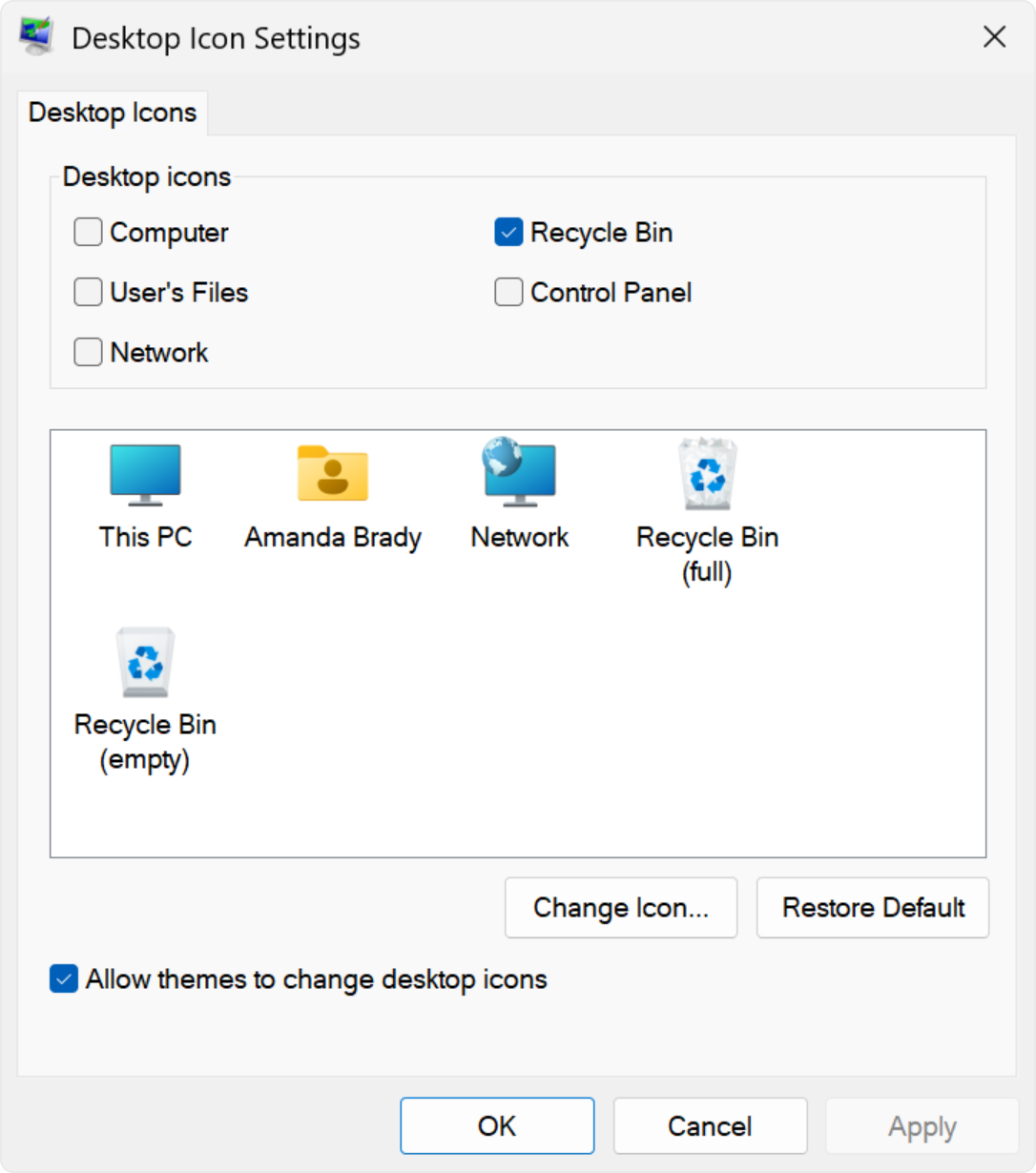
Icon and Taskbar Customization allow personalization of your desktop. Rearrange icons to prioritize frequently used apps. Adjust their size for better visibility. The taskbar can be moved or resized to suit your preferences. Pin important applications for easy access. Customization enhances usability and efficiency.
Credit: support.microsoft.com
Performance Enhancing Software
Optimizing your computer’s performance can make a significant difference. Performance enhancing software plays a crucial role in this. These tools help maintain and improve your desktop’s efficiency. By using them, you can ensure smooth and fast operation. Let’s explore some essential tools that can enhance your computer’s performance.
Antivirus And Security Tools
Antivirus software protects your computer from harmful threats. These threats include viruses, malware, and spyware. A good antivirus tool scans and removes these threats. It also updates regularly to tackle new risks. Security tools can prevent unauthorized access to your system. They provide a safer computing environment.
System Cleanup Utilities
System cleanup utilities remove unnecessary files from your computer. Temporary files, cache, and old backups can slow down your system. Cleaning them frees up valuable space. This makes your computer faster and more efficient. These utilities often include disk defragmentation tools. Defragmentation improves data access speeds. Regular cleanup helps maintain optimal performance.
Performance Monitoring Programs
Performance monitoring programs track your computer’s resource usage. They provide insights into CPU, memory, and disk usage. By monitoring these, you can identify performance bottlenecks. These programs alert you to unusual activity. They help you take action before problems arise. Monitoring ensures your computer runs smoothly.
Network And Connectivity Optimization
Network and Connectivity Optimizationis crucial for ensuring your desktop runs smoothly. Imagine you’re in the middle of an important video call, and the connection drops. Frustrating, right? With a few tweaks, you can maximize your computer’s network performance. Let’s explore some practical ways to enhance your network and connectivity settings.
Wi-fi Settings Adjustment
Wi-Fi can be temperamental, but with a few adjustments, you can improve stability and speed. Start by selecting the best channel on your router. Use a tool to check which channels are least congested in your area.
Consider changing your Wi-Fi frequency band. Switching from 2.4 GHz to 5 GHz can reduce interference and boost speed. Remember, 5 GHz might have a shorter range, so ensure your router is well-placed.
How often do you reboot your router? This simple action can resolve many connectivity issues. Set a reminder to do this weekly, and see the difference it makes.
Ethernet Configuration
For those who prefer wired connections, configuring your Ethernet settings can lead to more reliable performance. Are you using the latest drivers for your network card? Updating them can solve many connectivity problems.
Check your Ethernet cable quality. A damaged cable can cause intermittent disruptions. Investing in a high-quality, shielded cable may save you from frequent headaches.
Is your network adapter set to auto-negotiate speed? Sometimes manually setting it to a specific speed can stabilize your connection.
Vpn And Firewall Settings
Using a VPN can secure your connection, but incorrect settings might slow it down. Have you checked if your VPN is using the fastest protocol? Switching to a protocol like WireGuard can enhance speed while maintaining security.
Firewalls are essential for protection, but overly strict settings can block essential services. Review your firewall settings and whitelist trusted applications.
What’s your experience with firewall notifications? They can be overwhelming. Adjust notification settings to focus only on critical alerts and keep distractions at bay.
Optimizing your network settings involves small yet impactful changes. Have you tried any of these adjustments? Share your thoughts and experiences in the comments below!
Backup And Recovery Solutions
Ensuring your computer’s data is safe and recoverable is a crucial part of managing desktop settings. Have you ever lost important files due to a system crash or accidental deletion? Backup and recovery solutions can be your lifesaver. They offer a safety net, allowing you to restore your data and system to a previous state. Let’s delve into some practical options you can use to secure your data effectively.
Cloud Storage Options
Cloud storage is like having a digital vault for your files. Services like Google Drive, Dropbox, and OneDrive offer both free and paid plans, giving you flexibility based on your needs.
With cloud storage, your data is accessible from anywhere with an internet connection. Have you ever traveled and realized you forgot an important file on your home computer? With cloud storage, that’s no longer a worry. You can simply log in and download your file from the cloud.
Most cloud services automatically sync your files. This means your latest changes are always saved. It’s a smart way to ensure your data is always up-to-date and safe from local hardware failures.
External Backup Drives
External backup drives are a straightforward and reliable way to back up your data. These drives are portable, making it easy to store them safely away from your computer.
Consider using a drive with a large capacity to hold all your important files. You can schedule regular backups to ensure your data is consistently updated. This is particularly useful if you work with large files that take up significant space.
Have you ever experienced a computer virus that corrupted your files? With an external backup, you can easily restore them without much hassle. It’s a simple solution that provides peace of mind.
System Restore Points
System restore points allow you to revert your computer’s settings to a previous state. This is handy if a recent update or installation caused issues with your system.
Creating restore points regularly is a good habit. It ensures you can recover your system to a time when everything was running smoothly. Imagine installing a new software that crashes your system. A restore point can quickly bring things back to normal.
Setting up system restore points is typically a straightforward process in your computer’s settings. It’s a proactive way to safeguard your system against unforeseen problems.
Which backup solution do you think fits your needs best? By taking the time to set up these backup and recovery solutions, you can protect your data and keep your system running smoothly. Don’t wait for a disaster to strike—ensure your peace of mind today.
User Experience Enhancements
Enhancing user experience on your computer desktop can boost productivity. Simple tweaks in settings can make tasks easier. These enhancements cater to both beginners and tech-savvy users. Explore ways to customize your desktop for a better experience.
Custom Keyboard Shortcuts
Custom keyboard shortcuts save time. Assign shortcuts to frequently used apps. This reduces the need to click through menus. Setting up shortcuts is easy. Most operating systems have built-in options. You can create shortcuts for almost any task. This feature helps streamline your workflow.
Voice Command Settings
Voice command settings offer hands-free control. They simplify navigation and task execution. Many systems support voice commands. Enable this feature in settings. Speak naturally to open apps or files. This is ideal for multitasking. It also supports users with mobility challenges.
Virtual Desktop Management
Virtual desktop management keeps tasks organized. You can create multiple desktops. Each desktop can have different apps and windows. This helps separate work from personal activities. Switching between desktops is seamless. This feature prevents clutter and enhances focus.
Credit: edu.gcfglobal.org

Credit: www.youtube.com
Frequently Asked Questions
How To Change Desktop Wallpaper?
To change your desktop wallpaper, right-click on your desktop and select “Personalize. ” Choose “Background” from the menu, then select a picture or slideshow. You can upload your own images or choose from pre-installed options. Adjust settings to fit, center, or tile the image on your desktop.
How Can I Adjust Screen Resolution?
Right-click on your desktop and select “Display settings. ” Under the “Resolution” section, choose the recommended resolution for optimal performance. This will adjust the clarity and size of text and images. Apply changes and check if it suits your requirements.
Experiment with different resolutions to find the best fit.
What Are Desktop Icons Settings?
Desktop icons settings allow customization of icon size, visibility, and arrangement. Right-click on the desktop, select “View,” and choose icon size. You can show or hide system icons like “Recycle Bin” through “Themes” in the “Personalize” menu. Organize icons by dragging them to your preferred locations.
How To Personalize Desktop Themes?
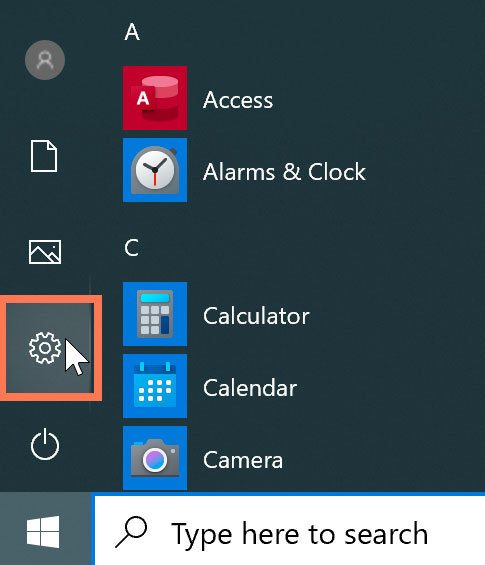
To personalize desktop themes, navigate to “Settings” and select “Personalization. ” Choose “Themes” from the sidebar and browse available options. You can customize background, sounds, and colors. Download additional themes from the Microsoft Store for more variety. Apply your chosen theme to instantly change the desktop appearance.
Conclusion
Setting up your computer desktop enhances productivity. Adjust the display brightness for comfort. Organize folders to find files easily. Use shortcuts for quick access. Customize wallpaper for a personal touch. Keep icons tidy. Regular updates ensure system efficiency. A clean desktop boosts focus.
Explore settings to suit your needs. Small tweaks can make a big difference. Enjoy a tailored desktop experience. Make your workspace inviting. A good setup saves time. Embrace simplicity for better workflow. Your computer, your rules. Keep it simple.



