
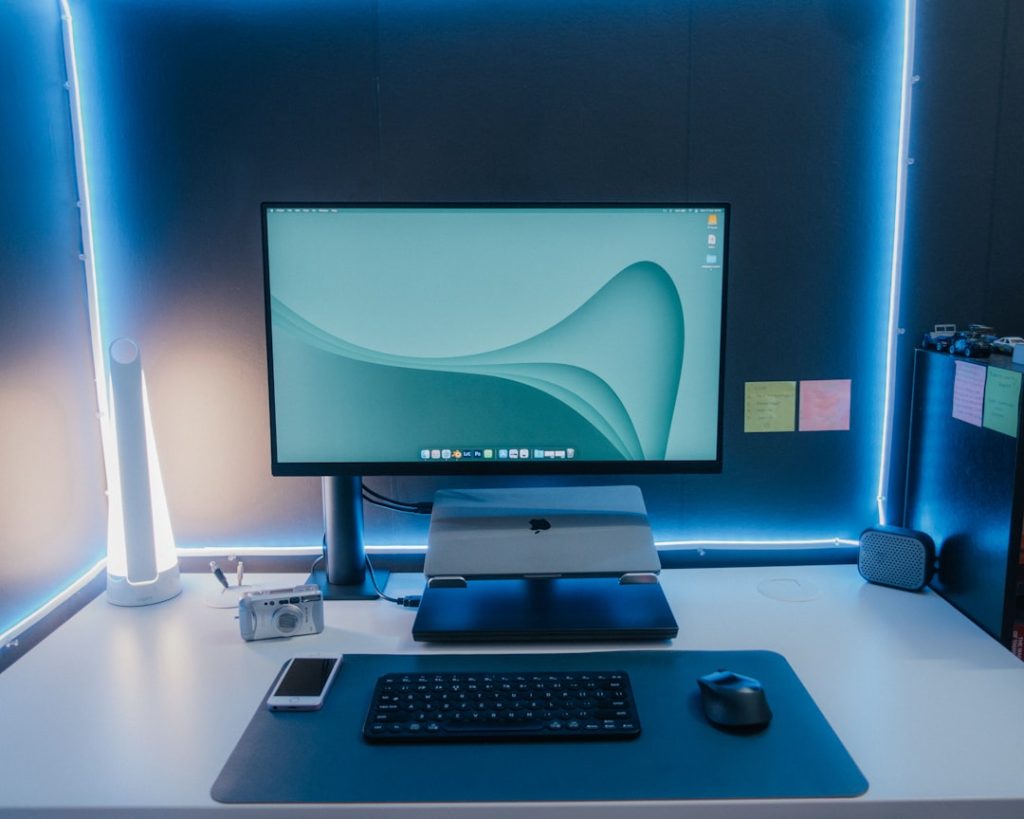
Are you curious about how desktop computers work? Maybe you’re looking to buy one, or perhaps you’re just trying to understand the machine sitting on your desk.
Whatever your reason, you’ve come to the right place. Desktop computers are essential tools in our daily lives, whether for work, play, or both. But let’s be honest—they can seem a bit daunting if you’re not familiar with the basics.
Don’t worry; you’re not alone. This guide will break down the essentials of desktop computers in simple terms. By the end of this article, you’ll feel more confident navigating your computer’s world and understanding what makes it tick. So, are you ready to demystify the desktop computer and unlock its potential? Let’s dive in.
Components Of A Desktop Computer
Explore the basics of desktop computers through their key components. A computer’s heart is its CPU, which processes tasks. The motherboard connects all parts, while RAM helps with multitasking. Storage is provided by hard drives or SSDs, and the power supply fuels everything.
Understanding the components of a desktop computer can feel like piecing together a complex puzzle. However, with a bit of guidance, you can master the basics and even assemble your own system. By knowing what each part does, you can make informed decisions when upgrading or troubleshooting.Central Processing Unit (cpu)
The CPU is often referred to as the brain of your computer. It processes instructions from both software and hardware, ensuring everything runs smoothly. Think of it as the traffic controller that manages data flow, ensuring tasks are executed efficiently. Modern CPUs come with multiple cores, allowing you to run multiple applications at once. This means you can stream music while working on a document without any lag. When choosing a CPU, consider what tasks you’ll be doing most frequently.Motherboard
The motherboard is the main circuit board that holds the computer’s essential components. It connects the CPU, RAM, storage, and other peripherals, acting like a central hub. When I built my first desktop, selecting a motherboard with the right ports and slots was crucial. It ensured I could add all the components I needed, like extra USB ports for my gadgets. Always check compatibility with your CPU and RAM before purchasing a motherboard.Random Access Memory (ram)
RAM is your computer’s short-term memory, temporarily storing data that your system needs quick access to. More RAM means your computer can handle more tasks at once without slowing down. Picture working on a massive project with multiple tabs open in your browser; that’s where having enough RAM saves you from frustrating delays. Typically, 8GB is sufficient for basic tasks, but you might need 16GB or more for gaming or video editing.Storage Drives
Storage drives, like Hard Disk Drives (HDD) and Solid State Drives (SSD), store all your data, from your operating system to personal files. SSDs are faster and more reliable than traditional HDDs, offering quicker boot times and data access. When I switched to an SSD, I noticed my computer started up in seconds, not minutes. Choose a drive that fits your budget and storage needs, and consider combining an SSD for your OS with an HDD for additional storage.Power Supply Unit (psu)
The PSU converts electricity from your wall socket into a form your computer can use. It powers every component, ensuring your system runs efficiently and safely. A common mistake is underestimating the wattage needed, which can lead to unstable performance. Calculate the power requirements of your components and choose a PSU that provides a little extra, to accommodate future upgrades. With these basics in mind, assembling or upgrading a desktop computer becomes less daunting. What new projects could you tackle with a better understanding of these components?Peripherals And Accessories
Every desktop computer needs additional devices for a complete setup. These peripherals enhance functionality and user experience. From displays to sound systems, each accessory plays a vital role. Understanding these components helps in making informed choices.
Monitors And Displays
Monitors are essential for visual output. Sizes range from compact to large screens. High-resolution displays provide sharp images. Choose a screen that fits your needs and space. Popular types include LED, LCD, and OLED. Consider refresh rates if gaming is a priority.
Keyboards And Mice
Keyboards and mice are input devices. They allow interaction with the computer. Mechanical keyboards offer tactile feedback. Wireless options reduce desk clutter. Ergonomic designs prevent strain during long use. Choose a mouse with adjustable sensitivity for precision.
Printers And Scanners
Printers create physical copies of digital documents. Inkjet and laser are common types. Scanners digitize documents for easy storage. Some devices combine printing and scanning functions. Consider print speed and quality when selecting a printer.
Speakers And Headsets
Sound is a crucial part of computer use. Speakers deliver audio for music and videos. Headsets are ideal for private listening. Look for devices with good sound quality. Wireless options offer convenience and mobility. Noise-cancelling features improve immersion.
Operating Systems
Understanding desktop operating systems is crucial for any computer user. These systems are the backbone of your computer. They manage hardware and software resources. Different systems offer unique features and interfaces. Choosing the right one depends on your needs and preferences.
Windows
Windows is popular among desktop users. It offers a user-friendly interface. Many businesses use Windows for its compatibility. It supports a wide range of software applications. Regular updates improve security and performance. Windows caters to both beginners and advanced users. Its vast ecosystem makes it versatile.
Macos
macOS is developed by Apple. Known for its sleek design and stability. It integrates well with other Apple devices. The operating system is intuitive and easy to navigate. macOS supports creative software like Final Cut Pro. It’s popular among designers and creatives. The App Store offers many applications.
Linux
Linux is an open-source operating system. It offers flexibility and customization. Many tech enthusiasts prefer Linux. It is known for its security features. Linux distributions like Ubuntu and Fedora are popular. It is free to use and modify. Suitable for developers and programmers.

Credit: vrindawan.in
Software Essentials
Understanding software essentials is crucial for operating a desktop computer. This knowledge empowers users to maximize their computer’s capabilities. Software acts as the soul of the computer, driving its functions. From productivity to entertainment, software covers diverse needs. Explore the vital software categories below to enhance your desktop experience.
Productivity Software
Productivity software helps you complete tasks efficiently. Microsoft Office and Google Workspace are popular options. They offer word processing, spreadsheets, and presentations. These tools simplify work and organize information. Essential for students, professionals, and businesses alike.
Security Software
Security software protects your computer from threats. Antivirus programs scan for malware and viruses. Firewalls block unauthorized access to your system. Regular updates keep your computer safe. Protect your data and privacy with reliable security software.
Web Browsers
Web browsers connect you to the internet. They help you access websites and online services. Chrome, Firefox, and Edge are popular choices. Browsers offer extensions for added features. Fast, secure browsing improves your online experience.
Media Players
Media players let you enjoy audio and video files. VLC and Windows Media Player are common examples. They support various formats and offer playback options. Media players enhance entertainment at home or on the go. Enjoy music, movies, and podcasts effortlessly.
Networking Basics
Networking is the backbone of modern computing, allowing devices to communicate and share resources efficiently. Whether you’re setting up a home office or just trying to connect your desktop computer to the internet, understanding the basics of networking is crucial. Dive into the world of networking with these essential concepts and see how they can enhance your computing experience.
Wired Connections
Wired connections are the most reliable way to ensure a stable network. Ethernet cables are the heroes here, offering fast speeds and minimal interference. You can easily connect your desktop to a router using these cables.
Imagine the smooth streaming and lag-free gaming experience when your connection is rock-solid. Consider the ease of troubleshooting when there’s a visible cable to check. Are you ready to embrace the reliability of wired networking?
Wireless Connections
Wireless connections bring freedom to your setup. Wi-Fi is the go-to for those who dislike cable clutter. It allows you to move your devices without being tethered to a specific spot.
Think about the convenience of accessing the internet from any room in your house. However, remember that wireless can sometimes be less stable than wired. Is the flexibility worth occasional drops in connection?
Network Security
Network security is essential to protect your data from cyber threats. Every time you connect to a network, you’re opening a portal that could be vulnerable. Passwords, firewalls, and encrypted connections are your guardians.
Reflect on the peace of mind that comes with knowing your personal information is safe. What steps are you willing to take to ensure your network’s security? Are you prepared to invest time in setting up robust security measures?
Networking basics aren’t just technical jargon; they’re the key to a seamless digital life. By understanding these concepts, you can optimize your desktop’s connectivity and security. Isn’t it time to take control of your network setup?
Maintenance And Upgrades
Regular care keeps desktop computers running smoothly. Upgrades enhance performance, offering faster speeds and better functionality. Essential for optimal computing experience.
Maintaining a desktop computer ensures its longevity and performance. Regular care and timely upgrades keep it running smoothly. This section covers essential aspects of desktop maintenance and upgrades. Simple tips and tricks make it easier for everyone to manage their computers efficiently.Cleaning And Care
Dust can cause overheating and slow performance. Regularly clean the computer exterior. Use a soft cloth and compressed air. Remove dust from vents and fans. Keep the surroundings dust-free. Avoid eating near your computer. Spills can damage internal parts. Ensure cables and connections are secure. A clean computer runs better.Hardware Upgrades
Upgrade components to boost performance. Start with RAM for faster multitasking. More RAM handles more applications at once. Consider upgrading the hard drive to SSD. SSDs are faster and more reliable. Graphics card upgrades enhance gaming and video performance. Ensure compatibility with existing hardware. Research before purchasing new components. Installation is straightforward with online guides.Software Updates
Regular software updates improve security and functionality. Check for operating system updates. They fix bugs and enhance features. Update applications for better performance. Enable automatic updates for convenience. Security updates protect against threats. Outdated software can slow down your computer. Regular updates keep your system running efficiently.Troubleshooting Common Issues
Identifying issues with desktop computers involves checking connections and hardware. Common problems include slow performance and software errors. Regular updates and cleaning help maintain optimal function.
Troubleshooting common issues with your desktop computer can seem daunting, but understanding the basics can make the process much smoother. Whether you’re dealing with hardware problems, software glitches, or network connectivity issues, a systematic approach can help you identify and resolve the root of the problem. This section will guide you through some typical challenges and offer practical solutions that you can apply right away.Hardware Problems
Hardware issues often stem from physical components of your desktop. Have you ever turned on your computer, only to be greeted by a blank screen? This could be a sign of a loose cable or a faulty monitor connection. Start by checking all physical connections. Ensure cables are securely plugged in. A simple adjustment can sometimes solve the issue. Additionally, consider the health of your computer’s components. Listen for unusual noises, which might indicate a failing hard drive or a malfunctioning fan. Regular cleaning can prevent overheating issues. Dust accumulation can lead to poor air circulation and component failure.Software Glitches
Software problems can disrupt your workflow, but they’re often easier to fix than hardware issues. Is your computer freezing or running slowly? This might be due to outdated software or too many programs running simultaneously. Begin by closing unnecessary applications. Freeing up resources can significantly enhance performance. Updating your software can also resolve many glitches. Check for updates regularly and install them to ensure your system runs smoothly. If a particular application keeps crashing, try uninstalling and reinstalling it. This refreshes its setup and can solve persistent bugs.Network Connectivity Issues
Network issues can be frustrating, especially when you rely on the internet for work or entertainment. Imagine trying to join a video call, only to find your connection keeps dropping. First, check your Wi-Fi signal strength. Weak signals might require repositioning your router or using a range extender. Ensure your network settings are correct. Sometimes, simple misconfigurations can block your connection. Consider restarting your modem and router. This can resolve temporary glitches and improve connectivity. Think about how often you encounter these problems. Could upgrading your equipment or service plan be a worthwhile investment? Troubleshooting doesn’t have to be overwhelming. With a bit of patience and a methodical approach, you can tackle most desktop computer issues and keep your system running smoothly. What other tips have worked for you in solving computer problems? Share your insights with others who might be facing similar challenges!
Credit: www.youtube.com

Credit: www.amazon.com
Frequently Asked Questions
What Are The Main Components Of A Desktop Computer?
A desktop computer typically consists of a processor, motherboard, RAM, storage drives, power supply, and a case. These components work together to perform tasks. The processor executes instructions, while RAM temporarily stores data. Storage drives hold permanent data, and the power supply provides electricity for the system.
How Does A Desktop Computer Differ From A Laptop?
Desktop computers are generally larger, offering more power and upgrade potential. They have separate components, unlike laptops which are compact and portable. Desktops are suitable for high-performance tasks, whereas laptops offer convenience and mobility. Desktops often have more connectivity options and better cooling systems.
Can I Upgrade My Desktop Computer Easily?
Yes, desktop computers are designed for easy upgrading. You can replace or add components like RAM, storage drives, and graphics cards. Upgrading helps improve performance and extend the computer’s lifespan. Ensure compatibility with your current system before purchasing new components.
What Should I Consider When Buying A Desktop Computer?
Consider the processor speed, RAM size, storage capacity, and graphics capabilities based on your needs. Think about the intended use, whether for gaming, work, or general tasks. Budget, brand reputation, and warranty are also important. Research thoroughly to find a computer that meets your requirements.
Conclusion
Understanding desktop computer basics is essential for everyday users. These devices power our work, communication, and entertainment. Knowing parts like the CPU and RAM helps in making informed choices. Regular maintenance can prolong your computer’s life. Troubleshooting common issues saves time and money.
Always update software for security and efficiency. Explore features like storage options and connectivity. A well-chosen desktop can meet your needs effectively. As technology evolves, stay informed and adapt. Embrace the learning process, and enjoy the benefits of a reliable desktop setup.
Keep discovering, keep growing.



