
Do you often find yourself squinting at your laptop screen, trying to peer through the smudges and dust? A dirty screen can be more than just an annoyance; it can strain your eyes and reduce your productivity.
But before you reach for the nearest cleaning product, pause for a moment. Cleaning a computer screen isn’t as straightforward as it seems. Using the wrong methods or materials could cause permanent damage. That’s why it’s crucial to know how to clean your laptop screen safely and effectively.
In this guide, we’ll walk you through simple, fail-proof steps to ensure your screen stays spotless and your laptop remains in top condition. Ready to see your screen sparkle again? Let’s dive in.

Credit: www.amazon.com
Preparation Essentials
Gently wipe the laptop screen with a microfiber cloth to remove dust. Use a small amount of distilled water for stubborn spots. Avoid harsh chemicals to prevent screen damage.
Cleaning your laptop screen might seem like a daunting task, but with the right preparation, it can be done safely and effectively. Ensuring your screen is spotless not only enhances your viewing experience but also prolongs the life of your device. Before diving into the cleaning process, it’s essential to prepare properly. This involves gathering the right supplies and taking necessary precautions to protect your device.Gather Necessary Supplies
Before you start, make sure you have all the supplies you need. A microfiber cloth is your best friend—it’s gentle and won’t scratch your screen. Avoid paper towels or rough fabrics that can cause damage. You’ll also need a cleaning solution, but not just any will do. Use a mixture of distilled water and white vinegar or a solution specifically designed for screens. Never use products containing alcohol or ammonia, as they can harm the screen. Check your supplies list: microfiber cloth, distilled water, white vinegar, or a screen-safe cleaner. Having everything ready will save you time and ensure a smooth cleaning process.Power Down Your Device
It’s crucial to turn off your laptop before cleaning the screen. This reduces the risk of electrical shock and prevents damage to the display. Plus, with the screen off, you’ll better see smudges and dirt, making it easier to clean thoroughly. It’s a small step, but it makes a big difference. Ask yourself: Is the inconvenience of a smudged screen worth the risk of cleaning it while powered on? Definitely not. Always power down first, and you’ll keep your device safe and sound. Taking these simple steps ensures a safe cleaning experience. Have you ever cleaned your screen while it was on and noticed streaks you couldn’t see before? Powering down solves that problem and keeps your laptop in tip-top shape.Choosing The Right Cleaning Solution
Selecting the right cleaning solution is key to safely cleaning your laptop screen. Use a gentle, alcohol-free cleaner to avoid damage. Always apply the cleaner to a soft cloth, never directly on the screen.
Cleaning your laptop screen might seem straightforward, but selecting the right cleaning solution is crucial to ensure safety and effectiveness. You may have heard horror stories about using the wrong products—smudged screens, damaged coatings, and even permanent marks. It’s essential to choose a solution that keeps your screen pristine without the risk of damage.Avoid Harsh Chemicals
Many people mistakenly use household cleaners on their laptop screens. These products often contain ammonia or alcohol, which can strip away protective coatings and cause discoloration. Remember the time you cleaned your laptop with a kitchen cleaner and ended up with a streaky mess? That’s the outcome of harsh chemicals. Avoid using glass cleaners, as they’re designed for windows, not delicate electronic screens.Opt For Screen-safe Products
Consider investing in solutions specifically made for electronics. These are usually water-based and designed to be gentle on your screen’s surface. Have you ever tried using a microfiber cloth dampened with a screen-safe cleaner? It’s remarkably effective and ensures your screen stays clear and bright. Screen-safe products are often available in computer stores or online marketplaces, making them accessible and easy to find. Choosing the right cleaning solution is a simple yet crucial step in maintaining your laptop’s longevity. What will you choose next time—an all-purpose cleaner or a screen-safe product? Your screen deserves the best care.Cleaning Techniques
Cleaning your laptop screen is crucial. Dust and fingerprints can affect visibility. Using the right technique ensures safety and effectiveness. Let’s explore the best methods for cleaning.
Using A Microfiber Cloth
Microfiber cloths are excellent for cleaning screens. They are soft and gentle. They prevent scratches and marks. Always use a clean cloth. Dirty cloths might spread dirt. Microfiber cloths trap dust easily. They can remove smudges without leaving residue. Never use paper towels or rough fabrics.
Gentle Circular Motions
Use gentle circular motions when cleaning. This technique is safe and effective. It helps in removing stubborn stains. Circular movements distribute pressure evenly. They avoid screen damage. Ensure you apply light pressure. Hard pressure might harm the screen. Slow, gentle motions are best for cleaning.

Credit: www.youtube.com
Handling Stubborn Stains
Safely cleaning a laptop screen involves gentle methods. Use a microfiber cloth, slightly dampened with water, to wipe away dirt. Avoid harsh chemicals that might damage the screen.
Cleaning a laptop screen can be tricky, especially with stubborn stains. These marks often require special attention. Dust and fingerprints are common. But food particles and ink smudges pose a challenge. Handle them carefully to avoid screen damage. Here’s how to tackle these pesky spots effectively.Spot Treatment
Tackle small spots with a soft cloth. Dampen it with distilled water. Gently rub the stain in a circular motion. Avoid pressing too hard. This helps remove the spot without harming the screen. For tougher stains, mix equal parts of water and vinegar. Dampen the cloth with this mixture. Wipe the stain gently. Vinegar helps break down stubborn marks. Always use a clean section of the cloth. This prevents spreading the stain.Dealing With Smudges
Smudges can be frustrating. Use a microfiber cloth for best results. It lifts smudges without scratching. For greasy smudges, try a mild soap solution. Mix a drop of dish soap with water. Dip the cloth in the solution. Wring out excess liquid. Wipe the smudge with gentle pressure. Avoid soaking the cloth. Excess moisture can seep into the screen edges. This could cause damage. Dry the screen with a clean, dry cloth. This removes any soap residue left behind. Regular cleaning prevents smudges from becoming permanent.Preventing Future Damage
Cleaning your laptop screen is crucial. But protecting it from future damage is just as important. A dirty or scratched screen can affect visibility. This leads to a frustrating experience. Prevention is key. Follow these easy tips to keep your laptop screen in top shape.
Regular Maintenance Tips
Regular maintenance is your first line of defense. Dust your screen weekly. Use a soft, dry microfiber cloth. This prevents dust buildup. Avoid using paper towels. They can scratch the screen. Always clean in a circular motion. This prevents streaks.
Check for smudges often. Wipe them gently. Use a small amount of water if needed. Never spray liquid directly on the screen. It can cause damage. Follow this routine. Your screen will stay clean and clear.
Protective Measures
Protect your screen with a screen protector. It guards against scratches. It also reduces glare. This makes it easier to see the screen. Choose a good quality protector. It should fit your screen perfectly.
Keep food and drinks away from your laptop. Spills can cause stains. They can also damage the screen permanently. Store your laptop in a case when not in use. This shields it from dust and impacts.
Adjust your laptop’s brightness. Excessive brightness can strain your eyes. It can also wear out the screen faster. Find a comfortable level to extend screen life.
Common Mistakes To Avoid
Cleaning a laptop screen safely involves avoiding harsh chemicals and rough materials. Use a soft, lint-free cloth and gentle cleaning solutions to prevent scratches and damage. Always turn off and unplug the device before cleaning to ensure safety.
Cleaning a laptop screen seems straightforward, but mistakes happen. Avoiding these common errors ensures your screen stays pristine. Many people ruin their screens by using the wrong methods. Let’s explore these pitfalls and learn how to sidestep them.Over-saturating Cloth
Using too much liquid is a common mistake. A drenched cloth can damage your screen. Liquid can seep into the edges and cause harm. Always use a lightly dampened cloth. This prevents liquid from entering sensitive parts. Less liquid is better for safety.Using Excessive Pressure
Pressing hard on the screen can lead to scratches. Screen surfaces are delicate. Applying too much pressure might crack it. Lightly wipe the screen instead. Gentle strokes are sufficient for cleaning. This keeps the screen intact and spotless.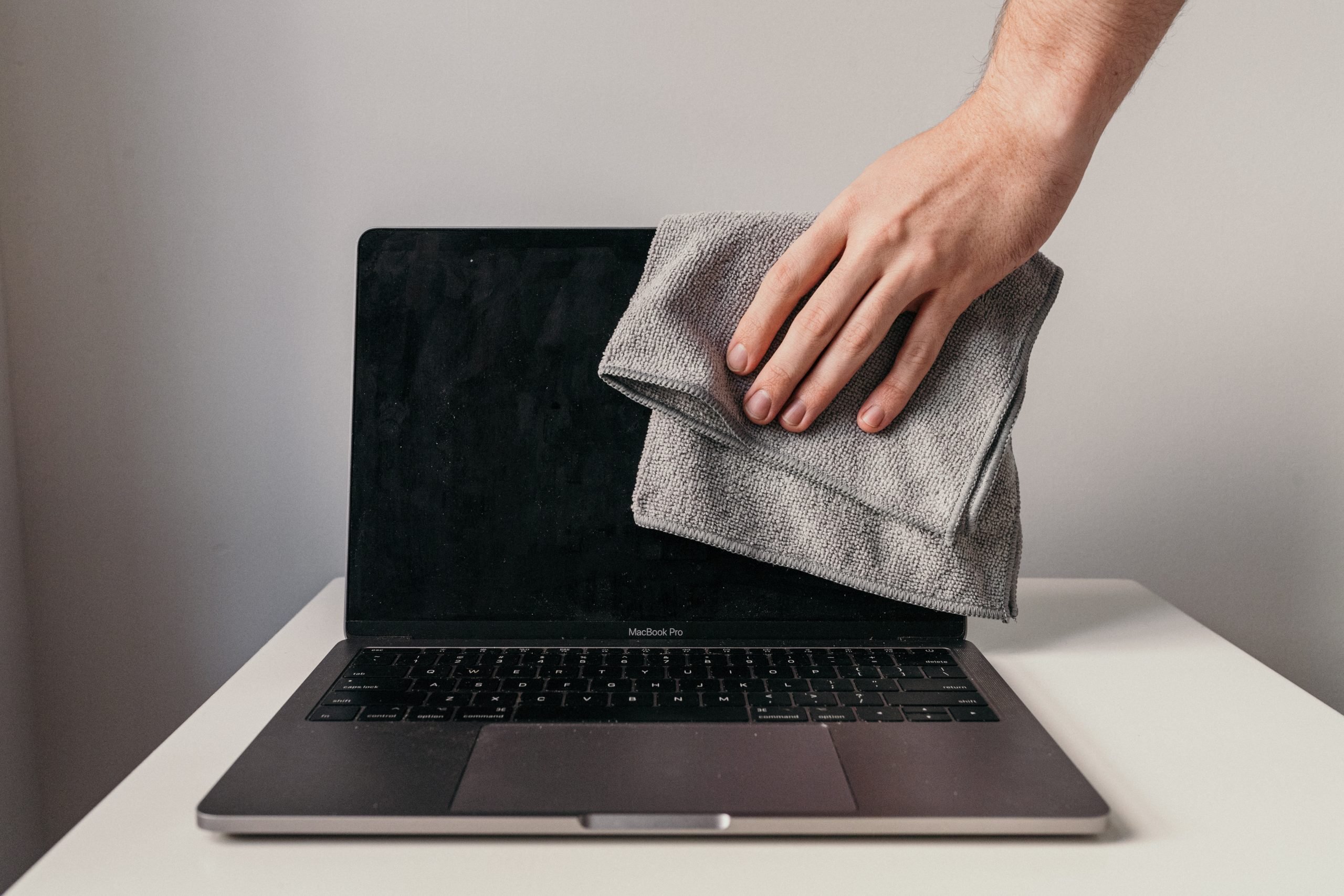
Credit: www.rd.com
Frequently Asked Questions
What Are Safe Products For Cleaning Laptop Screens?
Use gentle cleaning solutions like distilled water and white vinegar. Avoid harsh chemicals that can damage the screen. Microfiber cloths are ideal for wiping without scratching.
How Often Should I Clean My Laptop Screen?
Clean your laptop screen every two weeks to maintain visibility and hygiene. Regular cleaning prevents buildup of dust and smudges.
Can I Use Paper Towels On Laptop Screens?
Avoid using paper towels as they can scratch the screen. Opt for microfiber cloths which are soft and safe.
Is It Safe To Use Alcohol On Laptop Screens?
Alcohol can damage screen coatings. Use it sparingly and only if recommended by the laptop manufacturer for persistent stains.
Conclusion
Cleaning your laptop screen safely keeps it clear and functional. Use gentle materials. Avoid harsh chemicals. Microfiber cloths work best. Spray cleaner on the cloth, not the screen. Wipe gently. Regular cleaning prevents damage. Your screen stays clear longer. Dust and fingerprints don’t stand a chance.
A clean screen equals better visuals. Protect your device with care. Simple steps make a big difference. Keep your laptop in top shape with these tips. Happy cleaning!



