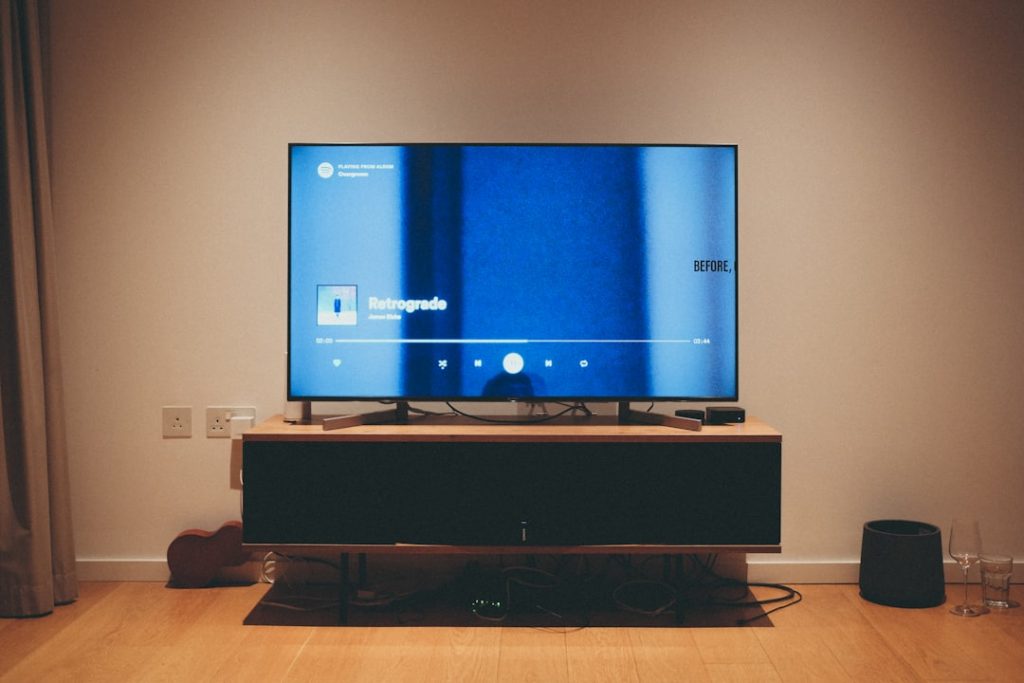
Imagine settling into your couch, popcorn in hand, ready for a movie night. You press play, but the sound from your smart TV leaves a lot to be desired.
It’s like watching a blockbuster with earplugs in. You deserve better than muffled dialogue and lackluster soundtracks. Connecting speakers to your smart TV could transform your viewing experience into a cinematic adventure. How do you make this happen without calling in a tech expert?
Don’t worry, it’s simpler than you think. By the end of this guide, you’ll know exactly how to pair your speakers with your TV for that rich, immersive sound you crave. Let’s dive into the details and elevate your audio experience.
Understanding Speaker Compatibility
Understanding speaker compatibility with your smart TV is crucial. It ensures a seamless audio experience. Smart TVs come with various audio output options. Each type of speaker requires different connections. Knowing these will help you choose the right setup for your home.
Types Of Speakers
There are several types of speakers available. Soundbars are popular for their simplicity. They offer a compact design with rich sound. Home theater systems provide a more immersive experience. They consist of multiple speakers for surround sound.
Bluetooth speakers are another option. They connect wirelessly to your smart TV. This makes them convenient and easy to set up. Traditional wired speakers are also available. They require cables but often deliver superior audio quality.
Smart Tv Audio Outputs
Smart TVs support different audio outputs. HDMI ARC is a common feature. It allows for high-quality audio and video transfer. Optical audio output is another option. It uses light to transmit audio signals. This ensures no loss of sound quality.
RCA connectors are also used. They are the red and white cables. These are standard in older audio systems. Bluetooth is a modern choice for wireless connectivity. It is ideal for wireless speakers and soundbars.
Using Bluetooth For Wireless Connection
Bluetooth simplifies connecting speakers to a smart TV. First, ensure both devices have Bluetooth enabled. Then, navigate to the TV’s settings, select Bluetooth, and pair with the speakers. Enjoy your movies with enhanced sound quality effortlessly.
Connecting speakers to your smart TV can transform your viewing experience into a surround sound spectacle. If you’re tired of dealing with tangled wires and crowded spaces, Bluetooth offers a sleek solution for wireless audio connection. It’s easier than you might think, and once you master it, you’ll wonder how you ever did without it. Imagine sitting back on your couch, the sound coming from all corners of the room, without a single cable in sight. Ready to dive into the world of Bluetooth connectivity?Activating Bluetooth On Smart Tv
To start, you need to ensure your smart TV’s Bluetooth is turned on. This is usually found in the settings menu. Access your TV’s settings and look for a section labeled ‘Connections’ or ‘Network’. Once there, you should see an option to activate Bluetooth. Toggle it on. When I first tried this, I was surprised at how intuitive the process was. The TV guided me through each step with on-screen prompts.Pairing Speakers With Tv
Once Bluetooth is activated, it’s time to pair your speakers with the TV. Ensure your speakers are in pairing mode; this often involves pressing a designated button until a light flashes. On your TV, navigate back to the Bluetooth settings. You should see a list of available devices to connect to. Find your speakers and select them. The TV might ask for confirmation or a pairing code. Follow the prompts, and within moments, you’ll hear the audio from your TV playing through your speakers. I remember the first time my speakers connected; it felt like a mini victory—like I had unlocked a new dimension of sound right in my living room. Why not give it a try and see how it changes your movie nights?Connecting Via Hdmi Cable
Easily connect speakers to a smart TV using an HDMI cable for enhanced sound quality. Plug one end into the TV and the other into the speakers. Enjoy better audio with this simple setup.
Connecting speakers to a Smart TV via HDMI cable is simple. HDMI cables provide high-quality sound and video. Most Smart TVs have HDMI ports for easy connection. With HDMI, you can enjoy clear audio from your speakers. Let’s explore how to connect your speakers using an HDMI cable.Selecting The Right Hdmi Port
Smart TVs have multiple HDMI ports. Each port serves different purposes. Check your TV’s manual to identify ports. Look for the port labeled ‘HDMI ARC’. ARC stands for Audio Return Channel. This port sends sound from the TV to your speakers. Using the ARC port ensures quality audio output.Configuring Audio Settings
After connecting the HDMI cable, adjust audio settings. Access the TV’s menu with the remote. Find the audio settings section. Look for ‘HDMI ARC’ or ‘HDMI Audio’. Enable this option to activate sound output to speakers. You may also need to adjust volume settings. Ensure the TV’s sound mode is set to external speakers. This step ensures sound plays through your connected speakers.
Credit: www.youtube.com
Optical Cable Connection
Connecting speakers to a Smart TV using an optical cable offers clear sound quality. This method is popular for its simplicity and efficiency. Optical cables transmit audio signals using light, reducing interference. It provides a seamless connection between your TV and speakers. This is ideal for enhancing your home theater experience.
Setting Up Optical Audio Cable
First, locate the optical audio output on your Smart TV. It’s usually labeled “Optical” or “Digital Audio Out.” Next, find the optical input on your speaker system. Connect one end of the optical cable to the TV’s output. Insert the other end into the speaker’s input. Ensure the cable fits snugly for optimal sound transfer.
Adjusting Tv Audio Output
Turn on your Smart TV and navigate to the settings menu. Find the audio settings section. Set the audio output to “Optical” or “Digital Audio.” This ensures the TV sends sound through the optical cable. Check the speaker system for any volume or sound adjustments. Confirm the speakers are receiving audio from the TV.
Using Rca Or Aux Cables
Connecting speakers to a smart TV is simple with RCA or AUX cables. Plug the cables into the TV’s audio output and speaker input. Adjust settings on your TV to route sound through the external speakers for better audio quality.
Connecting your speakers to a Smart TV can elevate your audio experience from good to phenomenal. One practical way to achieve this is by using RCA or AUX cables. These cables are widely available, budget-friendly, and compatible with most audio setups. Whether you’re watching a blockbuster or diving into a gripping series, connecting external speakers can make your viewing experience more immersive. Are you ready to transform your living room into a home theater?Identifying Rca/aux Ports
First, locate the audio output ports on your Smart TV. These are usually labeled as “Audio Out” or “Headphone.” RCA ports are typically red and white, representing the right and left audio channels. AUX ports, on the other hand, look like the headphone jack on your phone. Check your speaker system to see which input it supports. Some systems may offer both RCA and AUX ports, giving you options.Connecting And Testing Sound
Once you’ve identified the ports, plug one end of the RCA or AUX cable into the corresponding port on your Smart TV. Connect the other end to your speaker system. Ensure the connections are secure for optimal sound quality. Turn on your TV and speakers. Play a video or a song to test the sound. Adjust the volume to your preference. If the sound isn’t coming through, double-check the connections. You might also need to change your TV’s audio settings to external speakers. Have you tried different sound settings to enhance your audio experience? Sometimes, a simple tweak can make a big difference. Connecting speakers with RCA or AUX cables is straightforward, but it can significantly improve your TV watching experience. Give it a try and see how it transforms your home entertainment setup.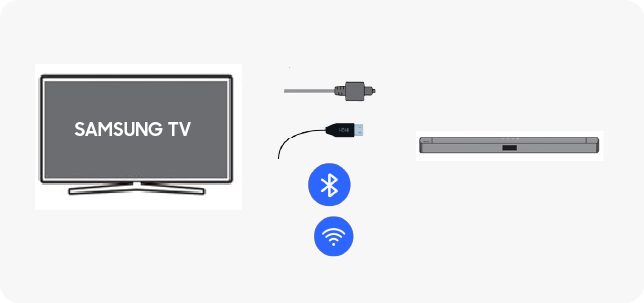
Credit: www.samsung.com
Setting Up External Audio Systems
Connecting speakers to a smart TV enhances sound quality. Use HDMI ARC or optical cables for best results. Wireless options like Bluetooth or Wi-Fi provide easy, cable-free setup.
Setting up external audio systems enhances your smart TV experience. It brings sound quality to life. Whether watching movies or playing games, external speakers make a difference. They provide clear, immersive audio.Soundbars And Home Theaters
Soundbars are compact and easy to install. They offer great sound without complicated setup. Place it in front of your TV. Connect with HDMI or optical cable. Ensure your TV’s audio settings match the soundbar. This avoids any sound delay. Home theaters provide a richer audio experience. They include multiple speakers and a subwoofer. Position the speakers around your room. Connect them to the TV using HDMI or Bluetooth. Adjust the audio settings for optimal sound.Synchronizing Audio And Video
Audio and video sync is crucial. It prevents distracting delays. Check the TV’s audio settings. Many TVs have an audio delay feature. This helps align sound with picture. If using Bluetooth, ensure devices are close. Bluetooth can sometimes cause lag. Wired connections often provide better sync. Regularly update your TV’s firmware. Updates can improve audio sync issues.Troubleshooting Connection Issues
Connecting speakers to a Smart TV can enhance your audio experience. Sometimes, issues arise that prevent a seamless connection. Understanding these common problems and solutions can help.
Common Audio Problems
Audio not playing from external speakers is a frequent issue. Ensure cables are securely connected. Loose connections can disrupt sound. Incorrect settings on the TV can also cause silence. Check your TV’s audio output settings. They should match the speaker’s input requirements.
Another problem is distorted sound. This often happens due to incorrect cable selection. Use cables recommended by the speaker manufacturer. Audio lag is frustrating too. It usually results from wireless connections. Verify Wi-Fi signal strength. Weak signals can lead to lag.
Tips For Optimal Sound Quality
Position speakers correctly for best sound. Avoid placing them behind furniture. This can muffle sound. Keep them at ear level for clarity. Adjust TV audio settings for ideal output. Experiment with equalizer settings. They can enhance sound quality.
Choose high-quality cables for connections. They often provide better sound. Ensure speakers are compatible with your TV. Compatibility affects sound performance. Regularly update your TV firmware. Updates can fix audio bugs.

Credit: www.reddit.com
Exploring Advanced Audio Options
Exploring advanced audio options for your Smart TV can enhance your viewing experience. Connecting external speakers allows you to enjoy richer sound quality. There are several ways to achieve this. Each option offers unique benefits. Let’s dive into some advanced audio setups.
Surround Sound Systems
Surround sound systems create an immersive audio environment. They use multiple speakers placed strategically around the room. This setup can make you feel like you’re in a theater. To connect, ensure your Smart TV supports surround sound. You’ll need HDMI or optical audio cables. These cables connect your TV to the surround sound receiver. Position speakers around the room for the best effect. Test each speaker to ensure sound is balanced. Adjust settings on your TV to optimize audio output.
Using Audio Receivers
Audio receivers act as a hub for your audio equipment. They connect multiple devices to your Smart TV. This includes speakers, subwoofers, and other audio components. Choose a receiver compatible with your TV. Connect it using HDMI or optical cables. Once connected, configure the receiver settings. This ensures the best sound quality. Audio receivers often come with remote controls. Use the remote to fine-tune your audio preferences. This setup offers flexibility and control over your sound system.
Frequently Asked Questions
How Do I Connect Speakers To My Smart Tv?
To connect speakers, use the TV’s audio output port. This might be HDMI ARC, optical, or RCA. Ensure your speakers are compatible with the connection type. If wireless, Bluetooth setup is often required. Follow the TV’s settings menu to select the audio output method.
Can Bluetooth Speakers Connect To Smart Tvs?
Yes, Bluetooth speakers can connect to Smart TVs. Enable Bluetooth on your TV and set your speakers in pairing mode. Navigate to the Bluetooth settings on your TV to find and connect to your speakers. Some TVs might require a Bluetooth adapter for this feature.
Why Is My Tv Not Detecting Speakers?
Your TV might not detect speakers due to connection issues. Ensure cables are securely plugged and check if your speakers are powered on. Verify that the correct audio output is selected in the TV settings. For Bluetooth, ensure the device is in pairing mode.
Do Smart Tvs Support All Speaker Types?
Smart TVs support most speaker types, including wired and wireless. Common connections include HDMI ARC, optical, RCA, and Bluetooth. Always check your TV’s specifications for supported audio formats and connections to ensure compatibility with your speakers.
Conclusion
Connecting speakers to a smart TV enhances your viewing experience. Better sound quality makes movies and shows more enjoyable. Use the right cables for clear audio. Wireless options offer convenience and easy setup. Always check compatibility with your TV model.
Follow instructions for a smooth connection process. Enjoy immersive sound without complicated steps. Experiment with different settings for the best audio output. Troubleshoot if the sound isn’t working perfectly. Keep your equipment in good condition for lasting use. With these tips, your smart TV and speakers can work together seamlessly.