
Are you having issues with your Blu smartphone and need a fresh start? Sometimes, a factory reset is the best way to resolve persistent problems, clear up space, or simply refresh your device.
But let’s be honest—navigating through technical settings can feel overwhelming. That’s why we’re here to guide you through each step, making the process as smooth and stress-free as possible. Imagine having your phone working like new again, without the usual tech headaches.
Stick with us, and you’ll discover how simple it can be to reset your Blu smartphone and restore its original performance. Ready to get started? Let’s dive in!
Credit: www.rockitrepairs.com
Reasons For Factory Reset
Factory resetting a Blu smartphone can solve various issues. It wipes all data, restoring the phone to its original state. This action can fix persistent problems and improve functionality.
Performance Issues
Over time, smartphones may slow down. Apps can lag, and processes take longer. A factory reset can refresh the system. It clears out clutter and old files. This can boost speed and efficiency.
Removing Malware
Malware can invade your smartphone. It can cause unwanted ads and data breaches. A factory reset removes these threats. It deletes all malicious software. Your phone returns to a safe state.
Preparing For Sale
Before selling your Blu smartphone, consider a factory reset. It protects your personal information. All personal data gets erased. This ensures privacy for the new owner.
Credit: techycompany.com
Backup Important Data
Before diving into the factory reset process of your Blu smartphone, safeguarding your data is crucial. A factory reset wipes all information, leaving your device as new. To prevent losing valuable files, backing up important data is essential. Explore different methods to ensure your data stays safe and accessible.
Using Google Account
Google Account provides an easy way to back up data. Sync your contacts, calendar, and photos with Google. Navigate to settings and select ‘Accounts.’ Choose Google and enable sync options. Your data will be stored securely in the cloud. Access it anytime after resetting your phone.
Third-party Backup Apps
Third-party apps offer versatile backup solutions. Apps like Google Drive and Dropbox store files online. Download one from the Play Store. Follow the app instructions to back up your data. These apps often support automatic updates, keeping your files safe. Ensure you have sufficient storage space in your chosen app.
Manual Data Transfer
Manual transfer ensures complete control over your files. Connect your Blu smartphone to a computer using a USB cable. Open your device storage on the computer. Drag and drop important files to a folder on your computer. This method is straightforward and effective. Remember to transfer all critical data.
Charge Your Device
Before resetting your Blu smartphone, ensure it’s fully charged. A factory reset demands a stable power source. This process takes time and energy. A low battery may interrupt the reset, causing issues. Charging your device is a simple yet crucial step.
Adequate power ensures a smooth reset process. It prevents unexpected shutdowns. This safeguard protects your phone from data loss. Keep reading to learn more about preparing your device for a reset.
Why Charging Is Important
Charging your device prevents interruptions. A fully charged phone is less likely to turn off unexpectedly. This stability is essential during a reset. Power interruptions can corrupt data. They may leave your phone inoperable.
How Long To Charge
Plug in your phone for at least an hour. Ensure it reaches 100% before proceeding. This ensures the battery won’t die mid-process. A full charge guarantees a seamless reset experience.
Using The Right Charger
Use the charger that came with your Blu smartphone. It ensures optimal charging speed and efficiency. Avoid third-party chargers, which may charge slower. They may not provide the necessary power. Always prioritize the original charger for best results.
Checking Battery Health
Before starting, check your battery health. A healthy battery charges efficiently. Go to settings and look for battery health indicators. This check ensures your device is ready for the reset.
Factory Reset Via Settings
To factory reset a Blu smartphone, access the settings menu. Navigate to ‘Backup & Reset’ for options. Select ‘Factory Data Reset’ to erase all data and restore default settings.
Factory resetting a Blu smartphone can solve many problems. It restores the device to its original state. Factory Reset via Settings is a simple method. It’s suitable for many users. Follow these steps to reset your Blu smartphone through settings.Accessing Settings Menu
Start by unlocking your Blu smartphone. Look for the “Settings” app on your home screen. The icon usually looks like a gear. Tap on it to open the settings menu. This menu contains various options for your device.Navigating To Reset Option
Scroll down the settings menu. Find the “System” option and tap on it. Under “System,” look for “Reset options.” Tap on “Reset options” to see different reset choices. Choose “Factory data reset” to proceed.Confirming The Reset
Read the information on the screen carefully. It explains what data will be erased. If you’re sure, tap “Reset phone” at the bottom. You might need to enter your PIN or password. After confirming, your phone will start the reset process.Factory Reset Using Hardware Buttons
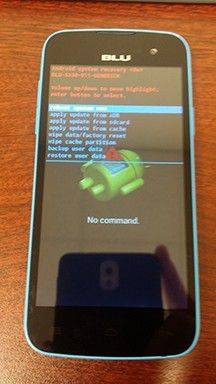
Resetting a Blu smartphone with hardware buttons is simple and quick. First, turn off the device completely. Then, press and hold the power and volume up buttons until the recovery menu appears. Use the volume buttons to select “Factory Reset” and confirm with the power button.
Factory Reset Using Hardware Buttons Ever had that moment when your Blu smartphone is acting up, and you just want to start fresh? Factory resetting using hardware buttons can be your knight in shining armor. It’s like a secret trick that not many know, but it’s super helpful when the screen is unresponsive or if you can’t access the settings menu. Let’s dive into this method step-by-step.Power Off The Device
First things first, ensure your device is powered off. If your screen isn’t responding, hold down the power button until it shuts down. It might take a few seconds, so be patient. Remember, your phone needs to be completely off to proceed. Doesn’t it feel good to finally have control over your stubborn device?Entering Recovery Mode
Once your phone is off, press and hold both the volume up button and the power button simultaneously. Keep holding until you see the Blu logo, then release the power button but keep holding the volume up button. You’ll soon see the recovery mode screen. Have you ever felt like a tech wizard? This is your moment!Selecting Factory Reset Option
In recovery mode, use the volume buttons to navigate. Scroll down to “Factory Reset” or “Wipe Data/Factory Reset.” Press the power button to select the option. Be sure of your decision as this will erase all data on your device. Are you ready to give your phone a fresh start? Factory resetting can seem daunting, but with these simple steps, you’re well on your way to mastering your device. Don’t forget, while you lose data, you gain a clean slate. Wouldn’t it be wonderful to remove all the clutter and start anew?Post-reset Setup
After performing a factory reset on your Blu smartphone, the journey doesn’t end there. You have a fresh start, but some steps follow to restore normalcy. The post-reset setup is crucial for getting your phone back to its fully functional state.
Restoring Data
First, focus on getting your data back. Connect to Wi-Fi for a smooth process. Use your Google account to restore contacts and calendar events. If you had backed up photos and files, retrieve them from your cloud storage. This step ensures you don’t lose valuable memories or important documents.
Reinstalling Apps
Next, reinstall your essential apps. Visit the Google Play Store and access your library. Download apps you use daily. This might take some time, but it’s necessary for your phone’s functionality. Remember to update each app to its latest version for optimal performance.
Reconfiguring Settings
Finally, configure your settings to match your preferences. Adjust your display brightness and set your preferred ringtone. Reconnect to your trusted Wi-Fi networks. Enable security features like screen lock to protect your device. Customize notifications to keep you informed without overwhelming you.
Troubleshooting Common Issues
Factory resetting a Blu smartphone can solve many issues. Start by backing up important data to avoid loss. Press the volume up and power buttons together until the logo appears, then select ‘wipe data/factory reset’ using the volume buttons. Confirm with the power button to restore settings.
Factory resetting your Blu smartphone can often be the simplest solution to resolve persistent issues. But what happens when things don’t go as planned? You might encounter some common problems during or after the reset process. Let’s dive into these potential hiccups and how you can troubleshoot them effectively.Stuck During Reset
Imagine hitting that reset button, expecting a clean slate, only to find your device stuck on the loading screen. It’s frustrating, right? This usually happens due to software glitches or insufficient battery. Solution: – Charge your device: Make sure your phone is fully charged before starting the reset. – Force restart: Hold down the power button for about 10 seconds to force a restart. – Try again: Once it restarts, attempt the factory reset once more. If it still doesn’t work, consider seeking professional help. It’s better to get expert advice than to risk further complications.Device Not Booting
After a reset, your Blu phone might not boot up as expected. This can happen if the reset process was interrupted or if there’s a deeper software issue. Solution: – Boot into recovery mode: Press and hold the power and volume up buttons simultaneously until the Blu logo appears. – Select ‘Reboot system now’: Use the volume buttons to navigate and the power button to select. – Check for updates: Once your phone boots up, check for any pending software updates that might resolve underlying issues. Have you ever experienced this? It can be nerve-wracking, but patience and these steps usually do the trick.Data Recovery Post-reset
A factory reset means losing all data. But what if you forgot to back up a crucial file? Don’t panic; there might still be a way to retrieve lost information. Solution: – Use recovery software: There are several reliable data recovery tools available online. – Cloud backups: Check if your data was automatically backed up to a cloud service like Google Drive or Blu’s cloud services. – Consult a professional: If the data is critical, a professional recovery service might be worth considering. What steps have you taken to protect your data in the past? Regular backups can save you from future headaches. By understanding these common issues, you’re not only better prepared but also more confident in handling your Blu smartphone. Are you ready to tackle these challenges head-on?
Credit: www.youtube.com
Frequently Asked Questions
How Do I Reset My Blu Phone?
To reset your Blu phone, navigate to Settings > Backup & Reset. Select ‘Factory Data Reset’ and follow on-screen instructions. Ensure you back up your data beforehand, as this process will erase all personal files, apps, and settings.
Will Factory Reset Delete Everything On Blu Phone?
Yes, a factory reset deletes all data, apps, and settings from your Blu phone. It restores the device to its original state. Make sure to back up important files before proceeding to avoid losing essential information.
Can I Reset Blu Phone Without Password?
Yes, you can reset your Blu phone without a password. Use the recovery mode method. Power off the device, then press and hold the Volume Up and Power buttons together until the recovery menu appears. Choose ‘Wipe data/factory reset’ using the volume buttons.
How Long Does Blu Factory Reset Take?
A Blu factory reset typically takes around 10 minutes. The duration may vary based on the phone model and amount of data. Ensure your device is charged and follow instructions carefully for a smooth process.
Conclusion
Resetting your Blu smartphone restores its original settings. This process can solve many issues. It’s simple and quick. Always back up important data first. Follow the steps carefully for a smooth reset. Your device will feel like new again. Enjoy improved performance and functionality.
Remember, this method clears personal data. Use it wisely for a fresh start. Factory reset is a handy solution. Keep your phone running efficiently with this technique. Regular maintenance keeps your device healthy. Stay informed on how to care for your smartphone.



