

Your HP computer laptop is your trusty companion, whether you’re working on important projects, streaming your favorite shows, or connecting with loved ones online. But when it suddenly refuses to turn on, it can feel like your world has come to a standstill.
You might find yourself staring at a blank screen, feeling a mix of frustration and worry. What could be wrong? Is it a simple fix or a sign of a bigger issue? Don’t panic just yet. We’re going to explore the common reasons why your HP laptop won’t power up and guide you through practical steps to bring it back to life.
Whether it’s a minor glitch or a hardware hiccup, you’ll learn how to tackle the problem with confidence. So, stay tuned, because the solution might be simpler than you think. Let’s dive into solving this mystery together!

Credit: www.youtube.com
Check Power Supply
Facing issues with your HP laptop? Ensure the power supply is connected properly and functioning. Check the adapter and outlet for faults.
When your HP laptop suddenly refuses to power on, it can be a frustrating experience, especially if you rely on your device for work or personal projects. But before you panic, take a moment to check the power supply. This simple step can often solve the problem without the need for technical repairs. Let’s dive into how you can tackle this issue effectively by inspecting the power cord and adapter, and testing with another outlet.Inspect Power Cord And Adapter
Start by examining your power cord and adapter for any visible damage. Look for frayed wires, bent prongs, or any signs of wear and tear. Sometimes, a minor kink or twist in the cable can prevent your laptop from charging properly. Ensure that the adapter is securely connected to the power outlet and the laptop. A loose connection can often cause power issues. Make sure everything is snugly in place. If you have a spare power adapter, try using it to see if your laptop powers on. Sometimes, the problem lies with the adapter itself, and swapping it out can quickly solve the problem.Test With Another Outlet
Consider the possibility that the issue might be with the power outlet. Plug your laptop into a different outlet to see if it powers on. This simple switch can sometimes make all the difference. Have you ever been caught out by a tripped circuit breaker? Check your home’s electrical panel to ensure everything is working properly. An outlet that’s not supplying power could be the real culprit. What if the problem persists? It might be time to ask yourself if you have access to an external power source, like a portable charger or a different location altogether. Testing your laptop in a different environment can help confirm if the outlet is indeed the problem. Addressing power supply issues with your HP laptop can often be straightforward. By inspecting your power cord and adapter, and testing with another outlet, you can quickly identify and solve the issue. Have you had a similar experience? Share your story or tips in the comments below!Battery Issues
If your HP laptop won’t turn on, battery issues might be at the heart of the problem. It’s common for laptop batteries to face wear and tear over time, affecting their performance. But don’t worry, there are straightforward steps you can take to troubleshoot these issues. A few practical tips can save you from unnecessary stress and expenses. Let’s dive into some actions you can take to potentially revive your laptop’s power.
Remove And Reinsert Battery
Sometimes, your laptop might just need a simple reset. Try removing the battery from your laptop and then reinserting it. This action can resolve minor connection issues between the battery and the laptop.
To do this, make sure your laptop is completely powered off. Carefully remove the battery, wait for a few seconds, and place it back securely. It’s surprising how such a basic step can sometimes bring your laptop back to life.
Have you ever thought how something as simple as a loose battery connection could be the cause of your laptop problems? Give this a try before jumping to conclusions about needing a new battery.
Test With Ac Power Only
If reinserting the battery doesn’t work, try powering your laptop using AC power alone. Plug the charger directly into your laptop without the battery. This can help determine if the issue lies within the battery itself.
Do you notice the laptop turning on with AC power but not with the battery? This indicates that the battery might be the culprit. Running your laptop solely on AC power can also provide temporary relief until you find a replacement battery.
It’s a practical way to figure out whether your battery needs attention or if there’s a deeper issue at play. Remember, your laptop’s internal components are as critical as the battery, and sometimes they need a little nudge to function correctly.
These steps are simple yet effective in addressing potential battery issues in your HP laptop. Whether you’re at home or on the go, they offer a quick troubleshooting guide that can save you time and resources. What other tricks have you tried to revive a stubborn laptop? Share your experiences and insights below!
Perform Hard Reset
Experiencing issues with an HP laptop that won’t turn on can be frustrating. Performing a hard reset often resolves power-related problems. Simply remove the battery and unplug the charger, then press and hold the power button for 15 seconds. Reconnect the battery and charger, then try powering on the laptop.
When your HP laptop refuses to power up, it can be frustrating and stressful. One effective solution is performing a hard reset. This technique can revive your device, restoring its functionality. But how do you carry out a hard reset, and what benefits does it offer? Let’s dive into these crucial aspects.Steps For Hard Reset
To perform a hard reset on your HP laptop, follow these simple steps: 1. Disconnect all external devices: Ensure that the laptop is unplugged from the power source and remove any peripherals connected, such as USB drives or printers. 2. Remove the battery (if applicable): If your model allows, take out the battery. This step is crucial for draining residual power. 3. Press and hold the power button: Hold the power button for about 15 seconds. This action helps in releasing any residual charge remaining in the system. 4. Reinsert the battery and reconnect power: Place the battery back in its compartment and connect the power adapter. 5. Turn on your laptop: Press the power button to start your laptop. Watch as your device comes back to life, and you breathe a sigh of relief. These straightforward steps can save you a trip to the repair shop. Have you ever been in a hurry, only to find your laptop playing dead? A hard reset might be your quick fix.Benefits Of Hard Reset
Performing a hard reset offers several advantages: – Eliminates minor glitches: Sometimes, laptops refuse to boot due to small software hiccups. A hard reset clears these issues, offering your laptop a fresh start. – Resolves hardware conflicts: Removing power temporarily helps in resolving conflicts between hardware components, improving system stability. – Saves time and money: Before rushing to a technician, a hard reset can be your go-to solution, saving you both time and repair costs. Have you ever wondered how many unnecessary repairs could have been avoided with a simple hard reset? It’s a powerful tool at your fingertips, yet underutilized. Remember, while this method is effective, it should not replace regular maintenance. Always back up important files to prevent data loss. Are you ready to give your HP laptop a second chance with a hard reset?Check For Overheating
Check for overheating as a common issue when an HP laptop won’t turn on. Dust or blocked vents can cause this. Allow it to cool down, ensuring proper airflow, and try powering it on again.
When your HP laptop refuses to turn on, it might be more than a simple power issue. A common culprit is overheating. Overheating can silently damage your laptop, causing it to malfunction or even crash completely. Let’s dive into how you can identify and address this issue effectively.Signs Of Overheating
Recognizing the signs of an overheating laptop is crucial. Is your laptop unusually warm to the touch? Does it frequently shut down without warning? These are red flags. Another indicator is the fan running loudly or constantly. You might also notice that your laptop’s performance drops significantly, with applications taking longer to load. Your laptop might even display warning messages about high temperatures. It’s essential to pay attention to these signs. Ignoring them can lead to long-term damage and costly repairs.Cooling Solutions
Now that you’re aware of overheating signs, what can you do? Start by ensuring your laptop is placed on a hard, flat surface. Soft surfaces can block ventilation. Consider investing in a cooling pad. These devices help by providing additional airflow. Cleaning your laptop’s vents and fan with compressed air can also be effective. Dust accumulation can block airflow, causing overheating. Keep your laptop’s environment cool. Avoid using it in direct sunlight or in a hot room. Are you running multiple programs simultaneously? This can cause your laptop to overwork and heat up. Try closing unnecessary applications. This simple step can prevent overheating and improve performance. Is your charging cable always plugged in? Overcharging can also generate excess heat. Unplug your laptop when it’s fully charged. These practical tips can help maintain your laptop’s health and prevent overheating issues. Have you experienced overheating with your laptop? What solutions have worked for you? Share your insights in the comments below!Inspect Display Issues
When your HP laptop won’t turn on, display issues could be the cause. Checking the display is crucial before assuming a bigger problem. Several steps can help you determine if the display is to blame. Let’s explore some methods to inspect display issues.
Check Display Connections
Loose cables might prevent your laptop from starting properly. Inspect all connections and ensure they are secure. Check the cable connecting the monitor to the main body of the laptop. A disconnected cable can cause a blank screen. Look for any visible damage or fraying. Swap out the cable if necessary. This simple check might solve your problem.
Test With External Monitor
Connecting your laptop to an external monitor can help diagnose the issue. Use an HDMI or VGA cable to connect the laptop to another monitor. If the external monitor displays, the problem is likely the laptop’s screen. Adjust settings to ensure the display is enabled for external screens. This test can help pinpoint if the laptop’s screen is faulty.
Listen For Beep Codes
Experiencing issues with your HP laptop not powering on? Listen for beep codes as they indicate hardware problems. These codes help identify issues like RAM or motherboard failures, guiding you towards a solution.
Having a laptop that won’t turn on can be frustrating, especially when you’re in the middle of an important task. Beep codes are one of the first diagnostic tools you should consider. These codes are like your laptop’s way of communicating an issue, often revealing the root of the problem. By listening carefully, you can gain insights into what’s wrong and how to fix it.Meaning Of Beep Codes
Beep codes are short, audible signals your HP laptop emits during startup. They vary in length and pattern, and each sequence points to a different issue. You might hear a single beep, a series of two beeps, or even more complex patterns. These codes are your laptop’s distress signals, indicating hardware failures such as RAM issues or motherboard problems. A single beep could mean a memory error, while three beeps might signify a motherboard fault. Understanding these codes is crucial for diagnosing the problem accurately.Solutions For Beep Errors
Once you’ve identified the beep pattern, it’s time to address the issue. Start by consulting your laptop’s manual or HP’s support website for detailed beep code descriptions. They often provide insights into the specific hardware problem. If your laptop is beeping once, try reseating the RAM. Ensure it’s properly installed in the slot. For multiple beeps, consider checking the connections on your motherboard. In many cases, cleaning the contacts can resolve the issue. If you’re unsure, reaching out to an HP technician can provide professional guidance. Remember, attempting repairs without proper knowledge may lead to further damage. Have you ever solved a beep code issue yourself? If not, it might be time to learn the ropes! Knowing how to interpret and act on beep codes can save you time and possibly money.Check Ram And Hardware
Experiencing issues with an HP laptop not turning on? Check RAM and hardware components. Faulty RAM might cause startup problems. Inspect connections and ensure all hardware is securely attached. A simple check may resolve the issue quickly and get your laptop running again.
When your HP laptop refuses to turn on, it can be incredibly frustrating. A common cause might be issues with the RAM or other hardware components. Checking these could be the key to bringing your device back to life. Let’s dive into how you can address these hardware concerns effectively.Reseat Ram Modules
Start by reseating the RAM modules. This might sound complex, but it’s actually quite simple. First, ensure your laptop is completely powered off and unplugged. Then, remove the back panel. You might need a small screwdriver for this. Gently remove the RAM modules from their slots. Take note of how they are positioned to make reinstallation easier. Once removed, reinsert them firmly into their slots. A friend once mentioned that a simple RAM reseating saved him from a costly repair. Could this be the solution you’re looking for?Inspect Other Hardware Components
Next, inspect other hardware components. Look for any loose cables or connectors. A disconnected cable might be the culprit behind the power issue. Check if the battery is securely attached. Sometimes, it might appear connected but isn’t making proper contact. Also, take a look at the hard drive. Ensure it is seated correctly in its bay. A misplaced drive can cause startup issues. Have you ever considered the possibility that a minor adjustment could resolve your problem? A meticulous inspection might just reveal something you overlooked.
Credit: www.youtube.com
Seek Professional Help
Experiencing issues with your HP laptop? It might not turn on due to technical glitches. Seeking professional help ensures accurate diagnosis and fixes, saving time and hassle.
If your HP laptop won’t turn on, it can be frustrating. Sometimes, a professional’s touch is needed. When the problem is beyond simple fixes, seeking expert help is wise. Professionals can diagnose complex issues, saving time and effort.When To Contact Support
Contact support when basic troubleshooting fails. If the laptop stays dead after checking the battery and connections, it’s time. Support teams have tools and knowledge to handle intricate problems. They can guide you through potential solutions or arrange repair services.Choosing A Repair Service
Choosing the right repair service is crucial. Look for certified professionals with experience in HP products. Reviews and ratings can provide insight into their reliability. Ensure they offer warranty on their repairs, indicating confidence in their work. A good repair service will provide transparent pricing and timelines.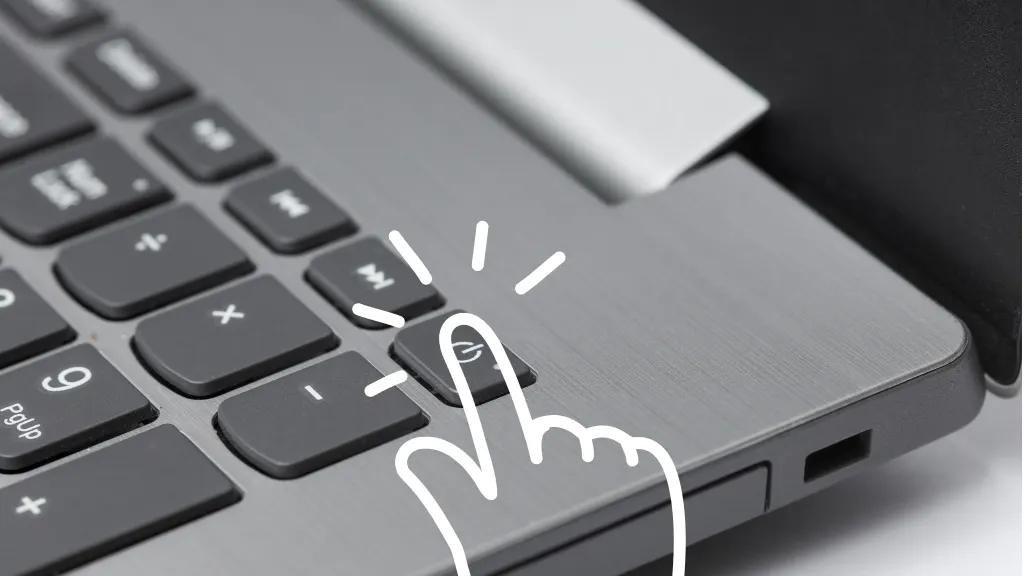
Credit: www.asurion.com
Frequently Asked Questions
Why Won’t My Hp Laptop Turn On?
Your HP laptop might not turn on due to a drained battery or power source issues. Ensure the charger is properly connected and functional. If the battery is removable, try reseating it. Also, check for any signs of physical damage or loose connections that might affect power delivery.
How Do I Troubleshoot Power Issues?
To troubleshoot power issues, start by disconnecting all peripherals and performing a hard reset. Check the power adapter and cord for damage. If possible, test with a different charger. Ensure the power outlet is working. If the issue persists, consult HP support for further assistance.
Can A Faulty Battery Prevent Startup?
Yes, a faulty battery can prevent your HP laptop from starting. If you suspect battery failure, try using the laptop without the battery, directly connected to the charger. If it powers on, consider replacing the battery. Always use compatible batteries to avoid damage to the laptop.
What Should I Do If My Laptop Is Dead?
If your HP laptop is completely unresponsive, check the power source and connections. Perform a hard reset by removing the battery, holding the power button for 15 seconds, and reconnecting. If the issue remains, contact HP support or visit a service center for professional diagnosis.
Conclusion
Your HP laptop not turning on can be frustrating. Remember, basic checks often solve the problem. Inspect power connections. Check the battery status. These small steps might fix the issue. Don’t hesitate to seek professional help if needed. Experts can offer solutions beyond simple troubleshooting.
Regular maintenance keeps your laptop running smoothly. Stay patient, and follow these tips for better outcomes. Keep exploring technology without stress. With care, your device will serve well. Always aim for optimal performance. Your tech journey should be enjoyable and hassle-free.



