
Are you staring at a blank screen, wondering why your desktop computer won’t turn on? It’s a moment of panic familiar to many, especially when you have important tasks lined up.
You might feel frustration creeping in, and the uncertainty of not knowing what’s wrong can be nerve-wracking. But before you let stress take over, take a deep breath. There’s a good chance that the solution is simpler than you think.
In this guide, we’ll unravel the mystery behind your computer’s reluctance to power up, and by the end, you’ll be equipped with the knowledge to tackle the issue head-on. Ready to dive in and regain control? Let’s get started.
Common Power Issues
Struggling with a desktop that won’t turn on? Several power issues might be the culprit. This section will explore common reasons why your computer may fail to start. Understanding these issues can help identify and fix the problem effectively.
Power Supply Problems
The power supply unit (PSU) is the heart of your desktop. It converts electricity from the outlet into usable power. A faulty PSU can stop the computer from turning on. Check for any burning smell or strange noises. These signs often indicate a failing power supply. Replacing the PSU might be necessary if it’s damaged.
Faulty Power Button
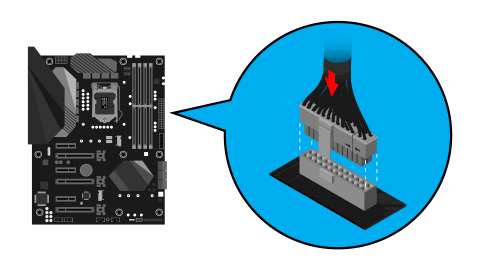
The power button might be another source of trouble. Over time, buttons can wear out or become stuck. Press the button gently and listen for a click. If there is no sound, it could be faulty. Consider checking the button’s connection to the motherboard. Replacing the button might solve the issue.
Loose Cables And Connections
Loose cables often lead to power issues. Ensure all cables are firmly connected to the computer and the wall outlet. Inspect the power cord for any cuts or damage. A damaged cable can prevent the computer from powering on. If everything looks fine, try using a different outlet or cable.
Hardware Malfunctions
Your desktop computer won’t turn on? Hardware malfunctions might be the cause. These issues often disrupt the normal functioning of your device. Understanding them can help you identify the problem. Let’s explore some common hardware malfunctions.
Defective Motherboard
The motherboard is the heart of your computer. It connects all components together. A defective motherboard stops the computer from starting. Signs include no power or random shutdowns. Physical damage or electrical shorts cause defects. Check for burnt marks or blown capacitors. Testing with a multimeter can confirm issues. Replacing the motherboard may be necessary.
Damaged Ram
RAM is crucial for smooth operation. Damaged RAM leads to startup failures. Your computer may beep continuously. Random freezes can also occur. Dust or physical damage might be the culprit. Removing and reseating RAM modules may solve minor issues. Testing RAM with specialized software can pinpoint defects. Faulty RAM needs replacement.
Broken Hard Drive
A hard drive stores all your data. A broken hard drive stops the boot process. Clicking or grinding noises indicate problems. The computer may show a “disk error” message. Data corruption can also occur. Check connections and try reseating cables. Running diagnostic tools helps in identifying faults. A new hard drive may be required.
Software Glitches
Software glitches can prevent your desktop computer from turning on. These glitches often stem from issues within the system software. Identifying these problems can help get your computer back up and running. Let’s delve into two common software-related issues.
Operating System Failures
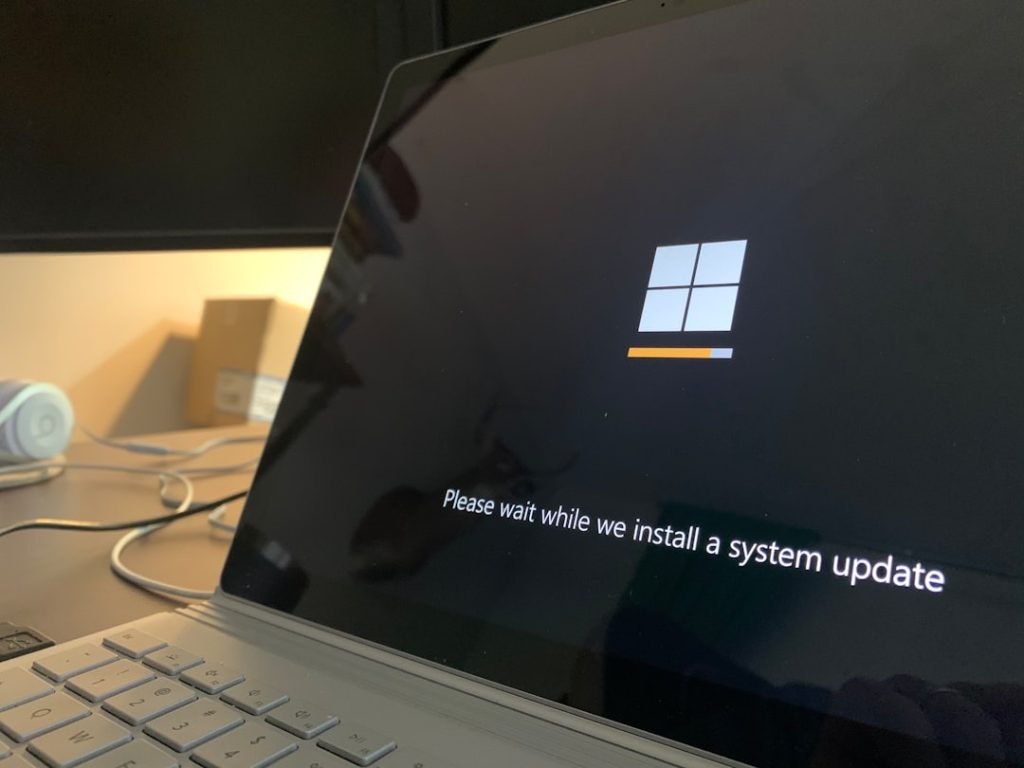
Your operating system could be failing to start. This failure might result from corrupted files or incomplete updates. Such issues can block your computer from booting up properly. If your system halts at startup, investigate recent software changes. A faulty update or a virus could be the culprit. It’s essential to ensure your operating system is up-to-date and free from harmful software.
Bios Corruption
BIOS corruption can disrupt your computer’s booting process. The BIOS is crucial for hardware initialization and system setup. Corruption might occur due to failed updates or incorrect settings. If the BIOS is damaged, your computer may not turn on at all. Resetting the BIOS to default settings can often resolve the issue. Regularly checking for BIOS updates can also prevent future problems.

Credit: www.youtube.com
External Device Conflicts
Many people face the problem of their desktop computer not turning on. One common cause is external device conflicts. These conflicts occur when connected devices disrupt the computer’s startup process. Identifying and resolving these conflicts can help your computer power up successfully.
Peripheral Device Issues
Peripheral devices are anything you connect to your computer. Keyboards, mice, and printers are common examples. Sometimes, these devices can cause startup issues. Unplug them and try starting your computer again. If it powers on, one of the peripherals may be faulty. Reconnect each device one by one. This helps to identify the problematic one.
Faulty External Drives
External drives can also cause startup conflicts. They include USB flash drives and external hard drives. A faulty drive can prevent your computer from booting. Disconnect all external drives and restart the computer. If it turns on, check each drive for faults. Reconnect them individually to find the issue.
Troubleshooting Steps
A desktop computer not turning on could be due to several issues. Check the power cable and ensure it’s securely connected. Verify if the power outlet is working and inspect the power button for any damage.
When your desktop computer refuses to power on, it can feel like a daunting mystery. But don’t worry—most of the time, the solution is simpler than you think. With a few careful checks and adjustments, you can often get things running smoothly again. Let’s dive into some practical troubleshooting steps that can help bring your computer back to life.Checking Power Source
Before diving inside your computer, ensure the basics are in place. Is your computer plugged in securely? Sometimes, the simplest oversight—like a loose power cable—can be the culprit. Verify that your power strip or surge protector is working. Try plugging the computer directly into the wall outlet. If the power outlet seems suspect, test it with another device to confirm it’s functioning properly.Inspecting Internal Components
Once you’ve ruled out external power issues, it might be time to peek inside your computer. Have you recently moved your desktop or installed new hardware? Components can sometimes shift, causing connectivity issues. Gently open your computer case and check that all internal cables are connected securely. Ensure that RAM sticks and other components like the graphics card are seated properly. A simple push might solve the problem!Resetting Bios Settings
If your computer powers on but won’t boot, resetting the BIOS could be the answer. A corrupt BIOS setting can prevent the system from starting. To reset, turn off your computer and unplug it. Open the case, locate the CMOS battery on the motherboard, and remove it for a few minutes. Reinsert the battery, close the case, and power on your computer to see if it resolves the issue. — It’s always a good idea to keep calm and systematically work through these steps. Remember, even seasoned tech enthusiasts have faced these challenges at some point. What other troubleshooting tricks have you discovered that saved the day?
Credit: help.maingear.com
Professional Repair Options
When a desktop computer refuses to turn on, frustration sets in. Before panic takes over, consider professional repair options. Skilled technicians can diagnose and fix the issue. This can save you time and stress. Exploring repair services is a wise step. It ensures your computer gets the best care. But when should you reach out to the experts?
When To Seek Help
Basic troubleshooting can solve many computer issues. But some problems need expert attention. If your computer shows no signs of life, seek help. Strange noises or burning smells? Time to call a professional. These signs indicate serious problems inside your computer. Don’t risk further damage. A professional can identify the root cause quickly.
Choosing A Repair Service
Selecting the right repair service is crucial. Research local options thoroughly. Check online reviews and ratings. Ask friends for recommendations. Ensure the service has certified technicians. Certification means they have the necessary skills. Compare prices, but don’t choose based on cost alone. Quality service often saves money in the long run. Look for transparency in their process. They should explain the issue and solution clearly. Avoid services with hidden fees or unclear terms.
Credit: www.intel.com
Frequently Asked Questions
Why Is My Computer Not Powering On?
Your computer might not power on due to a faulty power source. Check if the power cable is properly connected. Ensure the outlet is functional and try using a different power cable. If the issue persists, the power supply unit might need replacement.
How Do I Check My Computer’s Power Connections?
Start by inspecting all cables connecting to your computer. Ensure they’re secure and properly plugged in. Check the power supply cable and the internal connections. Verify that the monitor is connected. A loose cable can prevent your computer from turning on.
Can A Faulty Motherboard Prevent Startup?
Yes, a faulty motherboard can stop your computer from starting. If you hear beeping sounds or see error lights, the motherboard might be the issue. Inspect it for visible damage or burnt areas. Consider professional diagnosis for further troubleshooting.
Is My Computer Overheating And Not Turning On?
Overheating can prevent your computer from turning on. Check if the cooling fans are working. Clean any dust from inside the case. Ensure airflow is unobstructed. If the computer overheats, it might shut down to prevent damage.
Conclusion
A desktop that won’t turn on can be frustrating. Start by checking the power cord. Sometimes, a loose cable is the culprit. Ensure the power outlet is functional. A faulty outlet means no power. Inspect internal components next. Dust buildup can affect performance.
Try cleaning inside the computer. If issues persist, consider professional help. Experts diagnose deeper problems. Remember, regular maintenance helps avoid these issues. Keep your computer in good shape. It enhances longevity and performance. Stay calm, and tackle one step at a time.
Your computer will be up and running soon.



