
Are you experiencing problems with your audio devices after the latest Windows 11 update? You’re not alone.
Many users have reported issues with sound quality, missing audio, or devices not working at all. These problems can be frustrating, especially when you rely on your computer for work, entertainment, or communication. But don’t worry, there are solutions to get your sound back on track.
This article will guide you through the common audio device issues caused by the Windows 11 update and provide simple, effective solutions to restore your audio experience. Stick around to learn how to troubleshoot these issues and enjoy crystal-clear sound once again.
Credit: learn.microsoft.com
Common Audio Device Problems
Windows 11 updates bring exciting features. Yet, audio device issues often arise. This can frustrate users. Common audio problems affect many people. Let’s explore these problems and their solutions.
No Sound Output
Many users experience no sound from their devices. This can be due to muted settings. Check if the volume is too low. Sometimes, the wrong audio device is selected. Ensure the correct device is set as default.
Distorted Audio
Distorted sounds can ruin your experience. Check if your speakers are damaged. Update your audio drivers. Outdated drivers cause many issues. Keep them up-to-date for better performance.
Microphone Not Working
A non-working microphone can be frustrating. Test the microphone in another app. Ensure microphone permissions are granted. Check if the mic is muted. These steps often solve the problem.
Audio Device Not Recognized
Sometimes, your device isn’t recognized. This can happen after updates. Restart your computer. Check the connection of your audio device. Reinstall the device driver if needed. These steps can help your system find the device.
Checking Hardware Connections
Experiencing audio device issues after a Windows 11 update can be frustrating. Resolving these problems often starts with checking hardware connections. Ensuring everything is properly connected can help restore sound quality. A systematic approach makes troubleshooting more effective. Below are steps to inspect hardware connections.
Inspecting Cables
Start by checking the cables connecting your audio devices. Look for signs of wear or damage. Frayed cables can disrupt sound signals. Replace any damaged cables immediately. Ensure cables are firmly plugged into their respective ports. Loose connections can cause intermittent sound loss.
Testing Different Ports
Try connecting your audio device to different ports. Sometimes, a port may be faulty. Testing other ports can rule out port issues. For USB audio devices, check multiple USB ports. If sound returns, the previous port might be defective. Always use ports directly on the computer, not on hubs.
Verifying Device Power
Ensure your audio device is powered on. Check any power switches or indicators. Some devices require external power. Confirm they are plugged into a working outlet. Battery-powered devices should have sufficient charge. Low battery can affect sound quality. Keep power settings in check.
Adjusting Audio Settings
Windows 11 updates can cause audio device issues, affecting sound settings. Adjusting audio settings helps restore proper sound quality. Users can check the sound settings and troubleshoot any problems for better audio performance.
Adjusting audio settings in Windows 11 can be a game-changer if you’re facing audio device issues. Have you ever been in the middle of a Zoom call and suddenly found yourself scrambling because your audio isn’t working? You’re not alone. These small tweaks can make a world of difference, ensuring your audio experience is seamless and stress-free. Let’s dive into how you can fine-tune your audio settings for optimal performance.Setting Default Audio Device
Selecting your default audio device is crucial. Imagine you’re about to play your favorite song, but it plays through your monitor speakers instead of your high-quality headphones. Frustrating, right? To set your preferred audio device, go to the ‘Sound Settings’ in Windows 11. You’ll find a dropdown menu where you can select your default audio device. This ensures your system always knows where to direct the sound. Don’t let mismatched audio outputs ruin your experience.Adjusting Volume Levels
Volume levels can be tricky. We’ve all had moments where the audio is either too loud or too soft. It’s not just about turning the volume up or down; it’s about finding the perfect balance. In the ‘Volume Mixer’, you can adjust individual app sound levels. This means you can lower the music volume while keeping your game sounds high. It’s all about customization to suit your needs. Why settle for one-size-fits-all when you can tailor it?Configuring Sound Enhancements
Sound enhancements can elevate your listening experience. Think of them as the secret sauce for your audio. Windows 11 offers various enhancements like bass boost, virtual surround, and more. These can be found under the ‘Sound Control Panel’. Enabling these features can transform your audio from ordinary to extraordinary. Have you tried tweaking these settings yet? You might be surprised at the difference they make. These adjustments are not just technical tweaks; they are steps towards a better audio experience. What adjustments will you make to improve your audio today?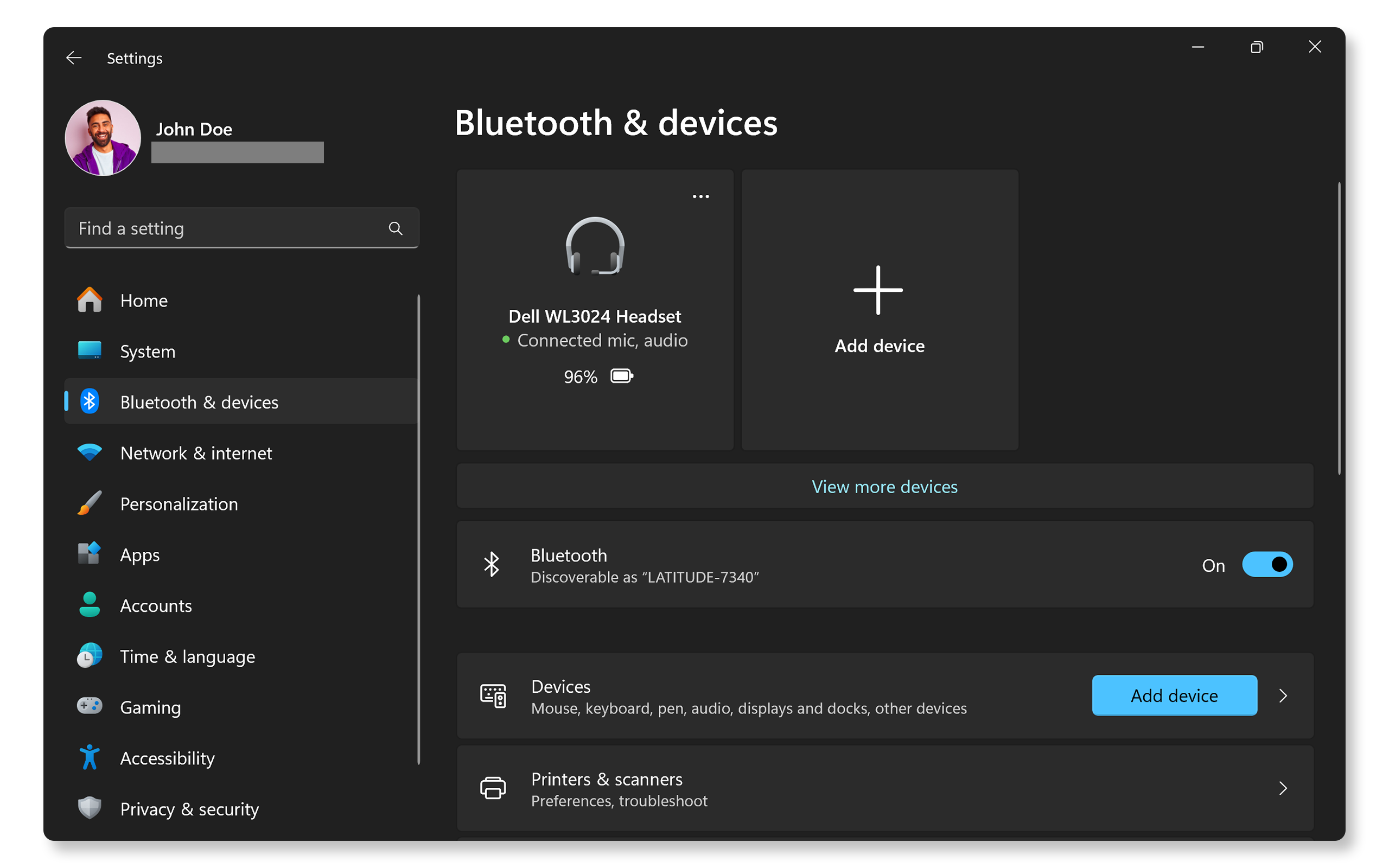
Credit: www.dell.com
Updating Audio Drivers
Experiencing sound problems after a Windows 11 update? Updating audio drivers can solve these issues. Ensure smooth audio performance by checking for the latest driver updates through the device manager.
Updating your audio drivers can be crucial when facing audio issues after a Windows 11 update. Such updates might disrupt your audio settings, making your device soundless or distorted. But don’t worry—updating your drivers can often solve these problems quickly and effectively.Using Device Manager
Device Manager is a handy tool that comes pre-installed on Windows 11. It’s a straightforward method to update your audio drivers without additional software. Step-by-step: 1. Access Device Manager: Right-click the Start button and select “Device Manager”. 2. Locate Audio Drivers: Expand the “Sound, video and game controllers” section. 3. Update Driver: Right-click on your audio device and select “Update driver”. 4. Search Automatically: Choose “Search automatically for updated driver software”. This process might seem technical, but it’s pretty intuitive once you get started. Have you tried it yet?Downloading From Manufacturer’s Website
Sometimes, the best solution is to go straight to the source. Manufacturers often provide the latest drivers on their websites, which can be more up-to-date than Windows’ offerings. How to proceed: – Identify Your Device: Know your sound card model. You can find this in the Device Manager. – Visit the Manufacturer’s Site: Search for the support or downloads section. – Download and Install: Follow instructions to download and install the driver. This method requires a bit more effort but can provide the most accurate results. Have you checked if your manufacturer has released a new driver?Automatic Driver Update Tools
If manual updates aren’t your thing, automatic driver update tools can save the day. These tools scan your system and update drivers with minimal effort on your part. Consider these features: – Ease of Use: Most tools offer a user-friendly interface. – Time-Saving: Scans can take just a few minutes. – Comprehensive Updates: Many tools update not just audio but all drivers. Tools like Driver Booster or Driver Easy are popular choices. But remember, while these tools can be convenient, ensure they’re from reputable sources to avoid malware. Have you considered using an automatic tool for your updates? In tackling audio issues, updating your drivers could be the key to getting your sound back. Which method will you try first?Resolving Software Conflicts
Windows 11 updates can create audio device conflicts. Troubleshoot by checking drivers and settings. Reinstall or update drivers to fix issues.
Resolving software conflicts can often fix audio device issues in Windows 11. These conflicts can arise from outdated software or incompatible programs. Understanding how to identify and resolve them is crucial. It ensures your audio device functions smoothly. Let’s delve into effective methods to address these conflicts.Checking For Windows Updates
First, verify if your Windows 11 is up to date. Updates can fix bugs and compatibility issues. Open the Settings app on your computer. Navigate to ‘Update & Security’. Click ‘Check for Updates’. Install any available updates. This simple step can often resolve audio conflicts.Disabling Conflicting Programs
Some software might interfere with audio devices. Identify and disable these programs. Open ‘Task Manager’ using Ctrl + Shift + Esc. Look for applications that might conflict with your audio device. Right-click and select ‘End Task’ for suspect programs. Restart your computer. This can eliminate software clashes affecting audio.Running Audio Troubleshooter
Windows 11 offers a built-in audio troubleshooter. It helps diagnose and fix audio issues. Open the Settings app. Go to ‘System’ then ‘Sound’. Scroll down to ‘Troubleshoot’. Follow the on-screen instructions. The troubleshooter can automatically detect and resolve audio conflicts. This is a practical way to address audio problems. These steps are vital for resolving software conflicts. They ensure your audio device operates without issues. Regular maintenance can keep your system running smoothly.Credit: learn.microsoft.com
Resetting Audio Components
Windows 11 updates sometimes cause audio device issues, leading to sound disruptions. Resetting audio components can resolve these glitches effectively. Adjust settings in the sound control panel to restore smooth audio functionality.
Having trouble with audio after the latest Windows 11 update? You’re not alone. Many users have faced similar challenges, but resetting your audio components could be the key to solving these issues. Let’s dive into some practical steps you can take to get your sound back on track.Restarting Windows Audio Services
Sometimes, the simplest solutions are the most effective. Restarting Windows Audio Services can instantly fix audio glitches. To do this, press Win + R to open the Run dialog. Type services.msc and press Enter. Look for “Windows Audio,” right-click, and select “Restart.” This process refreshes the audio services, potentially resolving any temporary issues. Have you ever tried turning something off and back on again? This is the digital equivalent.Reinstalling Audio Drivers
Outdated or corrupted drivers often lead to audio problems. Reinstalling them can provide a fresh start for your audio setup. Head to the Device Manager by pressing Win + X and selecting it from the list. Expand the “Sound, video and game controllers” section, right-click your audio device, and choose “Uninstall device.” After uninstalling, restart your computer. Windows will automatically reinstall the default drivers. If that doesn’t work, consider downloading the latest drivers from the manufacturer’s website.Restoring System Settings
Sometimes an update can change system settings without your knowledge. Restoring these to a previous point can resolve issues. Go to Settings > System > Recovery. Here, you’ll find an option called “Go back to the previous version of Windows.” Follow the prompts to restore your system settings. This process can be a game-changer, especially if your audio was working perfectly before the update. It’s like turning back time on your computer settings. Are you feeling overwhelmed by these steps? Remember, you’re not alone. Many users have successfully navigated these waters, and you can too. Each step brings you closer to clear, uninterrupted sound.Seeking Professional Help
Experiencing audio device issues after a Windows 11 update? Professional help can identify and fix the problem. Experts ensure your audio devices work smoothly without hassles.
Experiencing audio device issues after a Windows 11 update can be frustrating, especially when you’re unable to find a quick fix. While troubleshooting guides and online forums might offer solutions, sometimes you need to seek professional help to resolve persistent problems. Whether you’re dealing with device compatibility issues or software glitches, knowing when and where to get professional assistance can save you time and stress.Contacting Technical Support
Reaching out to technical support can be a game-changer when dealing with complex audio issues. Most device manufacturers have dedicated support teams ready to assist you. How do you contact them? Start by visiting the manufacturer’s website to find support contact details. Look for options like live chat, email support, or a direct helpline. Be clear and concise when describing your problem. Mention specific error messages or symptoms you’ve noticed. This can help the support team diagnose and solve your issue faster.Visiting Authorized Service Centers
Sometimes, your device might need physical inspection or repairs. When this happens, visiting an authorized service center is your best bet. These centers have trained technicians who understand the intricacies of your device. Before you head out, check if your warranty covers service costs. It might save you from unexpected expenses. Authorized centers ensure genuine parts and expertise, making them more reliable than local repair shops. Have you ever wondered why some issues persist despite multiple attempts to fix them? It could be due to underlying hardware problems that only professionals can identify. Visiting an authorized service center ensures that your device gets the care it deserves. By considering these professional help options, you can address audio issues efficiently and get back to enjoying seamless sound on your Windows 11 device.Frequently Asked Questions
Why Is My Audio Device Not Working After Windows 11 Update?
Audio issues after a Windows 11 update can stem from outdated drivers or compatibility problems. Ensure your audio drivers are up-to-date by checking the manufacturer’s website. Additionally, Windows settings might have changed; verify audio settings in the control panel. A quick restart often resolves minor glitches.
How Can I Fix Sound Issues On Windows 11?
Fix sound issues by first checking audio driver updates. Visit the manufacturer’s site for the latest drivers. Adjust sound settings in the control panel to ensure the correct device is selected. Restarting your computer can resolve temporary issues. If problems persist, consider rolling back the update.
Does Windows 11 Update Affect Audio Drivers?
Windows 11 updates can sometimes affect audio drivers, causing compatibility issues. Updates might overwrite existing drivers, leading to malfunctions. Regularly check for driver updates to ensure compatibility. If issues arise post-update, reinstalling or updating the drivers often resolves the problem.
Always back up drivers before major updates.
Can A Rollback Fix Audio Problems On Windows 11?
Yes, rolling back to a previous Windows version can fix audio issues. If the update causes driver conflicts, reverting may restore functionality. Use the system restore feature in Windows settings. Ensure drivers are backed up before rolling back. This solution is effective for persistent audio problems.
Conclusion
Navigating audio device issues with Windows 11 can be tricky. Updates sometimes cause unexpected problems. Many users face sound disruptions. Follow the tips shared above for solutions. Check your device settings regularly. Update drivers when necessary. Restarting the computer often resolves minor issues.
If problems persist, seek professional help. Remember, software updates aim to improve performance. Minor glitches are part of the process. Stay patient. Tackle each issue step-by-step. Keep exploring solutions. Your audio will be back on track soon.



