

Have you ever noticed your computer running slower than usual, only to find a mysterious process called “Windows Audio Device Graph Isolation” hogging your memory? You’re not alone.
This sneaky component, which is crucial for managing audio on your PC, can sometimes consume more resources than expected, leaving you frustrated and wondering what to do next. But don’t worry—you’re in the right place. You’ll discover why this process can become a memory monster and learn simple steps to reclaim your PC’s performance.
Get ready to dive into practical solutions that will help you optimize your system and ensure smooth audio experiences.
Causes Of High Memory Usage
Ever wondered why your computer’s memory usage spikes, even when you’re not running heavy applications? One sneaky culprit could be the Windows Audio Device Graph Isolation process. This process, essential for audio management, can sometimes consume more memory than it should. Understanding the causes can help you manage this better.
Role In Audio Management
The Windows Audio Device Graph Isolation process plays a crucial role in managing audio on your computer. It allows you to apply audio effects, such as echo or surround sound, without affecting other applications. This process operates separately from the main Windows Audio service, ensuring that any crashes or issues don’t disrupt your entire system.
However, if it uses too much memory, it can slow down your computer’s performance. Recognizing its role helps you appreciate its importance, but also highlights why it’s vital to monitor its memory usage.
Common Triggers
High memory usage can be triggered by various factors. Outdated audio drivers are one of the most common reasons. Ensuring your drivers are up-to-date can sometimes solve the problem instantly.
Another frequent trigger is third-party audio applications that are incompatible or poorly optimized. Have you ever installed a new media player only to notice your system lagging? That might be the reason.
Occasionally, malware can disguise itself as this process, causing it to consume more resources. Regularly scanning your system can prevent such issues.
Reflect on your own experience. Have you noticed any patterns when your system slows down? Identifying the cause can save you time and frustration.
Understanding these common triggers is your first step toward a smoother, faster computing experience. It’s about being proactive rather than reactive. What steps will you take to manage your system’s memory usage better?

Credit: www.youtube.com
Identifying The Problem
Having a computer running slow or crashing frequently can be frustrating. One sneaky culprit might be the Windows Audio Device Graph Isolation process consuming too much memory. Recognizing this issue can be tricky, but it’s crucial for ensuring your system runs smoothly. Let’s dive into how you can identify the problem effectively.
Monitoring System Resources
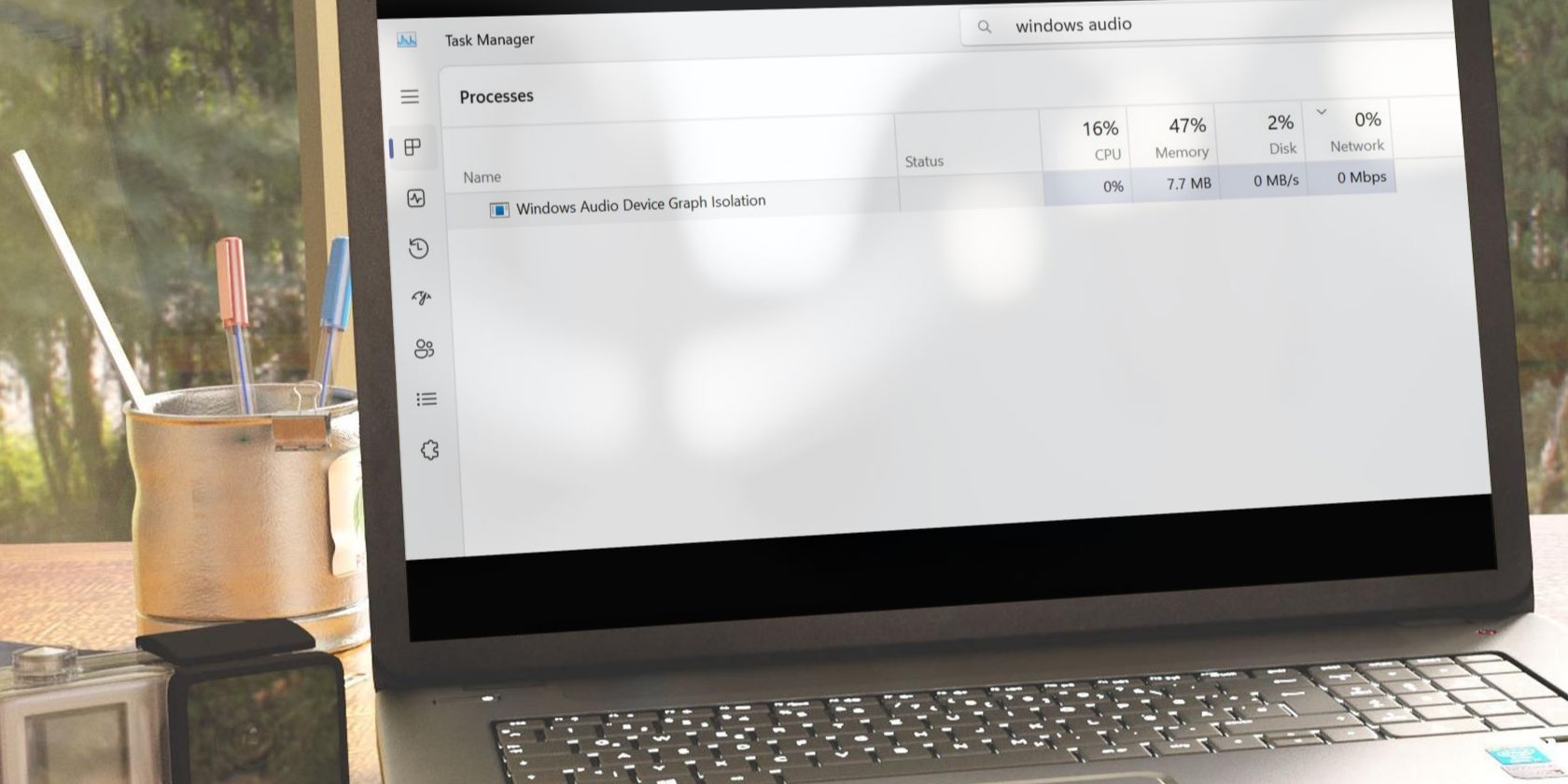
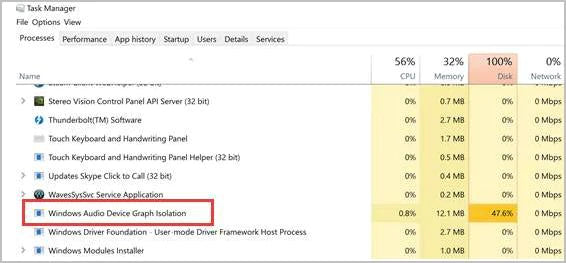
Your computer has a built-in tool called Task Manager that helps you check which processes use the most resources. Open Task Manager by pressing Ctrl + Shift + Esc. Look for the process named “Windows Audio Device Graph Isolation.” If this process takes up a lot of memory, it might be causing your computer to slow down.
Sometimes, it’s not just about the numbers. If you notice your computer freezing or apps crashing, even when the memory usage looks normal, it could still be related to this process. Keep an eye on the CPU and disk usage too. These can also provide clues about what’s happening.
Recognizing Memory Spikes
Memory spikes can be sudden and unpredictable. They often occur when you’re using audio applications like music players or video conferencing tools. You might notice your computer slowing down after launching these apps. This can be a sign that the Windows Audio Device Graph Isolation is using too much memory.
One way to catch these spikes is by observing patterns. Does your computer slow down at specific times or when running certain apps? Identifying these patterns can help you pinpoint the problem more accurately. Consider keeping a log of when the spikes happen and what applications you were using. This can be invaluable when troubleshooting.
Have you ever wondered why your computer struggles despite having a good amount of RAM? Sometimes, it’s not about how much memory you have but rather how it’s being used. By identifying memory spikes and monitoring resources, you can tackle the issue head-on.
Basic Troubleshooting Steps
Experiencing high memory usage from Windows Audio Device Graph Isolation can be frustrating. Basic troubleshooting steps can help manage this issue. These steps ensure your system runs smoothly, keeping audio processes in check.
Restarting The Audio Service
Restart the audio service to clear temporary glitches. Open the ‘Run’ dialog with ‘Windows + R’. Type ‘services.msc’ and press ‘Enter’. Find ‘Windows Audio’ in the list. Right-click and select ‘Restart’. This refreshes the audio processes, fixing minor issues.
Checking For Software Updates
Software updates often fix bugs and improve performance. Check for updates in Windows settings. Open ‘Settings’ from the Start menu. Click ‘Update & Security’. Select ‘Check for updates’. Install any available updates to enhance system stability.
Credit: www.makeuseof.com
Advanced Solutions
Experiencing high memory usage by Windows Audio Device Graph Isolation? Consider advanced solutions. These can optimize your system and enhance performance. Tackle issues efficiently with targeted adjustments.
Disabling Audio Enhancements
Audio enhancements can consume extra resources. Disabling them may reduce memory usage. Start by opening the Control Panel. Click on ‘Sound’ and select your audio device. Hit ‘Properties’ and navigate to the ‘Enhancements’ tab. Check ‘Disable all enhancements.’ Click ‘Apply’ and then ‘OK’. This action can improve system performance.
Adjusting System Settings
Adjusting system settings can also help. Access the Control Panel and go to ‘System and Security’. Click on ‘System’, then ‘Advanced system settings’. In the ‘Performance’ section, click ‘Settings’. Choose ‘Adjust for best performance’. This setting prioritizes essential processes. It reduces strain on your memory.
Optimizing System Performance
Windows Audio Device Graph Isolation can cause high memory usage. This impacts system performance. Optimizing your system helps maintain smooth operation. Addressing this issue involves several steps. Focus on updating audio drivers and configuring power options.
Updating Audio Drivers
Outdated audio drivers can lead to high memory use. Check for the latest driver updates. Visit the manufacturer’s website for your audio device. Download and install the latest drivers. This simple task can improve performance significantly.
Configuring Power Options
Power settings affect how resources are used. Open the Control Panel on your computer. Select ‘Power Options’. Choose a balanced or high-performance plan. These options manage energy without affecting performance. Adjusting these settings can reduce memory load.
Credit: softwarekeep.com
Third-party Tools
Experiencing high memory usage from Windows Audio Device Graph Isolation? Third-party tools can help. These tools offer solutions to manage and optimize system performance. They provide detailed insights into what’s consuming your resources. Choosing the right software ensures your audio runs smoothly. Explore options to tackle this issue efficiently.
Recommended Software
Selecting the right software is crucial. Many tools are available to address high memory usage issues. Consider applications like Process Explorer. It helps you identify resource-consuming processes. Another option is Wise Care 365. It optimizes system performance and manages memory usage effectively. Both tools are user-friendly with clear interfaces. They guide you through the process step-by-step.
Using Diagnostic Utilities
Diagnostic utilities provide in-depth analysis. They help pinpoint the exact cause of memory issues. Tools like Windows Performance Monitor are invaluable. They offer real-time data on memory consumption. This data helps you make informed decisions. You can adjust settings to reduce memory usage. Another useful utility is Resource Monitor. It gives a detailed breakdown of system performance. Both utilities are built into Windows. They offer a cost-effective solution for troubleshooting.
Preventive Measures
Windows Audio Device Graph Isolation can consume high memory. Preventing this issue is vital for a smooth computing experience. Regular maintenance and updates can keep your system running efficiently. These measures help reduce memory-related issues effectively.
Regular System Maintenance
Regular system maintenance ensures optimal performance. Clean up unnecessary files and delete temporary files regularly. This frees up space and reduces memory strain. Use built-in tools like Disk Cleanup for this task.
Check system resources using Task Manager. Identify processes that consume too much memory. End these tasks if they are not essential. Set up a regular maintenance schedule. This keeps your system in check and prevents memory overload.
Keeping Software Updated
Keeping your software updated is crucial. Updates fix bugs and improve performance. Enable automatic updates for Windows and other software. This ensures you receive the latest fixes and enhancements.
Outdated drivers can lead to memory issues. Regularly update your audio and system drivers. Visit the manufacturer’s website for the latest versions. This helps maintain system stability and performance.
Frequently Asked Questions
What Is Windows Audio Device Graph Isolation?
Windows Audio Device Graph Isolation is a vital component of Windows audio services. It enables audio processing separately from the main audio service, preventing disruptions. This isolation ensures better audio quality and reliability by managing processes independently, minimizing interference, and improving overall system performance.
Why Does It Use High Memory?
It uses high memory due to complex audio processing tasks. These tasks require significant resources for ensuring smooth operation. High memory usage can occur when running multiple audio applications, processing intensive audio tasks, or experiencing driver issues.
How Can I Reduce Its Memory Usage?
To reduce its memory usage, update audio drivers regularly. Close unnecessary audio applications to free resources. Disable audio enhancements in the sound settings. If issues persist, consider restarting the audio service or checking for malware affecting performance.
Is It Safe To Disable It?
Disabling Windows Audio Device Graph Isolation may affect audio functionality. It can lead to audio disruptions or loss of sound. It’s not recommended unless troubleshooting specific issues. Instead, focus on optimizing settings and updating drivers to maintain system stability.
Conclusion
Understanding Windows Audio Device Graph Isolation can help manage system memory. High memory usage impacts performance and slows down tasks. Regular updates and maintenance reduce these issues effectively. Keep an eye on applications using high memory. Troubleshoot problems with simple solutions like restarting your computer.
Optimizing settings can make a difference in performance. Remember to check for driver updates regularly. Stay informed about system processes to maintain efficiency. A little attention can prevent big problems later. Happy computing!



