
Imagine this: You’re all set to dive into your favorite movie or join a virtual meeting, but there’s no sound. Your Windows 10 computer flashes the dreaded message, “No Audio Output Device is Installed.” Frustrating, right?
You’re not alone. This pesky issue has left many users scratching their heads, wondering why their audio has vanished into thin air. But don’t worry—you’re about to uncover the simple solutions that can bring your sound back to life. Whether you’re a tech novice or a seasoned pro, this guide will provide the straightforward steps you need.
Let’s get your audio back in action and enjoy the sound once again!
Common Causes
Windows 10 often shows “No Audio Output Device is Installed” due to outdated drivers. Sometimes, missing updates can also cause this issue. Hardware problems like disconnected speakers might be the culprit.
When you encounter the frustrating “No Audio Output Device is Installed” error on Windows 10, it might seem like your computer has suddenly gone silent without a clear reason. Understanding the common causes can help you quickly resolve the issue. Let’s break down some of the typical culprits behind this problem.Driver Issues
One of the most frequent causes of audio problems in Windows 10 is related to drivers. Drivers act as a bridge between your operating system and the hardware. If they’re outdated, corrupted, or missing, your computer might not recognize the audio device. Picture this: you’ve just installed a new game or software update, and suddenly, your sound vanishes. It’s possible that the installation disrupted your audio drivers. Keeping your drivers up to date is crucial. Use tools like Device Manager to check and update them regularly.Hardware Conflicts
Have you ever plugged in a new USB device and noticed something else stopped working? This is a classic example of hardware conflicts. Sometimes, adding new hardware to your system can cause conflicts with existing devices, including audio output devices. Consider the time when you connected a new printer, and your speakers went silent. This could be due to resource allocation issues. Ensuring your hardware is compatible and checking for conflicts in the Device Manager can prevent these silent standoffs.System Updates
Windows updates are meant to improve your system, but occasionally, they might cause more harm than good. An update might inadvertently disable or uninstall your audio drivers. You wake up one morning, start your computer, and your speakers are mute after an update. Regularly checking for updates and ensuring they install correctly is essential. If an update causes issues, rolling back the update or reinstalling drivers might be necessary to restore your sound. Have you ever thought about how a simple click to update could lead to a momentary panic when your audio disappears? Addressing these common causes can save you from many silent moments. By keeping drivers updated, being aware of hardware changes, and managing system updates, you can maintain your computer’s audio health. What steps will you take next time your sound goes missing?Initial Troubleshooting Steps
If you’ve ever faced the frustrating issue of “No Audio Output Device is Installed” on your Windows 10 computer, you’re not alone. Many users encounter this problem, and it can be quite perplexing. But don’t worry, there are simple steps you can take to resolve this issue. Let’s dive into some initial troubleshooting steps to get your sound back on track.
Check Connections
First, ensure all your audio connections are secure. Check if your speakers or headphones are properly plugged into the correct ports. Sometimes, a loose cable can be the culprit behind your audio woes.
Consider swapping out your current audio cable with another one. This can rule out any issues with the cable itself. It’s a quick and easy check that can save you a lot of time.
Remember, even seasoned tech enthusiasts have overlooked a simple unplugged cable. It’s a common oversight that can be easily fixed.
Ensure Device Is Enabled
Navigate to your device manager to check if your audio device is enabled. Sometimes, it may have been disabled due to a system update or other changes.
To do this, press the Windows key + X and select “Device Manager.” Locate your audio device under “Sound, video and game controllers” and ensure it’s enabled.
If you notice a small down arrow next to the device name, right-click and select “Enable.” This quick action might just restore your sound.
Restart Your Computer
Never underestimate the power of a simple restart. It often resolves minor glitches and refreshes system settings.
Restarting your computer can clear temporary software conflicts and reinitialize hardware components. Make it a habit to reboot your system regularly.
If you’ve ever had a tech issue resolved by simply turning your device off and on, you know how magical this step can be.
By following these initial troubleshooting steps, you can tackle the “No Audio Output Device is Installed” problem efficiently. Each step is straightforward and doesn’t require advanced technical skills. Have you tried these steps and found success? Or perhaps discovered an unusual solution? Share your experience in the comments—your insights might help others solve their audio issues too!
Update Audio Drivers
Experiencing issues with audio on Windows 10? The message “No Audio Output Device is Installed” can be frustrating. Updating audio drivers can often solve this problem. Drivers help your computer communicate with audio hardware. They ensure sound is delivered efficiently. Let’s explore two methods to update audio drivers.
Via Device Manager
Device Manager is a built-in tool in Windows. It helps manage hardware components. To update audio drivers using Device Manager, follow these steps:
Press the Windows key and type “Device Manager”. Click to open it. Find “Sound, video and game controllers”. Right-click on the audio device listed. Select “Update driver”. Choose “Search automatically for updated driver software”. Windows will look for the latest version. This process may take a few minutes. Restart your computer once the update is complete.
Using Manufacturer’s Website
Sometimes, Device Manager doesn’t find the latest drivers. Visiting the manufacturer’s website can help. Identify your audio device’s manufacturer. Common ones include Realtek, Intel, and NVIDIA. Open your browser and search for the manufacturer’s website. Look for a “Support” or “Downloads” section. Enter your audio device model. Download the latest driver available. Follow the installation instructions provided. Restart your computer after installation.
Updating drivers manually ensures you have the most recent version. This can improve audio performance and fix issues. Always keep your drivers up to date for optimal functioning.
Reinstall Audio Drivers
Experiencing the “No Audio Output Device is Installed” error on Windows 10? Reinstalling audio drivers can resolve this issue. Follow simple steps to ensure your system correctly recognizes audio devices, restoring sound functionality efficiently.
Facing the issue of “No Audio Output Device is Installed” on your Windows 10 can be frustrating, especially when you’re in the middle of watching your favorite show or listening to a podcast. Often, the root cause of this problem lies with the audio drivers. Reinstalling them can be a straightforward solution that gets your sound back. Let’s walk through this process step-by-step to ensure your device is singing again in no time.Uninstalling Existing Drivers
First, you need to uninstall the current audio drivers. This may seem daunting, but it’s a simple task. Open the Device Manager by right-clicking the Start button and selecting it from the list. In the Device Manager window, locate the “Sound, video and game controllers” category. Click the arrow next to it to reveal the audio devices listed. Right-click your audio device and select “Uninstall device.” Don’t worry about removing the driver completely from your system. You’ll be installing a new one shortly. Remember to check the box that says “Delete the driver software for this device” if prompted.Installing New Drivers
Now, it’s time to install fresh audio drivers. You can let Windows do this automatically or manually download them from the manufacturer’s website. If you prefer the automated route, simply restart your computer after the uninstallation. Windows usually detects the missing drivers and installs them upon reboot. If you don’t hear the familiar sound of your system starting up, try the manual approach. Visit the website of your audio device’s manufacturer and download the latest driver version. After downloading, run the installer and follow the on-screen instructions. This step ensures you have the most recent driver version, which can resolve compatibility issues. Have you ever felt that small thrill when your device finally works perfectly again? Installing new drivers often restores not just functionality but also peace of mind. Taking these steps can resolve the “No Audio Output Device is Installed” issue efficiently. What’s your experience with troubleshooting audio problems on Windows 10? Share your story or tips in the comments below!Check For Windows Updates
Experiencing the “No Audio Output Device is Installed” error on Windows 10 can be frustrating. One effective solution is checking for Windows updates. Updates can fix bugs and improve system performance. Keeping your system updated ensures compatibility with hardware and software. This can solve audio issues and enhance your PC’s functionality.
Automatic Updates
Windows 10 often updates automatically. This feature helps keep your system running smoothly. To ensure automatic updates are enabled, follow these steps. Open Settings, then go to Update & Security. Click on Windows Update. Here, check if automatic updates are active. If not, turn them on. This setting allows your PC to download and install updates without manual intervention.
Manual Updates
Sometimes, automatic updates might not cover all issues. Manually checking for updates can help. Go to Settings, then Update & Security. Click on Windows Update. Select Check for updates. Windows will search for available updates. If updates are found, install them. Restart your PC after installation. This process might resolve the audio output problem.

Credit: www.youtube.com
Modify Audio Settings
Encountering the frustrating “No Audio Output Device is Installed” error on Windows 10 can put a damper on your day. But don’t worry, modifying your audio settings might be your ticket to restoring sound. With a few tweaks, you can enhance your audio experience. Let’s dive into some practical steps to get your sound back on track.
Set Default Playback Device
Have you ever switched between headphones and speakers and suddenly lost audio? This could be due to your playback device settings.
To set your default playback device, right-click the speaker icon in the taskbar and select ‘Sounds’. Go to the ‘Playback’ tab. Here, you’ll see a list of devices like speakers and headphones.
Choose the device you want to use, click ‘Set Default’, and hit ‘OK’. This simple change can solve many audio issues. Have you tried this before and seen instant results?
Adjust Audio Format
Sometimes, the audio format is incompatible with your device, causing sound issues. You can fix this by adjusting the format.
In the ‘Playback’ tab, select your default device and click ‘Properties’. Navigate to the ‘Advanced’ tab. Here, you’ll see a dropdown menu under ‘Default Format’.
Experiment with different formats, like 24-bit, 48000 Hz (Studio Quality). Apply changes and test the audio. This adjustment can drastically improve sound quality. Have you found a format that works best for you?
Modifying your audio settings can seem overwhelming, but it’s often the key to solving sound issues. Why not give these tips a try and see if your audio problems disappear? You might be surprised at how these small changes can make a big difference. Your computer’s sound is waiting to be heard again!
Use Troubleshooter
Facing the “No Audio Output Device is Installed” error on Windows 10? Use the built-in troubleshooter to quickly identify and resolve the issue. This tool helps in diagnosing sound problems efficiently, ensuring your audio functions smoothly again.
If you’re wrestling with the frustrating “No Audio Output Device is Installed” error on your Windows 10 computer, you’re not alone. This error can be a real headache, especially when all you want to do is listen to your favorite playlist or watch a movie. Thankfully, Windows 10 offers a built-in tool known as the Troubleshooter, designed to identify and resolve common audio issues. It’s a handy tool that can save you from pulling your hair out. Let’s explore how you can use this feature to get your sound back on track.Accessing Troubleshooter
To begin, you need to access the Troubleshooter. Navigate to the Start menu and type “Troubleshoot” in the search bar. Select Troubleshoot settings from the results. Here, you’ll find various options to troubleshoot different system issues. Scroll down and click on Additional troubleshooters. This will open a list of all available troubleshooting options, including those for audio.Following Troubleshooter Steps
Once you have accessed the Troubleshooter, it’s time to follow a few simple steps. Click on Playing Audio and hit the Run the troubleshooter button. Windows will start scanning your system for potential audio issues. It may take a few moments, so be patient. During this process, you might be prompted with questions. Answer them based on your experience. For instance, if you recently installed new hardware or software, let the Troubleshooter know. Once the scan is complete, follow any on-screen instructions to resolve the detected issues. Windows may automatically fix the problem, or it might provide you with options to manually correct it. Have you ever fixed a problem using a method you didn’t trust at first? That’s often the case with the Troubleshooter. While it might seem like just another automated tool, it can genuinely help solve issues that seem overwhelming. Next time you encounter an audio problem, why not give it a try? You might be surprised at how effective it can be. Remember, the key to solving tech issues is patience and a willingness to explore different solutions. Would you consider adding the Troubleshooter to your list of go-to fixes for Windows problems?Check For Hardware Issues
Experiencing issues like “No Audio Output Device is Installed” on Windows 10 can be frustrating. Start by checking for hardware problems, ensuring connections are secure and devices are properly recognized. Addressing these basic checks often resolves the issue quickly.
When your Windows 10 computer suddenly declares “No Audio Output Device is Installed,” it’s enough to make anyone’s heart skip a beat. Before diving into complex software solutions, it’s crucial to start by checking for hardware issues. This simple approach can save you time and frustration, and sometimes, the solution is right in front of you.Inspect Audio Jacks
Start by examining the audio jacks on your computer. These are the small, round ports where you plug in headphones or speakers. Make sure the jacks are clean and free of dust. A simple blow of air might clear away any particles causing a poor connection. If you notice the jack is loose or damaged, this could be the culprit. You might want to try gently wiggling the connector to see if the sound returns. Have you ever had your headphones play only in one ear? The same principle applies here—a poor connection can result in no sound at all.Test With Alternative Devices
Next, try using a different set of headphones or speakers. This will help you determine if the issue lies with the computer or the audio device itself. Sometimes, the problem is as simple as a faulty pair of headphones. Have you ever borrowed a friend’s earbuds to check if yours were the problem? It’s a quick way to rule out hardware failure. If the new device works, then you know it’s time to replace your old audio equipment. If not, the issue might be deeper than just hardware. By being methodical in your approach, you can quickly narrow down the source of the problem. Have you considered these hardware checks before diving into software troubleshooting? Sometimes, the simplest solutions are the most effective.Advanced Solutions
Struggling with “No Audio Output Device is Installed” on Windows 10? Discover simple steps to fix this common issue. Ensure your device manager is updated and check your sound settings for effective solutions.
When dealing with the pesky issue of “No Audio Output Device is Installed” on Windows 10, basic troubleshooting might not always do the trick. Sometimes, the problem requires diving deeper into advanced solutions. These methods might seem daunting, but they can often provide the answer you’re looking for. Here, we’ll explore some of these advanced techniques that can help you restore sound to your system efficiently.Bios Settings Check
Checking your BIOS settings can be a game-changer. You might not think about it, but sometimes your sound card can be disabled directly from the BIOS. To access BIOS, restart your computer and press the designated key (usually F2, F10, or Delete) as it boots up. Once you’re in, look for settings related to Integrated Peripherals or Onboard Devices. Ensure that your audio device is enabled. If this step seems intimidating, remember: you won’t break anything by just looking. Take a deep breath and follow the on-screen instructions to make necessary changes.System Restore
A System Restore can be your lifeline when your audio issues began after a recent update or system change. It allows you to roll back your system settings to a previous state where everything worked fine. To initiate a System Restore, type “System Restore” in the Windows search bar and select “Create a restore point.” Click on the “System Restore” button and follow the prompts. Choose a restore point from a date when you remember your audio was working. This process is like time-traveling to a moment when your system was in harmony. It’s a simple click through a wizard that may save you hours of frustration. Advanced solutions might seem complex at first glance, but they are often more straightforward than they appear. Have you ever tried these techniques before, or do you have other tricks up your sleeve? Share your thoughts and experiences in the comments below!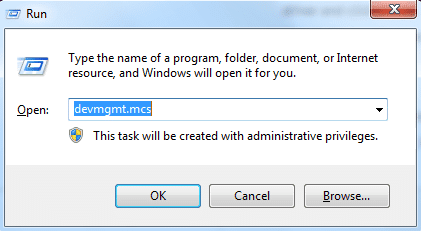
Credit: www.driversupport.com

Credit: answers.microsoft.com
Frequently Asked Questions
Why Is My Audio Device Not Detected?
Your audio device may not be detected due to outdated or missing drivers. Check Device Manager for issues. Reinstall or update drivers to resolve. Also, ensure your audio device is properly connected. Restarting your computer might help in some cases.
How Do I Fix No Audio Device Error?
To fix the error, reinstall or update your audio drivers. Check connections and ensure the device is enabled. Use Windows Troubleshooter to identify and resolve issues. Restart your computer to see if the problem persists.
Can Windows 10 Update Cause Audio Issues?
Yes, Windows 10 updates can cause audio issues by affecting drivers. Check for updates or reinstall drivers to fix this. It’s advisable to create a restore point before updating to revert changes if needed.
What Does “no Audio Output Device” Mean?
“No Audio Output Device” means Windows can’t detect any audio hardware. This could be due to missing drivers or hardware issues. Ensure your device is connected and enabled. Updating or reinstalling drivers often resolves this error.
Conclusion
Fixing sound issues on Windows 10 can be simple. Follow steps carefully. Check device manager first. Update drivers if needed. Restart your computer. This often solves problems. Still no sound? Try different solutions. Sometimes, hardware issues exist. Consulting an expert might help.
Always keep your system updated. This prevents future problems. Sound issues can be frustrating. Patience and persistence are key. Troubleshooting can be rewarding. Enjoy clear audio again. Your computer should sound perfect. Stay informed with tech tips.



