Imagine sitting on your couch, smartphone in hand, ready to share a hilarious video or binge-watch your favorite series. But the small screen just doesn’t cut it.
You want the full cinematic experience, right? Well, you’re in luck! Hooking your smartphone to your TV can transform your viewing experience in a snap. It’s easier than you think, and you’ll soon be amazed at how this simple setup can redefine your leisure time.
Whether it’s showcasing vacation photos to your family or immersing yourself in a blockbuster movie, connecting your smartphone to your TV is the ultimate game-changer. Ready to discover how to make this magic happen? Let’s dive in and unlock a whole new world of entertainment possibilities.
Choose The Right Connection Method
Connecting your smartphone to a TV can enhance your viewing experience. Explore options like HDMI cables for direct connections or wireless methods such as casting. Ensure compatibility with your devices for seamless integration and enjoy your favorite content on a bigger screen.
Connecting your smartphone to your TV can transform your viewing experience, turning that small screen into a cinematic display. But to get started, you need to choose the right connection method. Whether you’re streaming your favorite series or sharing vacation photos with friends and family, understanding the best way to connect is essential. Let’s dive into the different methods available and how to choose the one that suits you best.Wired Vs. Wireless Options
When connecting your smartphone to your TV, you can choose between wired and wireless options. A wired connection, like using an HDMI cable, tends to offer a stable and high-quality signal. It’s perfect for those moments when you don’t want to worry about lag or interference. Wireless options, such as using Chromecast or Apple AirPlay, offer the convenience of fewer cables and more flexibility. They allow you to move around freely without being tethered to the TV. But be mindful of possible connectivity issues, especially if your Wi-Fi signal is weak. Consider your needs and environment. Do you prefer the reliability of a cable, or the freedom of wireless? Your choice will affect your viewing experience.Compatibility Considerations
Before you dive in, check the compatibility between your smartphone and TV. Not every method works with every device. Some TVs may require adapters, while others might not support certain wireless technologies at all. For instance, if you have an Android phone, a Google Chromecast might be the easiest way to mirror your screen. But if you’re an Apple user, AirPlay is typically more seamless with an Apple TV. It’s crucial to know what your devices support. Take a moment to explore your smartphone’s and TV’s settings. Have you ever found yourself frustrated because something just wouldn’t connect? Avoid that hassle by ensuring compatibility first. In some cases, you may need to update your device’s software. This small step can make a big difference in expanding your connection options. By choosing the right method, you’ll enjoy a more enjoyable and hassle-free viewing experience. So, which method will you choose today?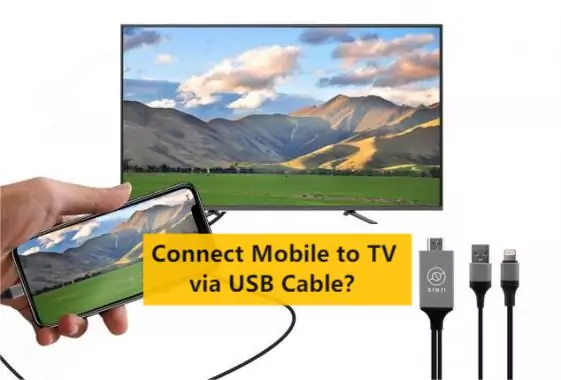
Credit: www.greensafaris.com
Using Hdmi Cables
Connecting your smartphone to your TV using HDMI cables is a straightforward method that promises a seamless viewing experience. Imagine transforming your small screen into a cinematic display, perfect for binge-watching your favorite shows or sharing vacation photos with friends. This process is simple and affordable, making it accessible to everyone who wants to enjoy content on a larger scale without complicated setups.
Selecting The Correct Cable
Choosing the right HDMI cable is crucial for a successful connection. Not all cables are created equal, and the wrong one can lead to frustration and a poor viewing experience.
Start by checking your TV’s HDMI port type. Most modern TVs support standard HDMI, but some might have mini or micro versions. Your smartphone will likely need an adapter, such as HDMI to USB-C or HDMI to Lightning, depending on the model.
Consider the cable length as well. If your TV is mounted high, you’ll need a longer cable to comfortably reach from your phone. A 6-foot cable is usually a safe choice, but measure beforehand to avoid surprises.
Connecting To The Tv
Once you have the correct cable, connecting your smartphone to the TV is a breeze. Plug the HDMI end into the TV’s HDMI port. You’ll find it on the back or side of your TV, labeled clearly for easy identification.
Connect the other end to your smartphone via the adapter. Ensure it’s securely attached to avoid interruptions during viewing. A loose connection can cause flickering or loss of signal.
Switch your TV to the correct HDMI input using the remote control. You might need to cycle through the inputs to find the one your phone is connected to. Once selected, your phone’s display should appear on the TV screen.
Have you ever wondered why some connections are flawless while others struggle? It’s often due to the quality of your HDMI cable or the compatibility of your devices. Make sure your cable supports high-speed data transfer for the best results.
Are there any specific shows or games you’re eager to watch on the big screen? Share your experience in the comments below and let us know how this simple connection enhanced your viewing pleasure!
Connecting Via Usb-c
Connecting your smartphone to your TV can enhance your viewing experience. Using USB-C is a reliable and straightforward method. It allows for high-quality video and audio transmission. Many modern smartphones and TVs support this connection. This makes it easier to enjoy your favorite content on a bigger screen.
Usb-c To Hdmi Adapter
A USB-C to HDMI adapter is a key tool for this connection. It converts the USB-C output from your smartphone into an HDMI signal. This signal can be read by your TV, displaying your smartphone’s content. These adapters are widely available and easy to use.
Steps For Connection
Begin by ensuring your smartphone and TV are powered on. Plug the USB-C end of the adapter into your smartphone. Next, connect the HDMI cable to the adapter. Then plug the other end into your TV’s HDMI port. Select the correct HDMI input on your TV. Your smartphone screen should now appear on the TV.
Credit: money.com
Wireless Streaming With Chromecast
Watching your favorite smartphone content on a bigger screen is a delight. Chromecast makes this possible with ease. It allows wireless streaming from your smartphone to your TV. No cables. No extra gadgets. Just a smooth connection. Learn how to set up and use Chromecast for seamless streaming.
Setting Up Chromecast
First, plug Chromecast into your TV’s HDMI port. Ensure your TV is on. Connect Chromecast to a power source. Use the USB cable provided. Now, switch your TV to the correct HDMI input. You should see the Chromecast setup screen. Download the Google Home app on your smartphone. Open the app and tap ‘Set up device’. Follow the on-screen instructions. Ensure both devices are on the same Wi-Fi network.
Casting From Smartphone
Open the app you want to cast from. Look for the Cast icon. It resembles a small rectangle with lines. Tap on it. Select your Chromecast device from the list. Your smartphone screen will appear on the TV. To stop casting, tap the Cast icon again. Then, select ‘Disconnect’. Enjoy your favorite videos, photos, and apps on a bigger screen.
Using Apple Airplay
Using Apple AirPlay makes connecting your iPhone to your TV simple. This feature allows you to stream content from your Apple devices to your television. It enhances viewing experiences, letting you enjoy videos, photos, and music on a larger screen. Understanding how to use Apple AirPlay can transform your home media setup.
Devices Supporting Airplay
To use AirPlay, you need compatible devices. Most Apple devices support AirPlay. This includes iPhone, iPad, and Mac computers. Your TV also needs to be compatible. Many smart TVs now come with built-in AirPlay support. Brands like Samsung, LG, and Sony offer this feature.
Steps To Connect
First, ensure your Apple device and TV are on the same Wi-Fi network. Open the Control Center on your Apple device. This is done by swiping down from the top-right corner. Find the Screen Mirroring option. Tap it to see a list of available devices.
Select your TV from the list. You may need to enter a code. This code appears on your TV screen for security. Once entered, your device connects. Your screen will now appear on the TV. To stop, simply open the Control Center again. Tap the Screen Mirroring option and select Stop Mirroring.
Miracast For Android Devices
Miracast is a powerful wireless display standard that lets you mirror your Android device’s screen on your TV. Imagine sharing a video or a photo album with friends without huddling over your phone. With Miracast, you can effortlessly project your phone’s display onto a larger screen, making your multimedia experience more enjoyable. Whether you’re streaming a movie or showcasing a presentation, Miracast ensures you have a seamless connection from your Android device to your TV.
Enabling Miracast
First, check if your TV supports Miracast. Many modern TVs have this feature built-in, but it’s always good to confirm. You can usually find this in the settings menu under ‘Screen Share’ or ‘Mirroring’.
Next, ensure your Android device is compatible with Miracast. Most Android phones running version 4.2 or newer support it. Go to ‘Settings’, then ‘Connected devices’, and look for the ‘Cast’ option.
If your TV doesn’t support Miracast, consider getting an external device like a Miracast dongle. It’s a small investment that can transform your viewing experience.
Screen Mirroring Process
Once you’ve ensured compatibility, initiate the screen mirroring process. On your Android, open the ‘Cast’ option and select ‘Enable wireless display’.
Your phone will search for nearby devices. When your TV appears on the list, tap to connect. Sometimes, you might need to enter a PIN displayed on your TV to complete the connection.
Have you ever wondered why your phone’s screen suddenly feels too small when sharing content? Miracast solves this by expanding your view. Once connected, your phone’s display will appear on your TV. You can now enjoy videos, apps, and games on a larger screen.
What are the things you wish you could see on a bigger screen? Think about it—Miracast is like giving your phone a superpower. Whether it’s a family photo slideshow or an epic game, Miracast enhances your viewing experience.
Remember, while Miracast offers great convenience, it’s essential to stay within the range of your TV for a stable connection. Keep this in mind for uninterrupted viewing sessions.
Miracast for Android devices brings your favorite content to life on the big screen. Don’t let your phone’s display limit your experience. Give Miracast a try and see the difference.
Smart Tv Apps And Features
Smart TVs have transformed how we consume digital content. These TVs come with built-in apps and features, offering a seamless experience. Connecting your smartphone to a Smart TV can enhance this experience. You can easily view photos, stream videos, or play games on a larger screen. This section explores the various apps and features available on Smart TVs.
Built-in Streaming Options
Most Smart TVs come with popular streaming apps already installed. Apps like Netflix, YouTube, and Amazon Prime Video are commonly available. You can access these apps directly from the TV’s interface. This eliminates the need for additional devices or cables. Simply connect your TV to Wi-Fi and start streaming. You can also install more apps from the TV’s app store. This gives you access to a wider range of content.
Using Smartphone As Remote
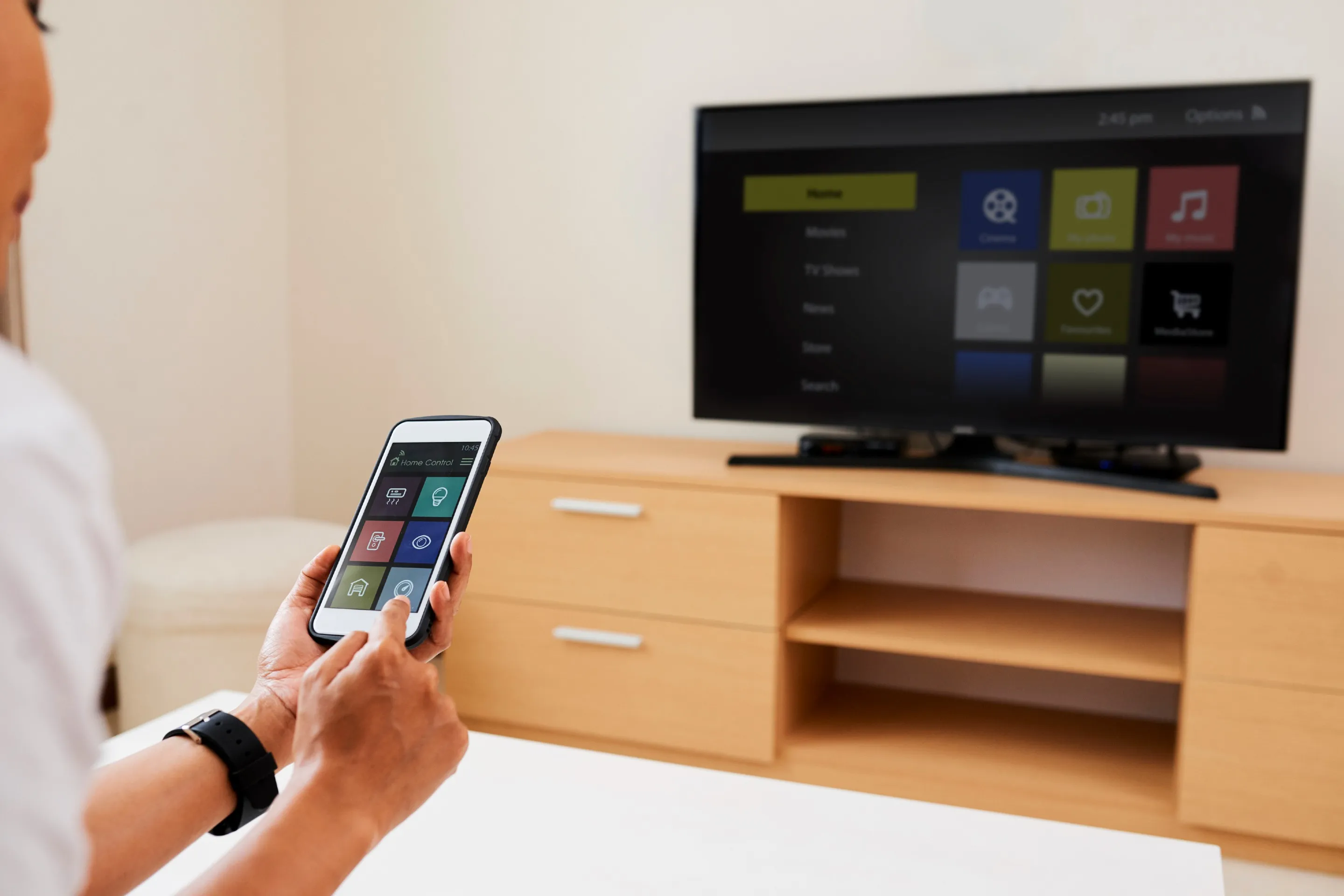
Many Smart TVs allow you to use your smartphone as a remote. This feature offers convenience and ease of use. You can download the TV manufacturer’s app on your phone. Once installed, connect the phone and TV to the same Wi-Fi network. You can then control the TV using your smartphone. Change channels, adjust volume, or browse apps with a tap. This makes it easier to navigate through content.
Troubleshooting Connection Issues
Connecting your smartphone to the TV can sometimes be tricky. Ensure both devices support the same connection method, like HDMI or wireless. Check cables and settings to troubleshoot any issues.
Connecting your smartphone to your TV can seem like a breeze until connection issues arise. Suddenly, the excitement of watching your favorite content on a bigger screen turns into frustration. But don’t worry; we’ve all been there. Overcoming these hurdles is often just a matter of identifying the problem and applying a simple fix. In this section, we’ll explore common problems and quick solutions to get you back on track.Common Problems
You might find that your smartphone doesn’t connect to the TV as expected. This is often due to incompatible devices or outdated software. A weak Wi-Fi connection can also disrupt the process, causing lag or complete disconnection. Sometimes, the issue lies with the cables or adapters. If they’re worn out or not securely connected, they can cause inconsistent performance. Are you using the right connection method? Double-check to ensure you’re following the correct steps.Quick Fixes
Start by restarting both your smartphone and TV. This simple step often resolves minor glitches. Ensure that your devices are updated with the latest software versions; outdated software can lead to compatibility issues. Check your Wi-Fi connection. A stable internet connection is crucial for seamless streaming. If you’re using a wired connection, inspect the cables and adapters for any signs of damage. Try switching to a different HDMI port if you’re using an HDMI connection. Sometimes a port can be faulty, and a quick switch can solve the problem. Are you using a third-party app? Make sure it’s up-to-date and supported by your TV. If none of these solutions work, consider consulting the user manuals for specific instructions related to your devices. When was the last time you reached out for help? Tech support can provide valuable assistance when troubleshooting becomes overwhelming. By following these practical tips, you’ll likely overcome any connection issues and get back to enjoying your smartphone content on your TV.Enhancing Viewing Experience
Connect your smartphone to your TV for a bigger and better viewing experience. Use an HDMI cable, casting device, or wireless app to share your screen. Enjoy your favorite content on a larger display effortlessly.
Hooking your smartphone to your TV can dramatically enhance your viewing experience. It allows you to enjoy your favorite content on a bigger screen, turning an ordinary night into a cinematic experience. But how do you make sure you’re getting the best out of this setup? Let’s dive into some practical tips that can transform your living room into a mini-theater.Optimizing Picture Quality
Enhancing picture quality can make a world of difference. Start by adjusting the resolution settings on both your TV and smartphone. Look for options like 1080p or 4K, depending on your TV’s capability. Next, explore the picture mode settings on your TV. Modes like “Movie” or “Cinema” are often designed to enhance color and contrast for a more lifelike image. Don’t forget about the brightness and contrast settings on your TV. Tweak them to find the perfect balance that suits your viewing environment.Audio Settings And Adjustments
Sound can elevate your viewing experience, making it more immersive. Check if your TV has an option for “Surround Sound” or “Enhanced Audio” to get the most out of your speakers. You might want to use external speakers or a soundbar for superior audio quality. Connecting your smartphone directly to a sound system can also amplify the sound experience. Adjust the volume levels to ensure clarity without distortion. You want to hear every word and sound effect clearly, without needing to crank up the volume excessively. Have you ever found yourself straining to hear dialogue while the background music blares? Adjusting the audio balance can often solve this common issue. With these adjustments, you can transform a simple smartphone-to-TV connection into a full-blown entertainment experience. What other settings have you found useful in enhancing your viewing experience?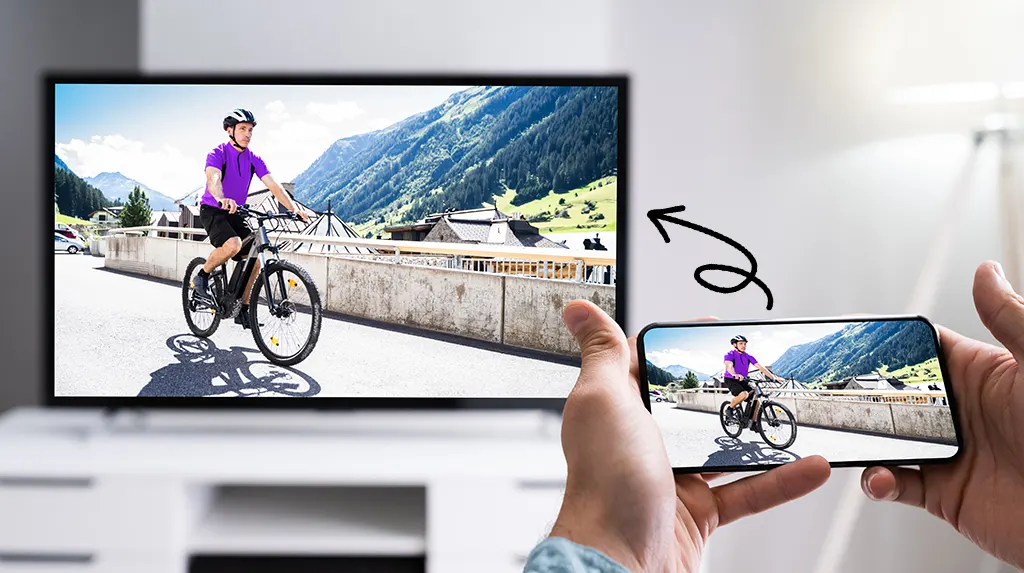
Credit: www.asurion.com
Frequently Asked Questions
How Can I Connect My Phone To A Tv?
To connect your phone to a TV, use a HDMI cable or wireless methods like Chromecast. Ensure both devices are on the same Wi-Fi network for wireless connections. Follow the device-specific instructions for setup. This allows you to mirror your phone’s screen on the TV.
Do I Need An App To Connect My Phone To Tv?
An app might be required for wireless connections like Chromecast or smart TVs. These apps help in screen mirroring and streaming. HDMI connections usually don’t need an app. Check your TV’s compatibility and download the necessary app from your phone’s app store.
Can I Use Bluetooth To Connect Phone To Tv?
Bluetooth is not ideal for screen mirroring. It’s mostly used for audio streaming. For video, use HDMI or Wi-Fi methods like Chromecast. Bluetooth lacks the bandwidth needed for video signals. For effective screen sharing, use Wi-Fi or a wired connection.
Is My Tv Compatible With Phone Connection?
Most modern smart TVs are compatible with phone connections. Check your TV’s manual or settings for screen mirroring options. Older TVs may need adapters. Ensure your TV supports HDMI, Wi-Fi, or Bluetooth. Compatibility depends on your TV’s features and your phone’s capabilities.
Conclusion
Connecting your smartphone to a TV is simple and useful. With clear steps, it becomes easy for everyone. Use cables or wireless methods based on your needs. HDMI cables offer stable connections. Wireless options give more flexibility. Enjoy movies, games, or presentations on a bigger screen.
Follow the steps carefully to avoid issues. Make sure your devices are compatible. Always check for software updates on your smartphone. This ensures smooth operation. Connecting devices enhances your viewing experience. Enjoy your content on a larger display today!