
Affiliate Disclosure: This post may contain affiliate links. If you purchase through links on our site, we may earn an affiliate commission at no extra cost to you.
Have you ever found yourself squinting at your smartphone, trying to make out what’s on the screen? You’re not alone.
Smartphone screen problems are more common than you might think, and they can be incredibly frustrating. Whether it’s a cracked display, unresponsive touch, or mysterious flickering, these issues can turn your beloved device into a source of stress. But don’t worry; this article is here to help you understand what’s causing these problems and how you can fix them.
Ready to reclaim your seamless smartphone experience? Keep reading, because the solutions might be simpler than you expect.
Credit: community.oneplus.com
Common Screen Issues
Smartphone screens are essential for daily tasks. Yet, they face problems. Understanding common screen issues helps users identify and fix them. Many users experience these problems. Let’s explore them.
Unresponsive Touchscreen
An unresponsive touchscreen frustrates users. It hinders basic functions. Often, a software glitch causes it. Restarting the phone might help. If not, a deeper issue may exist.
Screen Flickering
Screen flickering can be distracting. It often signals a hardware issue. Sometimes, a software update solves it. Persistent flickering might require professional help.
Cracked Display
Dropping a phone can lead to a cracked display. It’s common and disruptive. A cracked screen affects touch sensitivity. Repairing it quickly is crucial. Delaying can worsen the problem.
Dead Pixels
Dead pixels are tiny black spots on the screen. They occur when pixels stop working. Dead pixels can be annoying. Some apps claim to fix them. Yet, replacement might be necessary.
Credit: forum.fairphone.com
Quick Fixes For Touchscreen Problems
Smartphone screens can be a source of frustration when they don’t respond as expected. From random touches to complete unresponsiveness, touchscreen problems can hinder your mobile experience. But before you panic, there are quick fixes that might save the day. Let’s dive into some practical solutions that you can try right away. You might find that a simple tweak is all you need to get your screen back to normal.
Restart The Device
It’s incredible how many issues a simple restart can solve. If your touchscreen isn’t responding, start by powering off your smartphone. Wait a few seconds, then turn it back on. This can clear out any temporary glitches that may be affecting your screen. Think of it as giving your phone a fresh start. It’s a straightforward step that often resolves minor issues.
Check For App Issues
Sometimes, the problem isn’t with the screen itself but with a specific app. Have you noticed your touchscreen acting up only when using certain applications? Try closing the app and see if the problem persists. If needed, uninstall and reinstall the app. This can help eliminate bugs or conflicts causing the touchscreen to malfunction.
Calibrate The Touchscreen
Touchscreen calibration can fine-tune your phone’s responsiveness. While most modern smartphones automatically calibrate their screens, manual calibration might be necessary if you’re facing persistent issues. Check your phone settings for touchscreen calibration options. This step ensures your screen accurately registers your touch. You might be surprised at how much difference a little calibration can make.
Remove Screen Protector
Screen protectors are great for safeguarding your screen but can sometimes interfere with touch sensitivity. If you’re facing touchscreen troubles, try removing the screen protector. This will determine if it’s the culprit. You might discover that your phone works perfectly without it. If this solves the issue, consider investing in a thinner or higher-quality protector.
Touchscreen problems can be annoying, but they often have simple solutions. Have you tried these fixes? What other tricks have you discovered to keep your smartphone screen responsive? Don’t let minor issues ruin your smartphone experience—act now and see how these quick fixes can make a difference.
Resolving Screen Flickering
Screen flickering can be an annoying problem, especially when you’re in the middle of a task or enjoying your favorite media. Have you ever found yourself adjusting your phone at odd angles just to get a clear view? Well, you’re not alone. Flickering screens can disrupt your experience and even lead to headaches from straining your eyes. Fortunately, resolving this issue often doesn’t require professional help. You can try a few simple adjustments yourself to bring your screen back to its smooth display.
Adjust Brightness Settings
Did you know that sometimes a flickering screen is simply due to brightness settings? Start by going to your phone’s settings and manually adjust the brightness. Avoid using auto-brightness if your screen starts to flicker. Set it to a level that feels comfortable for your eyes.
Consider reducing the brightness slightly. A bright screen can sometimes lead to flickering, especially in low-light conditions. Experiment with different settings until the flickering stops. Have you found your sweet spot yet?
Disable Hardware Overlays
Hardware overlays are designed to make your device run smoother, but they can sometimes cause screen flickering. To disable them, access the developer options in your settings. If you’re unfamiliar with this, don’t worry.
Simply find “Developer Options” in your settings menu and locate the “Disable hardware overlays” option. This action forces your phone to use software rendering, often resolving flickering issues. Have you tried this simple fix before?
Update Device Software
Keeping your device software updated is crucial. Outdated software can lead to various issues, including screen flickering. Check if there’s a software update available for your phone. Go to settings and navigate to the software update section.
Updating your device can fix bugs and improve performance. It’s a straightforward process that can solve the flickering problem you’re facing. Did you know that many users report reduced screen issues after an update?
Safe Mode Testing
Ever wondered if an app might be causing the flickering? You can test this by using Safe Mode. Boot your phone into Safe Mode to see if the flickering persists. This mode disables third-party apps temporarily.
If the flickering stops, an app is likely the culprit. You can then uninstall recent apps or updates to identify the problem. Have you used Safe Mode to troubleshoot your phone before?
Addressing screen flickering doesn’t have to be a daunting task. With these simple steps, you can often resolve the issue on your own. Next time your screen starts acting up, try these tips and let your smartphone shine without the flickers. Which tip will you try first?
Credit: forum.fairphone.com
Handling A Cracked Screen
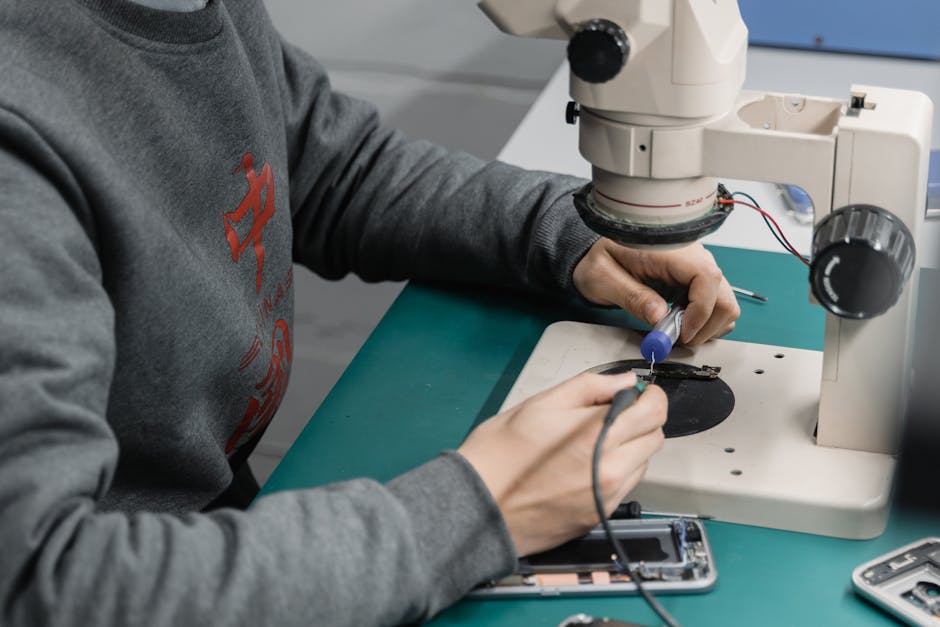
Cracked smartphone screens can disrupt daily life. Quick fixes include using clear tape to prevent further damage. For lasting solutions, professional repair services are recommended.
Handling a cracked screen can be frustrating. Smartphones are essential in daily life. A cracked screen disrupts tasks. It affects the device’s usability. Many options exist to address this issue. Let’s explore practical solutions.
Temporary Solutions
A cracked screen needs quick fixes. Use transparent tape to cover cracks. This prevents further damage. It keeps glass shards in place. A screen protector helps too. It adds an extra layer. It minimizes the risk of injury. These solutions are not permanent. They offer immediate relief.
Diy Repair Kits
DIY repair kits are popular. They provide tools for screen repair. Kits include adhesive, screwdrivers, and instructions. Repairing requires patience and skill. Follow each step carefully. It’s budget-friendly but risky. Incorrect repair can worsen damage. Consider your comfort level before starting.
Professional Repair Services
Professional services offer reliable solutions. Experts handle repairs efficiently. They use specialized equipment. Repairs restore the screen’s functionality. Quality service ensures longevity. It’s more costly than DIY methods. The benefits outweigh the expense. Certified technicians guarantee effective results. Choose a reputable service provider.
Dealing With Dead Pixels
Dead pixels can cause tiny, annoying spots on smartphone screens. These issues disrupt the display, affecting user experience. Fixing dead pixels often involves simple techniques or professional repair.
Dealing with dead pixels on your smartphone screen can be frustrating. You might notice tiny black or white dots that don’t display the correct colors. These pesky dead pixels can disrupt your viewing experience. But don’t worry—there are ways to fix or deal with them. When I first encountered dead pixels, I thought my phone was forever flawed. But I found several solutions that can help revive your screen.
Pixel Fixing Apps
There are apps designed specifically to address dead pixels. These apps work by rapidly flashing colors on the screen to potentially reactivate stuck pixels. Consider using apps like “Dead Pixel Detect and Fix” or “PixelHealer”. They are user-friendly and often free. Just download, follow the instructions, and let the app run its course. Have you tried them before? Results can vary, but it’s a risk-free first step worth trying.
Manual Pressure Method
You might be surprised, but a gentle touch can sometimes work wonders. The manual pressure method involves softly pressing on the dead pixel area. Place a soft cloth over the screen to avoid scratches. Then, apply slight pressure with your finger or a blunt object. Be careful not to press too hard to avoid damage. Have you ever fixed a stubborn button on your remote by pressing it a bit harder? This method operates on a similar principle.
Warranty And Replacement Options
If apps and manual methods don’t work, consider checking your warranty. Most manufacturers cover screen defects, including dead pixels, under their warranty policies. Contact customer support and explain your issue. They might offer a replacement or repair service. It’s crucial to act quickly if your device is still under warranty. Did you know that some brands have specific pixel policies? It’s worth reviewing yours to understand your options better. Dealing with dead pixels doesn’t have to mean living with them. With a bit of effort and the right approach, your screen can be as good as new.
Preventive Measures
Smartphone screens are the gateway to our digital world, and keeping them in top condition is crucial. While screen problems can sometimes be inevitable, taking preventive measures can significantly reduce the risk. By focusing on a few simple habits, you can maintain your phone’s screen and enjoy a smooth experience.
Using Screen Protectors
Screen protectors are your first line of defense. They act as a shield against scratches and minor impacts. Investing in a high-quality protector can save you from costly repairs.
Think about the last time your phone fell off the table. Without a screen protector, even a small fall can cause noticeable damage. Choose a protector that fits your phone model perfectly for optimal protection.
Do you often find yourself wiping fingerprints off your screen? A good protector can also reduce smudges, keeping your screen clean and clear.
Regular Software Updates
Software updates might seem unrelated to screen care, but they play a crucial role. These updates often include enhancements that improve screen responsiveness and functionality.
Have you ever noticed your screen behaving oddly after a missed update? It can cause lag or unresponsiveness. Keeping your software up-to-date ensures your screen performs smoothly.
Don’t underestimate the power of a simple update. It can enhance your screen’s performance and protect against software glitches.
Handling The Device Carefully
Handling your smartphone with care is vital. Accidental drops and bumps are common, but they can be minimized with careful use.
Picture this: you’re juggling your phone and coffee cup, and suddenly the phone slips. Being mindful of how you carry and store your phone can prevent such mishaps.
Consider using a sturdy case that provides grip and cushion. It can help safeguard your phone during those unpredictable moments.
By adopting these measures, you not only protect your screen but also prolong the life of your smartphone. Are there any other habits you think might help? Share your thoughts and experiences in the comments below!
Frequently Asked Questions
Why Is My Smartphone Screen Flickering?
Screen flickering often occurs due to software glitches or hardware issues. Restart your phone to resolve temporary software glitches. If flickering persists, check for app updates or system updates. Hardware issues might require professional repair.
How To Fix A Cracked Phone Screen?
A cracked screen needs professional repair or replacement. Temporary fixes like screen protectors can prevent further damage. Contact a certified technician for permanent solutions. DIY repairs are risky and might void warranties.
Why Is My Phone Screen Unresponsive?
Unresponsive screens can result from software bugs or physical damage. Restart your device to resolve software issues. If the problem continues, check for screen damage or contact technical support for assistance.
What Causes Screen Discoloration?
Screen discoloration may stem from pixel damage or software issues. Restart your device and update software to resolve temporary problems. Persistent discoloration indicates hardware damage requiring professional assessment.
Conclusion
Dealing with smartphone screen problems can be frustrating. Often, simple solutions exist. Regular cleaning keeps screens clear. Updating software can fix glitches. Protective cases prevent damage from drops. Screen protectors guard against scratches. If problems persist, professional help might be necessary.
Remember, a healthy screen enhances your phone experience. Understanding common issues helps avoid unnecessary stress. Try these tips to keep your screen in top shape. Always prioritize screen care to extend phone life. Stay informed, and enjoy smoother smartphone interactions.
Your screen deserves attention for optimal performance. Keep it clean and functional.











