
Affiliate Disclosure: This post may contain affiliate links. If you purchase through links on our site, we may earn an affiliate commission at no extra cost to you.
Are you tired of your desktop computer lagging behind, making even simple tasks feel like a marathon? Upgrading your desktop computer might be the solution you need.
Imagine breezing through your daily tasks without the frustration of slow load times or freezing screens. We’ll guide you through the steps to breathe new life into your computer, boosting its performance and extending its lifespan. You don’t need to be a tech expert to transform your machine into a powerhouse.
We’ll show you how easy and rewarding the process can be. Ready to unlock your computer’s potential and enhance your digital experience? Keep reading to discover how.
Assess Current Performance
Before upgrading your desktop computer, understand its current performance. This ensures any changes you make are effective and necessary. Knowing where your system lags helps you target the right components for an upgrade. A well-performing computer enhances productivity and user experience. Let’s dive into assessing your desktop’s performance.
Identify Bottlenecks
Bottlenecks slow down your computer’s overall performance. They often occur in the CPU, RAM, or hard drive. Check which part of your system struggles under heavy tasks. Common signs include slow load times or frequent crashes. Use performance monitoring tools to pinpoint these bottlenecks. Addressing them first can lead to noticeable improvements.
Check System Specifications
Understanding your system’s specifications helps in planning upgrades. Find out what components your computer currently has. Look at the processor speed, RAM size, and storage type. This information is usually found in the system settings. Knowing these details helps you decide which upgrades are possible. It also ensures compatibility with new hardware.
Enhance Ram Capacity
Boosting your computer’s performance often starts with RAM. More RAM can make your desktop smoother. It helps in running programs faster. Upgrading RAM is a simple way to enhance speed. This section guides you through upgrading your computer’s RAM.
Determine Required Ram
First, check your current RAM. Your computer settings show this info. Decide the amount of RAM needed. Most tasks need 8GB or more. Heavy tasks may need 16GB or higher. Consider your daily computer use.
Research your motherboard’s RAM capacity. This ensures compatibility. Not all computers support the same RAM amount. Check if your system supports DDR4 or DDR3. This affects the type of RAM you buy.
Install Additional Memory
Turn off your computer. Unplug it from power sources. Open your computer case. Locate the RAM slots. Remove old RAM if necessary. Carefully insert new RAM modules. Ensure they fit well and click into place.
Close the computer case. Plug everything back in. Turn on your computer. Check if the new RAM is recognized. Your system settings should show the upgraded RAM amount. Enjoy the faster performance.
Upgrade To Ssd
Boost desktop computer speed with an SSD upgrade. Enjoy faster boot times and quicker file access. Enhance your system’s performance effortlessly.
Upgrading your desktop computer with a Solid State Drive (SSD) is a game changer. An SSD can breathe new life into your system, making it faster and more efficient. Imagine booting up your computer in seconds, or launching applications with lightning speed. This upgrade not only enhances performance but also improves your overall computing experience. Let’s delve into the essential steps to ensure a smooth upgrade.
Choose The Right Ssd
Selecting the right SSD for your desktop is crucial. Consider your storage needs—do you require a 256GB or a 1TB SSD? Check compatibility with your motherboard. Is it SATA or NVMe? Research brands and read reviews. You need reliability and speed.
Migrate Data Effectively
Transferring your data can be daunting, but it’s manageable with the right approach. Backup your files first. Use an external drive or cloud storage to secure your data. Use migration software to clone your existing drive. Many SSDs come with this software included. Once your data is safely migrated, verify that everything is intact. Are your files accessible? Is your operating system functioning correctly? Upgrading to an SSD can be an exciting venture, but careful planning ensures success. Are you ready to experience the speed and efficiency of your new setup?
Improve Graphics Performance
Boosting your desktop’s graphics performance makes a big difference. Whether you enjoy gaming or design work, better graphics enhance your experience. Improved visuals deliver smoother gameplay and sharper images. Let’s explore some ways to achieve this improvement.
Select A New Graphics Card
Choosing a new graphics card can greatly enhance performance. Check the compatibility with your system first. Consider your budget and usage needs. High-end cards offer excellent performance for gaming and design. For light tasks, mid-range cards are often sufficient.
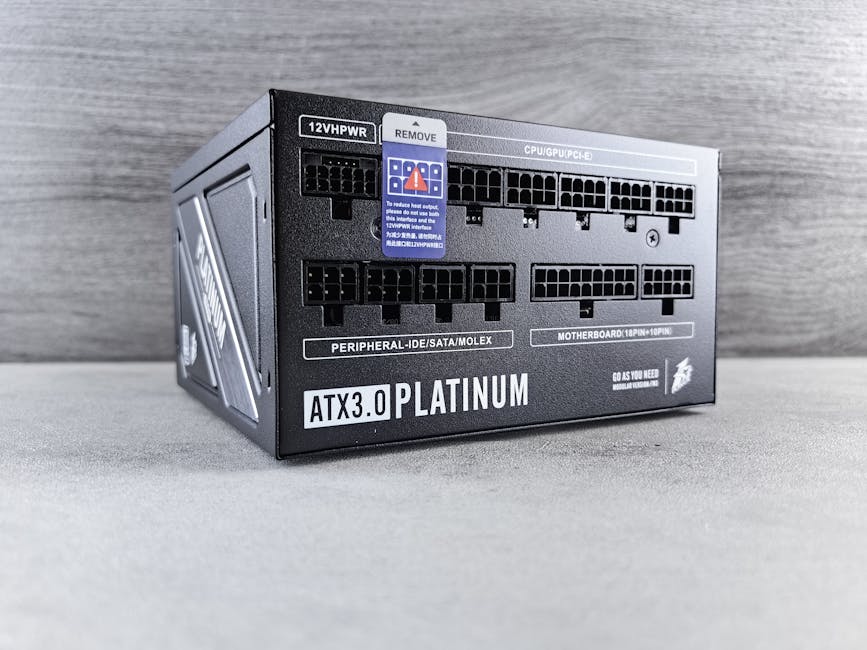
Research popular models and read reviews. Look for cards that offer good performance and reliability. Remember, a powerful graphics card needs a suitable power supply. Ensure your desktop can handle the upgrade.
Optimize Graphics Settings
Adjusting your graphics settings can also boost performance. Lowering resolution may help achieve smoother gameplay. Reduce shadows and texture details for improved speed. Check the settings in the game or application you’re using.
Use software tools to optimize settings automatically. Many graphics cards come with tools to adjust settings for you. Experiment with different configurations to find the best balance. This way, you can enjoy better performance without new hardware.
Boost Processor Power
Upgrading your desktop computer’s processor can improve speed and performance. A powerful processor makes tasks run faster and smoother. With a better processor, you can handle more programs at once. This upgrade can also enhance gaming and media editing experiences.
Choosing the right processor is crucial. It determines how fast your computer performs tasks. Consider your needs and budget before making a decision. Below, we explore important factors to consider.
Evaluate Cpu Options
Start by looking at different CPU models. Compare their speeds and cores. A higher clock speed means faster processing. More cores allow for multitasking. Check compatibility with your motherboard. Not all CPUs fit every system. Ensure the new processor matches your existing setup.
Consider Cooling Solutions
Upgraded processors generate more heat. This requires effective cooling solutions. A good cooling system protects your processor. It prevents overheating and ensures smooth operation. Look into air or liquid cooling options. Choose a solution that fits your case and needs.
Regular maintenance of cooling systems is vital. Clean dust and check fan performance regularly. This helps maintain optimal temperature and prolongs the processor’s life.
Update Operating System
Updating your desktop computer’s operating system is one of the most crucial steps in keeping your machine running smoothly and efficiently. A new operating system can breathe fresh life into your computer, offering enhanced security, improved functionality, and access to the latest features. But how do you ensure you’re getting the most out of this update? Let’s explore some key areas to focus on as you upgrade.
Install Latest Updates
Have you ever found yourself frustrated by slow performance and frequent errors? Installing the latest updates can be a game-changer. Operating system updates are not just about new features; they also include essential security patches and bug fixes.
Remember the time when your computer was sluggish and prone to crashes? That might have been due to outdated software. Make it a habit to check for updates regularly. Enable automatic updates if possible, so you’re always protected against vulnerabilities.
Imagine the peace of mind knowing your system is up-to-date with the latest defenses against malware and viruses. The next time you see an update notification, don’t postpone it. Your computer will thank you for it.
Utilize Performance Features
Have you ever wondered why your computer doesn’t perform as well as it should? Utilizing built-in performance features can help. Modern operating systems come equipped with tools to optimize speed and efficiency.
Think of features like task managers, disk cleanup utilities, and memory management tools. These can help streamline operations and free up resources. Experiment with them to discover what works best for your needs.
Did you know tweaking power settings can improve your computer’s performance? Many operating systems offer power-saving modes that can extend battery life on laptops while enhancing speed when plugged in. Explore these options to tailor your system’s performance to your lifestyle.
Updating your operating system and embracing its features can significantly enhance your computing experience. What other performance features are you excited to explore on your desktop? Share your thoughts below!
Enhance Software Efficiency
Enhancing software efficiency can be a game-changer for your desktop computer’s performance. Imagine your computer running smoothly, without the sluggishness that often makes simple tasks frustrating. By focusing on software, you can make significant improvements without spending a lot of money. Let’s explore simple steps to streamline your computer’s software, making it quicker and more efficient.
Remove Unnecessary Programs
Take a moment to look at the programs installed on your computer. Do you really use all of them? Unused software can take up valuable space and slow down your system. Removing these programs can free up resources, allowing your computer to focus on what you truly need.
Think about that old game you haven’t played in years or the trial software you never purchased. Deleting them is easy. Go to your Control Panel, find the ‘Uninstall a Program’ feature, and start cleaning up. You’ll be surprised at how much faster your computer can be with fewer distractions.
Optimize Startup Processes
Ever wondered why your computer takes forever to start up? It might be because too many programs are set to launch at startup. These processes can eat up memory before you’ve even opened a single file.
To optimize, access your Task Manager and click on the ‘Startup’ tab. Here, you can disable programs that you don’t need to launch every time you start your computer. Prioritize essential programs and keep others off, allowing your computer to boot up faster and more efficiently.
How much time do you lose waiting for your computer to start? Think about the benefits of a quicker startup. You can jump straight into work, play, or whatever you need to do, without unnecessary delays.
By removing unnecessary programs and optimizing startup processes, you’re taking control of your computer’s performance. These steps are not just about convenience; they are about maximizing the potential of your existing setup. Why not give it a try? Your computer might surprise you with its newfound speed and efficiency.
Regular Maintenance
Regular maintenance keeps a desktop computer running smoothly. Upgrading components like RAM and SSD boosts performance and extends lifespan. Clean hardware and update software to prevent issues.
Upgrading your desktop computer is an exciting journey, but regular maintenance is key to keeping your system running smoothly over time. You wouldn’t buy a car and skip oil changes, right? Similarly, your computer needs consistent attention to extend its lifespan and enhance performance. Let’s dive into some essential maintenance tasks that you should incorporate into your routine.
Clean Hardware Components
Dust and debris can silently wreak havoc on your computer’s hardware. A few months back, I noticed my desktop was running unusually hot. Opening the case, I discovered layers of dust choking my CPU fan. After a quick clean-up, my system ran cooler and quieter. Use a can of compressed air to blow out the dust from fans, vents, and other components. Make sure to turn off and unplug your computer before cleaning. A simple task like this can prevent overheating and improve efficiency.
Schedule System Checkups
Just like regular doctor visits keep you in check, scheduling system checkups can identify software issues early. You can use built-in tools or third-party software to scan for malware, update drivers, and optimize your system. Set a monthly reminder to run a full system checkup. During this time, uninstall unused programs and delete temporary files. This simple routine can free up disk space and boost your computer’s speed. Do you often find yourself frustrated with a slow computer? Regular maintenance can transform this annoyance into a thing of the past. By paying attention to both hardware and software, you’ll keep your desktop computer in top shape for years to come. So, what are you waiting for? Start your maintenance routine today and experience the difference!
Frequently Asked Questions
How To Upgrade My Desktop Computer?
Upgrading your desktop involves improving components like RAM, CPU, or storage. Start by identifying bottlenecks in performance. Choose compatible components for your system and ensure proper installation. Consult your computer’s manual and check for compatibility online before purchasing parts.
Which Parts Can I Upgrade In My Pc?
You can upgrade RAM, CPU, storage, GPU, and cooling systems. Assess your current system to determine which components need an upgrade. Compatibility with your motherboard is crucial. Upgrading these components can enhance performance and extend the lifespan of your computer.
Do I Need Tools To Upgrade My Desktop?
Yes, you need basic tools like a screwdriver set. Ensure you have anti-static wrist straps to prevent damage. Most upgrades require simple tools. Always work on a clean, static-free surface. Check component requirements to see if additional tools are needed.
Is Upgrading My Desktop Cost-effective?
Upgrading your desktop is usually cost-effective compared to buying a new one. It allows you to enhance performance tailored to your needs. Prioritize components that offer the most significant performance boost. This approach can save money while meeting your computing requirements.
Conclusion
Upgrading your desktop offers many benefits. Faster performance. Better storage. Enhanced graphics. It’s a smart investment for everyday tasks. Gaming becomes smoother. Projects run seamlessly. Your computer feels new again. The process isn’t difficult. Basic tools and patience are enough.
Research your options carefully. Choose upgrades that fit your needs. Compatibility matters. Ensure parts match your system. Follow installation guides closely. Seek help if needed. Online forums can be helpful. Enjoy the improved experience. A little effort brings big rewards.
Your upgraded desktop will serve you well. Keep exploring tech possibilities. Stay updated. Your computer journey continues.











