

Imagine sitting at your desk, seamlessly connected to the world without a single cable in sight. That’s the magic of having WiFi on your desktop computer.
You probably already enjoy the convenience of wireless internet on your smartphone or laptop, but did you know you can have the same freedom on your desktop setup? Whether you’re working from home, gaming, or streaming your favorite shows, the absence of tangled wires can transform your experience.
Are you ready to discover how this simple upgrade can enhance your productivity and declutter your space? Dive into the world of wireless connectivity for desktops and explore the benefits, setup tips, and what you need to get started. Don’t miss out on unlocking the full potential of your desktop computer!
Benefits Of Wifi On Desktops
Desktop computers have long been tethered by cables. But with WiFi, they gain new freedom. WiFi on desktops brings several advantages that enhance user experience. It removes clutter and increases flexibility.
Convenient And Clutter-free Setup
Wires create messes and limit placement options. WiFi eliminates the need for cables. This makes the workspace cleaner and more organized. Users can place their desktops anywhere within the WiFi range.
Enhanced Mobility
WiFi allows desktops to be moved easily. Users can relocate their devices without worrying about network cables. Whether in a home or office, this flexibility is valuable.
Easy Network Sharing
WiFi simplifies network sharing. Desktops can connect with other devices wirelessly. Sharing files and printers becomes straightforward. This is beneficial for both work and play.
Cost Efficiency
WiFi can reduce costs. There’s no need for expensive cabling. Installation is simpler and often cheaper. This makes WiFi a budget-friendly choice for many.
Compatibility With Modern Technology
Many modern devices use WiFi. Desktops with WiFi can connect seamlessly with these devices. This compatibility ensures users can access the latest technology. It keeps desktops relevant in a wireless world.
Reliable Internet Access
WiFi technology has improved significantly. Modern WiFi offers fast and reliable connections. Desktops can enjoy stable internet access without wires. This is essential for both work and entertainment.
Choosing The Right Wifi Adapter
Selecting the right WiFi adapter can greatly enhance internet speed and connectivity for desktop computers. Consider compatibility, speed, and range to ensure a seamless online experience. Reliable WiFi connections can transform daily tasks and gaming sessions into smooth, efficient activities.
Choosing the right Wifi adapter for your desktop computer is crucial. It ensures a stable and fast internet connection. With various options available, it’s essential to understand the differences. This guide will help you make an informed choice.Usb Vs. Pcie Adapters
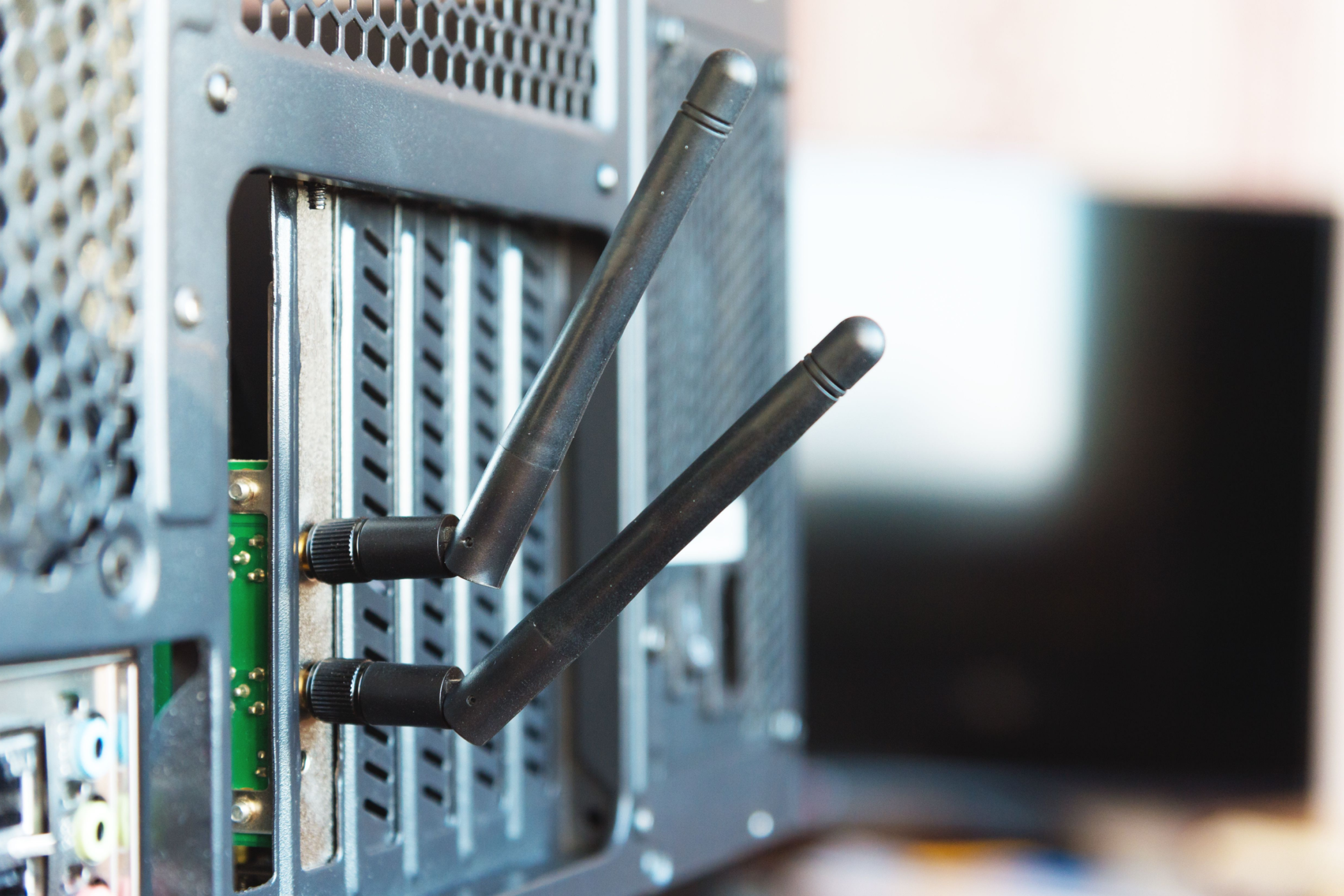
USB adapters are easy to install. They plug into a USB port. Ideal for quick setups. They are portable and can be used with other devices. PCIe adapters require installation inside the computer. They often provide better performance. Ideal for gaming or streaming. Consider your space and needs when choosing between these types.Key Features To Consider
Focus on compatibility. Ensure the adapter works with your operating system. Check the speed. Faster speeds mean smoother internet browsing. Look at the range. A strong signal is vital if your router is far away. Consider security features. WPA2 encryption is a must for safe browsing. Evaluate the cost. Balance your budget with the features you need.Installation Process
Setting up WiFi on your desktop computer can open up a world of convenience and connectivity. No more tangled cables or restrictive spots for your setup. With a wireless connection, you can enjoy freedom and flexibility in your workspace. However, the installation process might seem daunting if you’re unfamiliar with it. But fear not—it’s simpler than you might think! Let’s dive into the nitty-gritty of installing WiFi on your desktop.
Step-by-step Guide
To begin, you’ll need a WiFi adapter compatible with your desktop. These adapters can be USB dongles or PCI cards. Choose one that suits your setup.
Once you have the adapter, plug it into your desktop. If it’s a USB dongle, use any available USB port. For PCI cards, you’ll need to open your desktop case and install it on an available PCI slot.
Next, install the necessary drivers. Often, these come with the adapter on a CD or can be downloaded from the manufacturer’s website. Follow the installation prompts.
After installing the drivers, connect to your WiFi network. You’ll find this option in the network settings on your desktop. Enter your WiFi password, and you should be good to go!
Common Installation Issues
Sometimes, the adapter may not be recognized immediately. This can happen if the drivers are not properly installed. Double-check the installation and consider restarting your computer.
Another issue could be weak WiFi signals. If you notice poor connectivity, try relocating your desktop or the router for a stronger signal.
If the connection drops frequently, it might be a compatibility issue. Ensure your adapter is compatible with your operating system.
Have you ever thought about upgrading your router for better coverage? It might be worth considering if you face persistent connection problems.
Installing WiFi on your desktop can seem tricky, but with a clear guide and troubleshooting tips, you’re equipped to handle any hiccups. Remember, a reliable connection can transform your digital experience, making every online task smoother and more enjoyable.
Credit: www.howtogeek.com
Optimizing Wifi Performance
Optimizing Wifi performance on desktop computers can improve your internet experience. A stable connection is crucial for work, gaming, and streaming. Many factors can affect Wifi speed and stability. By adjusting a few settings, you can enjoy smoother browsing.
Positioning Your Desktop
The position of your desktop matters. Place it in an open area. Avoid corners or enclosed spaces. Wifi signals travel better without obstacles. Keep your desktop at a reasonable height. This helps in receiving stronger signals from the router. A clear line of sight between the router and your desktop is ideal.
Reducing Interference
Electronic devices can interfere with Wifi signals. Keep your desktop away from microwaves and cordless phones. These devices use similar frequencies. Walls and large metal objects can also block signals. Minimizing these can enhance your Wifi performance. Use a dual-band router to switch frequencies if interference persists.
Troubleshooting Connectivity
Wireless connectivity is vital for desktop computers. Yet, issues often arise. Troubleshooting WiFi connectivity can seem daunting. But with a little guidance, it becomes straightforward. This section explores common problems and effective solutions.
Identifying Common Problems
Desktop computers may face frequent WiFi issues. Signal interference is a typical culprit. Nearby devices can disrupt the connection. Another common problem is outdated network drivers. They might not support newer WiFi protocols. Incorrect settings can also cause trouble. Misconfigured network settings lead to connection failures.
Effective Solutions
Start by checking signal strength. Move the router closer for better reception. Ensure there are no large obstacles in the way. Update network drivers regularly. Visit the manufacturer’s website for the latest versions. Reconfigure network settings if necessary. Use automatic configurations to ensure accuracy. Restart your computer to refresh connections. This simple step often resolves minor glitches.

Credit: www.amazon.com
Security Considerations
As desktop computers increasingly join the wireless revolution, it’s crucial to prioritize security when connecting your PC to WiFi. While the convenience of wireless internet is undeniable, it can also open doors to potential threats. Let’s dive into how you can safeguard your connection and protect your personal data.
Securing Your Connection
Have you ever wondered if your WiFi connection is as secure as it could be? Many people overlook this crucial aspect when setting up their desktops. Ensure your WiFi router’s firmware is up-to-date. Outdated firmware can be a gateway for hackers.
Consider using a strong, unique password for your network. Avoid common passwords like ‘123456’ or ‘password’. A mix of letters, numbers, and symbols makes it hard for intruders to guess.
Enable WPA3 encryption on your router if available. It’s the latest standard in WiFi security, providing stronger protection than its predecessors. You wouldn’t leave your front door unlocked, so why leave your network vulnerable?
Protecting Personal Data
Your desktop houses a treasure trove of personal information. How do you ensure it stays safe? Always keep your operating system updated. Updates often include security patches that protect against new threats.
Install a reliable antivirus program. It acts as a shield against malware that can steal your data. Regularly scan your computer for threats.
Be cautious about the websites you visit. Not all sites are created equal; some are designed to phish for your information. Check for secure connections marked by “https” in the URL before entering sensitive data.
What steps will you take to enhance your desktop’s WiFi security? By addressing these considerations, you can surf the web with peace of mind, knowing your connection and personal data are secure.
Future Trends In Desktop Wifi
Desktop computers will soon feature faster and more reliable Wifi connections. Advances in technology will improve streaming and online gaming. Enhanced security features will protect user data, making Wifi on desktops safer than ever.
As technology gallops forward, the world of desktop Wifi is also evolving. Gone are the days when a desktop was tethered to the router by cables. The future is wireless, and it’s bringing new opportunities and challenges. You may wonder how this evolution impacts your everyday desktop use and what new technologies are on the horizon. Buckle up as we delve into the captivating future trends of Wifi on desktop computers.Emerging Technologies
New technologies are reshaping the landscape of desktop Wifi. Wi-Fi 6 and Wi-Fi 6E are setting new benchmarks with faster speeds, greater capacity, and lower latency. If you love gaming or streaming high-definition videos, you’ll appreciate these improvements. They ensure a smoother experience even when multiple devices are connected. Imagine downloading a hefty software update in just seconds. This is not a far-off dream but a reality with these emerging technologies. You might already be using some of these features without even realizing it. 5G technology is also making its way into home networks. This means faster connectivity without the need for fiber cables. It’s revolutionary for those living in remote areas where high-speed internet is a luxury.Impact On Desktop Usage
How will these advancements change the way you use your desktop? One of the most significant impacts is the flexibility it offers. You can place your desktop anywhere in your home without worrying about cable length. It also means fewer cables cluttering your workspace. A tidier desk could lead to a more organized mind, boosting productivity. Have you noticed how a clean environment can improve your focus? Moreover, advancements in desktop Wifi enhance remote work capabilities. With a stable connection, you can attend video conferences or collaborate online without a hitch. This is a game-changer in today’s work-from-home culture. As more homes become smart, the need for robust desktop Wifi will grow. Your desktop could become the command center for controlling smart devices. Are you ready to embrace this future where your desktop becomes the hub of your digital life?
Credit: www.youtube.com
Frequently Asked Questions
How To Enable Wifi On Desktop Computers?
Most desktop computers require a WiFi adapter to connect wirelessly. Install the adapter, then access the network settings. Select the desired WiFi network and enter the password. Ensure your computer’s drivers are updated for optimal performance. Some desktops come with built-in WiFi, making the process easier.
Can Desktop Pcs Connect To Wifi Networks?
Yes, desktop PCs can connect to WiFi networks. They require a WiFi adapter, either internal or external. Once installed, users can access WiFi networks similarly to laptops. Ensure the adapter is compatible with your operating system. This allows seamless internet access without the need for ethernet cables.
Which Wifi Adapter Is Best For Desktops?
Choosing a WiFi adapter depends on your needs. USB adapters are portable and easy to install. PCIe cards offer better performance for gaming and streaming. Consider your internet speed and compatibility with your computer. Check reviews to find reliable brands with good customer support.
Do Desktops Have Built-in Wifi Capabilities?
Some modern desktops come with built-in WiFi capabilities. Check your computer’s specifications to confirm. If not, you can add a WiFi adapter. This ensures easy access to wireless networks. Built-in WiFi offers convenience but may not be as fast as dedicated adapters.
Conclusion
Desktop computers can connect to WiFi with ease. This boosts your workspace flexibility. No more cables everywhere. Wireless internet simplifies your setup. You can move your desktop freely. Enjoy browsing without restrictions. WiFi adapters make this possible. They are affordable and easy to install.
Choose the right adapter for your needs. Check compatibility with your desktop. Ensure it fits your budget. Installing one enhances your internet experience. A wireless connection is convenient. It is efficient and tidy. Consider adding WiFi to your desktop. It offers freedom and convenience.
Explore online without limits.



